> ## Documentation Index
> Fetch the complete documentation index at: https://docs.raehost.com/llms.txt
> Use this file to discover all available pages before exploring further.

# Cara Ganti Seed

> Disarankan untuk melakukan backup terlebih dahulu

## Java Edition

<Steps>
  <Step title="Login ke Panel">
    Untuk melakukan ini, kamu perlu login ke panel melalui [https://panel.raehost.com/](https://panel.raehost.com/) Kemudian pilih servermu.

    <Frame>
      <img src="https://mintcdn.com/raehost/DuBe5lfPUkfPDGjK/images/image-57.png?fit=max&auto=format&n=DuBe5lfPUkfPDGjK&q=85&s=eed2c050c696e585064045b093ba55d9" alt="Image" title="Image" className="mx-auto" width="1900" height="570" data-path="images/image-57.png" />
    </Frame>
  </Step>

  <Step title="Stop Server">
    Klik tombol `Stop` seperti yang ditampilkan oleh nomor 1. Jika sudah di stop, maka server akan `offline` seperti yang ditampilkan oleh nomor 2.

    <Frame>
      <img src="https://mintcdn.com/raehost/TN8wBDtEi5p7jbSx/images/image-86.png?fit=max&auto=format&n=TN8wBDtEi5p7jbSx&q=85&s=fe658f0c6ff9d4a72fc8072abb0e4052" alt="Image" width="1581" height="877" data-path="images/image-86.png" />
    </Frame>
  </Step>

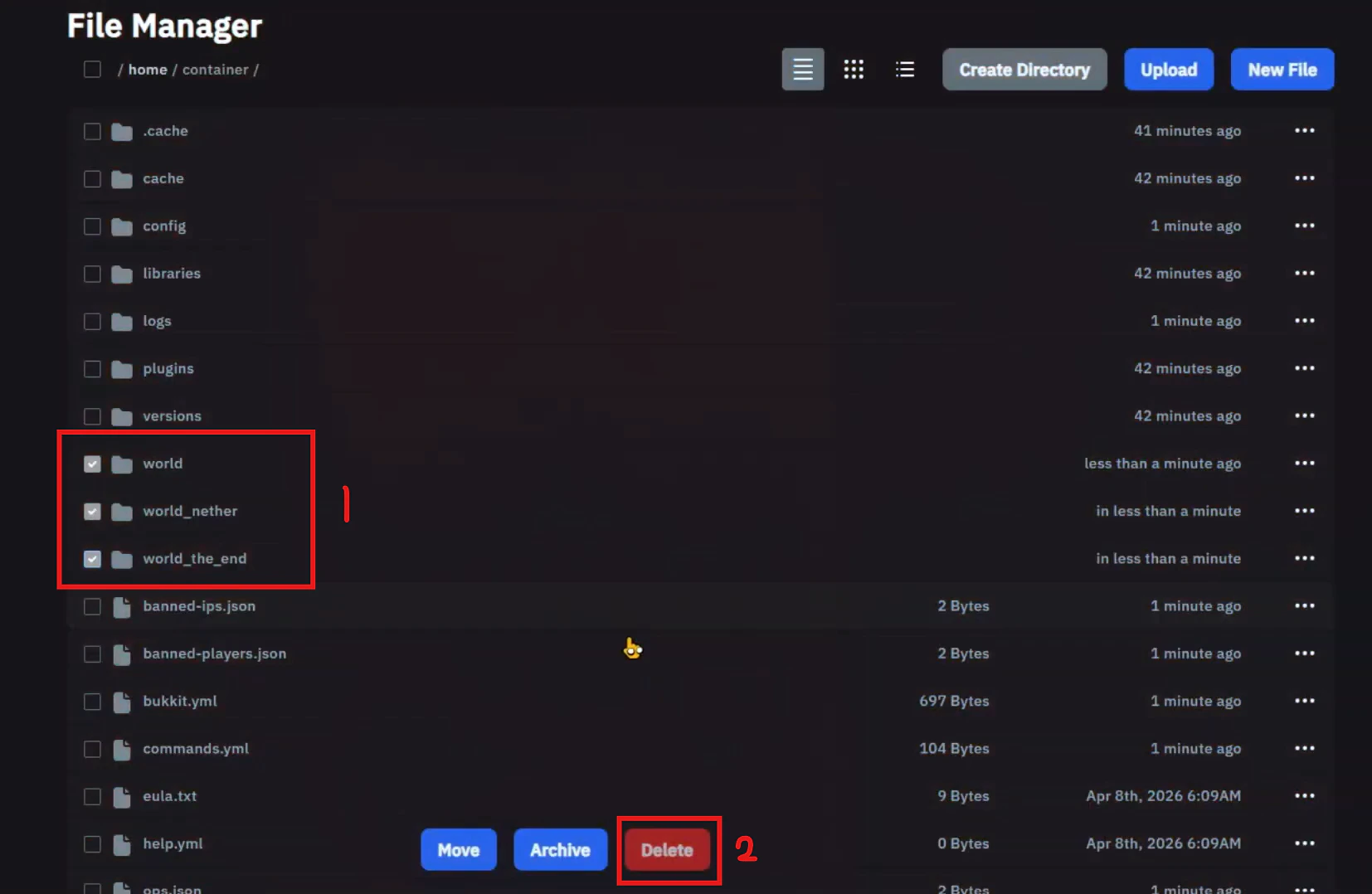
  <Step title="Hapus File World">
    Masuk ke tab `Files` kemudian hapus file berikut

    <Frame>
      <img src="https://mintcdn.com/raehost/VM4682e-YP0WLrOv/images/hapus-world-java.png?fit=max&auto=format&n=VM4682e-YP0WLrOv&q=85&s=0260cf7473cb763bc58472cec1e7101e" alt="Hapus World Java" width="1654" height="1078" data-path="images/hapus-world-java.png" />
    </Frame>

    1. Hapus file `world`, `world_nether`, dan `world_the_end `
    2. Klik tombol `Delete`

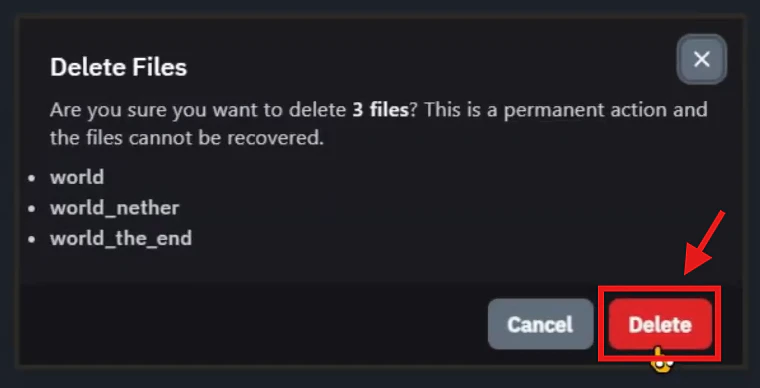
    Akan muncul informasi dan klik tombol `Delete` seperti gambaar berikut:

    <Frame>
      <img src="https://mintcdn.com/raehost/VM4682e-YP0WLrOv/images/delete-world-java.png?fit=max&auto=format&n=VM4682e-YP0WLrOv&q=85&s=c4e41a11b7f0f59ed4db2deabb8696e1" alt="Delete World Java" title="Delete World Java" className="mx-auto" style={{ width:"93%" }} width="760" height="388" data-path="images/delete-world-java.png" />
    </Frame>
  </Step>

  <Step title="Ubah Seed">
    Terdapat 2 cara untuk merubah seed pada RaeHost. Kedua cara ini sama aja. Silahkan pilih salah satu:

    ### Melalui file `server.properties`

    <Steps>
      <Step title="Masuk ke tab Files">
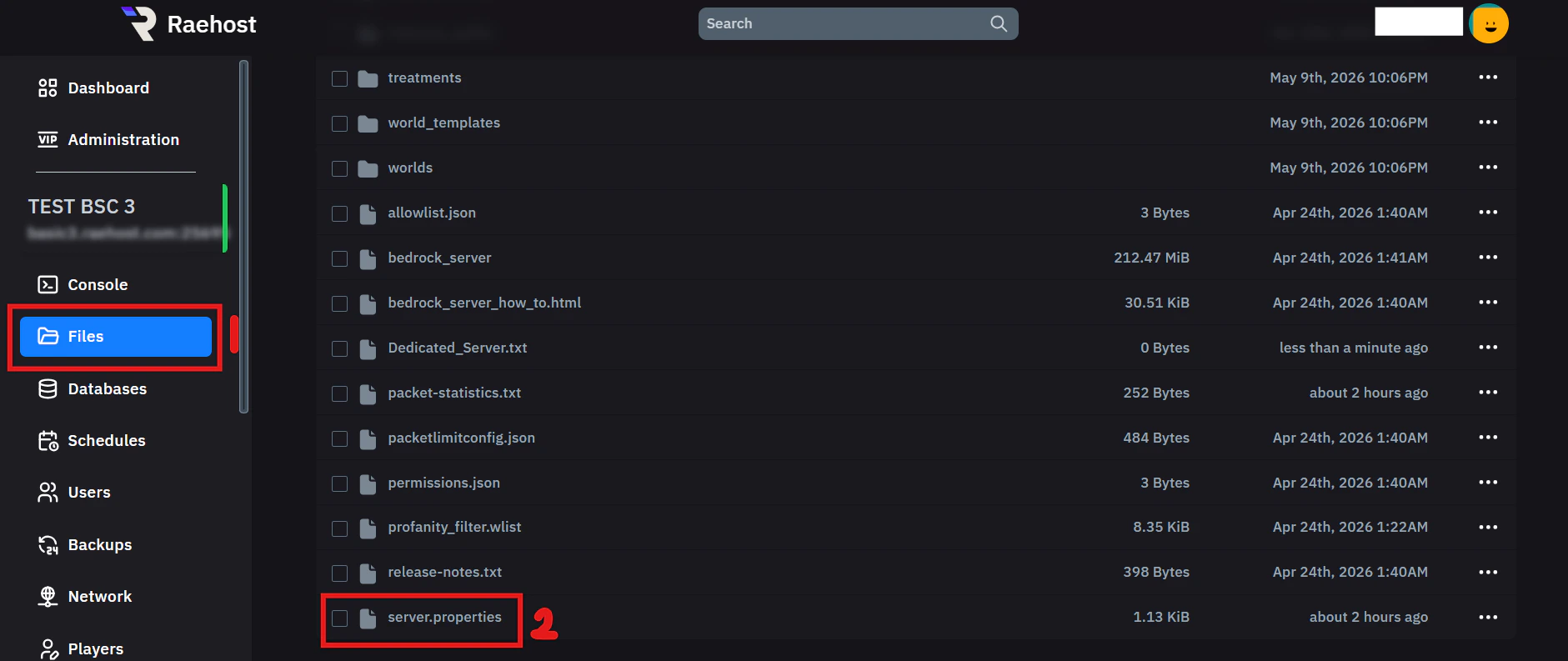
        Masuk ke tab `Files`seperti yang ditampilkan pada nomor 1. Kemudian cari file server.properties seperti yang ditampilkan pada nomor 2.

        <Frame>
          <img src="https://mintcdn.com/raehost/DuBe5lfPUkfPDGjK/images/image-62.png?fit=max&auto=format&n=DuBe5lfPUkfPDGjK&q=85&s=a76fe47573a2dde239e14b40669b3fe5" alt="Image" width="1881" height="793" data-path="images/image-62.png" />
        </Frame>
      </Step>

      <Step title="Isi seed ">
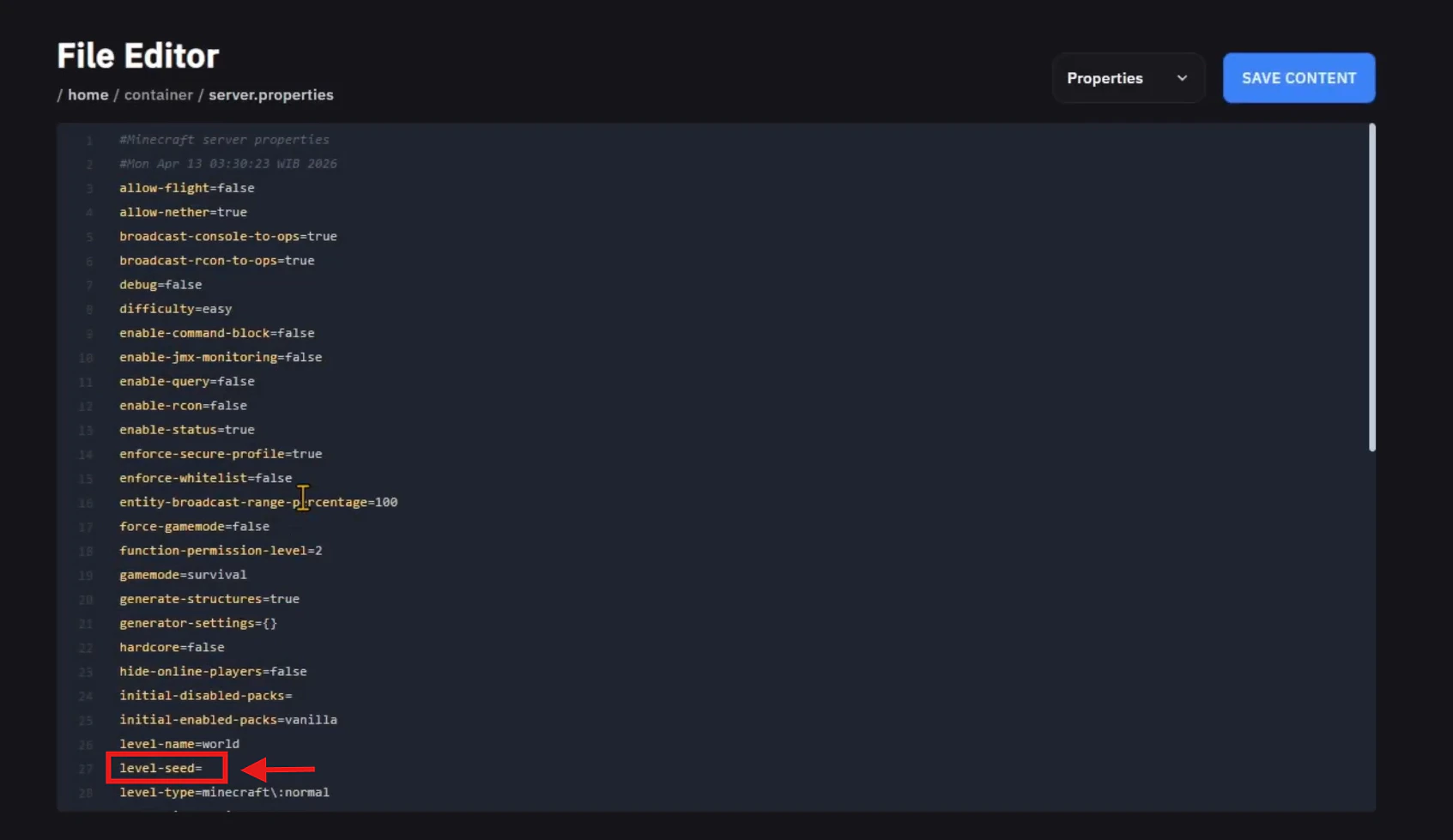
        Cari baris `level-seed` seperti berikut:

        <Frame>
          <img src="https://mintcdn.com/raehost/VM4682e-YP0WLrOv/images/empty-level-seed.png?fit=max&auto=format&n=VM4682e-YP0WLrOv&q=85&s=2d24f11582a7cbe8b38e7168ef54adff" alt="Empty Level Seed" width="1693" height="979" data-path="images/empty-level-seed.png" />
        </Frame>

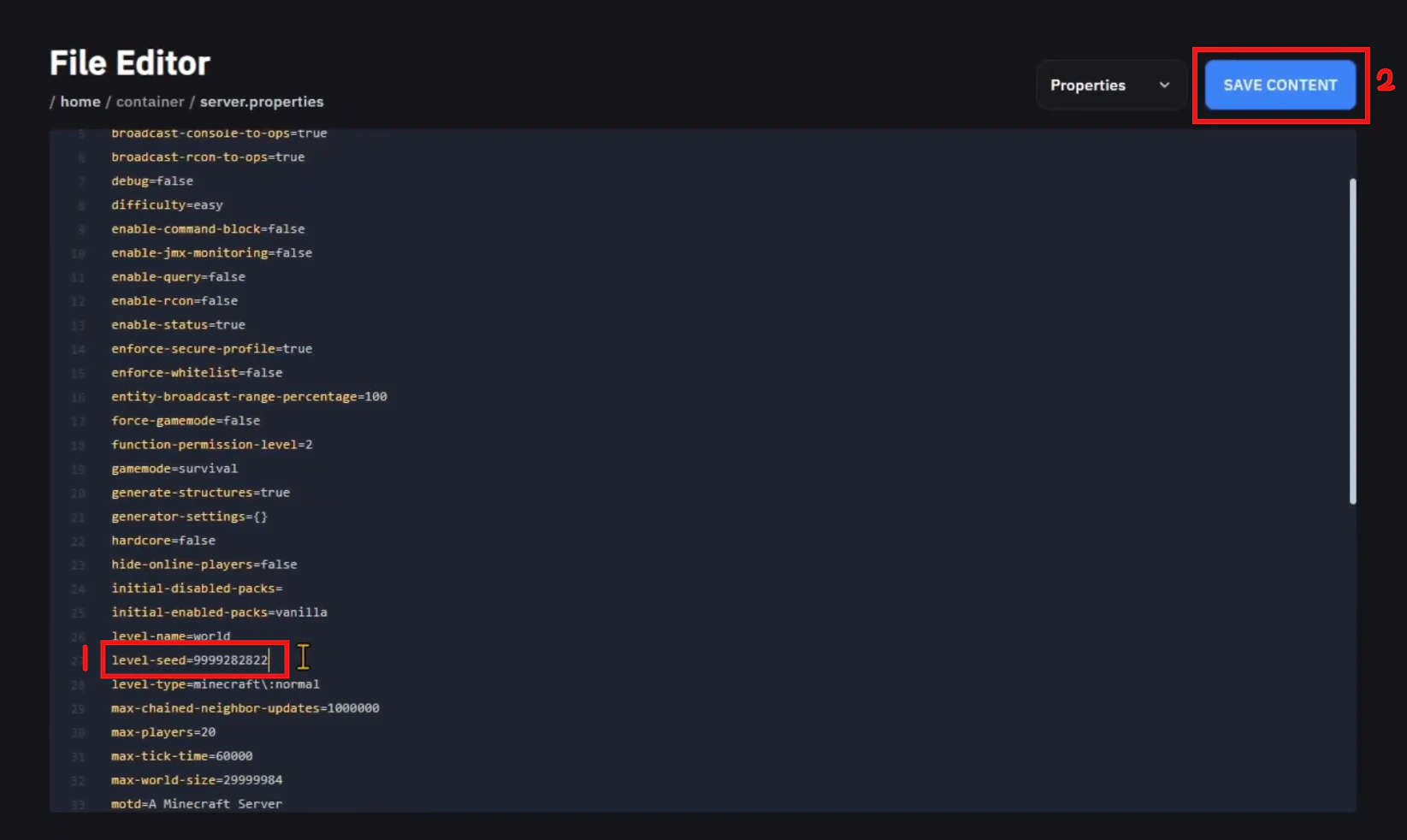
        Isi seed sesuai yang kamu mau seperti nomor 1. Kemudian klik tombol `Save Content` seperti pada nomor 2.

        <Frame>
          <img src="https://mintcdn.com/raehost/VM4682e-YP0WLrOv/images/isi-level-seed.png?fit=max&auto=format&n=VM4682e-YP0WLrOv&q=85&s=4cfc65931f0e6d584846b1fc94f4b53a" alt="Isi Level Seed" width="1645" height="982" data-path="images/isi-level-seed.png" />
        </Frame>

        <Info>
          Jika ingin mengubah seed seperti yang di internet, pastikan versi minecraft nya sama.
        </Info>
      </Step>

      <Step title="Start Server">
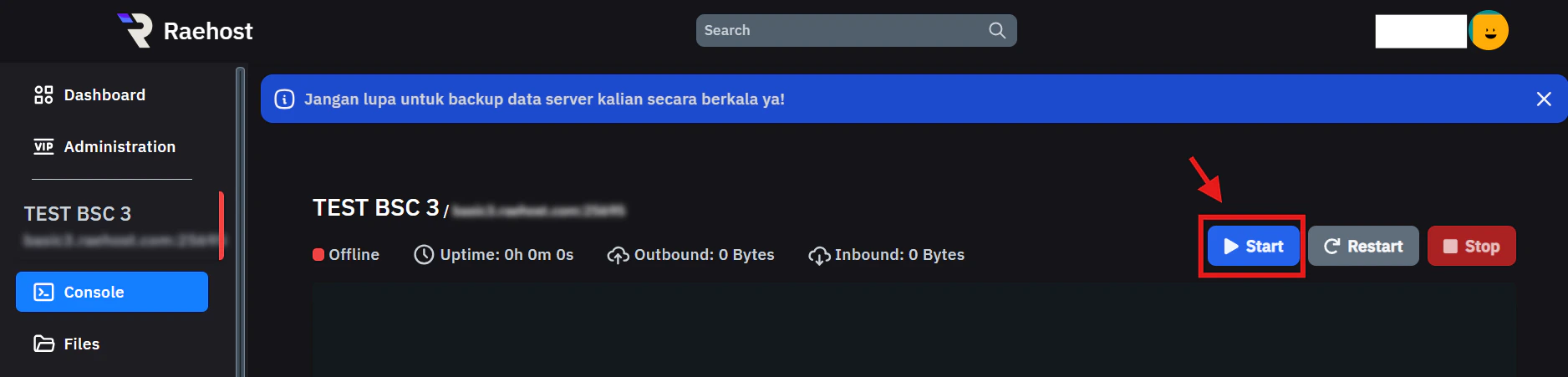
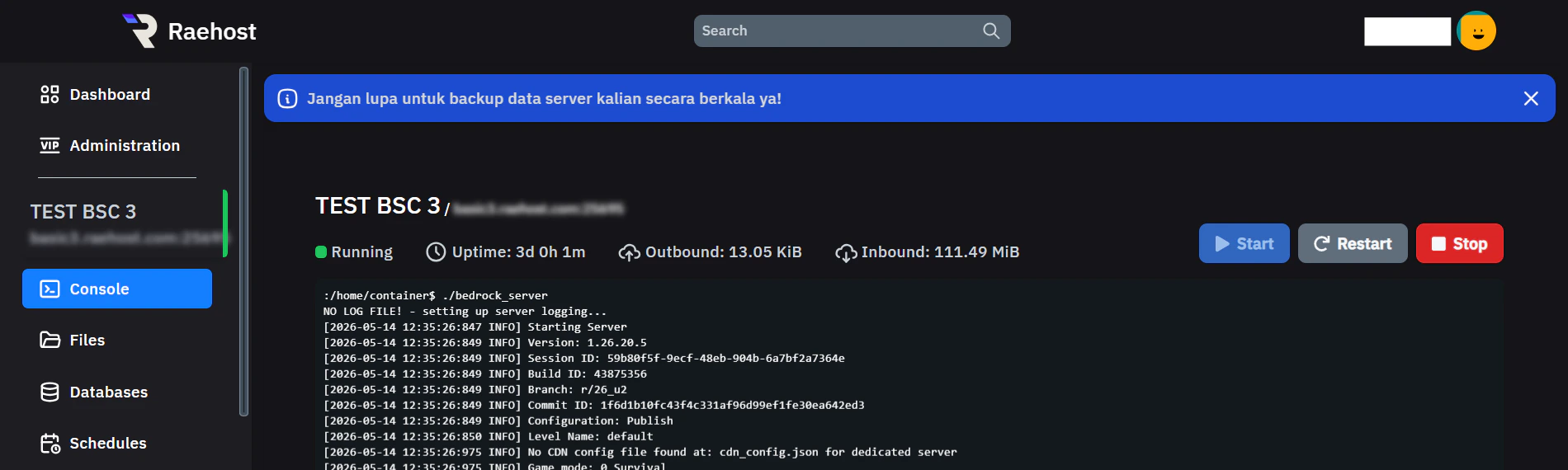
        Kemudian start server dengan menekan tombol `Start`pada tab `Console` seperti yang ditunjukkan pada gambar berikut:
        <Frame>
          <img src="https://mintcdn.com/raehost/ob2UuHck6K9vZNuI/images/image-67.png?fit=max&auto=format&n=ob2UuHck6K9vZNuI&q=85&s=0e64ac372bed24d8b38e6e070a92ce27" alt="Image" width="1876" height="451" data-path="images/image-67.png" />
        </Frame>
      </Step>
    </Steps>

    ### Melalui tab `MC Config`

    <Steps>
      <Step title="Login ke Panel">
        Untuk melakukan ini, kamu perlu login ke panel melalui [https://panel.raehost.com/](https://panel.raehost.com/) Kemudian pilih servermu.

        <Frame>
          <img src="https://mintcdn.com/raehost/DuBe5lfPUkfPDGjK/images/image-57.png?fit=max&auto=format&n=DuBe5lfPUkfPDGjK&q=85&s=eed2c050c696e585064045b093ba55d9" alt="Image" title="Image" className="mx-auto" width="1900" height="570" data-path="images/image-57.png" />
        </Frame>
      </Step>

      <Step title="Masuk ke tab MC Config">
        Cari `Level Seed` seperti gambar dibawah ini:

        <Frame>
          <img src="https://mintcdn.com/raehost/ctBv3BYltLO2eTQc/images/level-seed-config.png?fit=max&auto=format&n=ctBv3BYltLO2eTQc&q=85&s=b52bfe51f68d428b351db50575921866" alt="Level Seed Config" width="1776" height="326" data-path="images/level-seed-config.png" />
        </Frame>

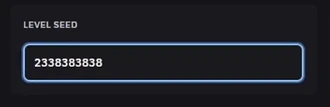
        Isi sesuai yang kamu mau, contoh:

        <Frame>
          <img src="https://mintcdn.com/raehost/ctBv3BYltLO2eTQc/images/level-seed-terisi.png?fit=max&auto=format&n=ctBv3BYltLO2eTQc&q=85&s=51833092a6d3b0f6cc8ccd99685977a0" alt="Level Seed Terisi" title="Level Seed Terisi" style={{ width:"94%" }} width="330" height="107" data-path="images/level-seed-terisi.png" />
        </Frame>
      </Step>

      <Step title="Start Server">
        Kemudian start server dengan menekan tombol `Start`pada tab `Console` seperti yang ditunjukkan pada gambar berikut:
        <Frame>
          <img src="https://mintcdn.com/raehost/ob2UuHck6K9vZNuI/images/image-67.png?fit=max&auto=format&n=ob2UuHck6K9vZNuI&q=85&s=0e64ac372bed24d8b38e6e070a92ce27" alt="Image" width="1876" height="451" data-path="images/image-67.png" />
        </Frame>
      </Step>
    </Steps>
  </Step>
</Steps>

<Info>
  Jika suatu hari kamu ingin mengganti seed lagi, jangan lupa hapus file world nya seperti step ke 3.
</Info>

## Bedrock Edition

<Steps>
  <Step title="Login ke Panel">
    Untuk melakukan ini, kamu perlu login ke panel melalui [https://panel.raehost.com/](https://panel.raehost.com/) Kemudian pilih servermu.

    <Frame>
      <img src="https://mintcdn.com/raehost/DuBe5lfPUkfPDGjK/images/image-57.png?fit=max&auto=format&n=DuBe5lfPUkfPDGjK&q=85&s=eed2c050c696e585064045b093ba55d9" alt="Image" title="Image" className="mx-auto" width="1900" height="570" data-path="images/image-57.png" />
    </Frame>
  </Step>

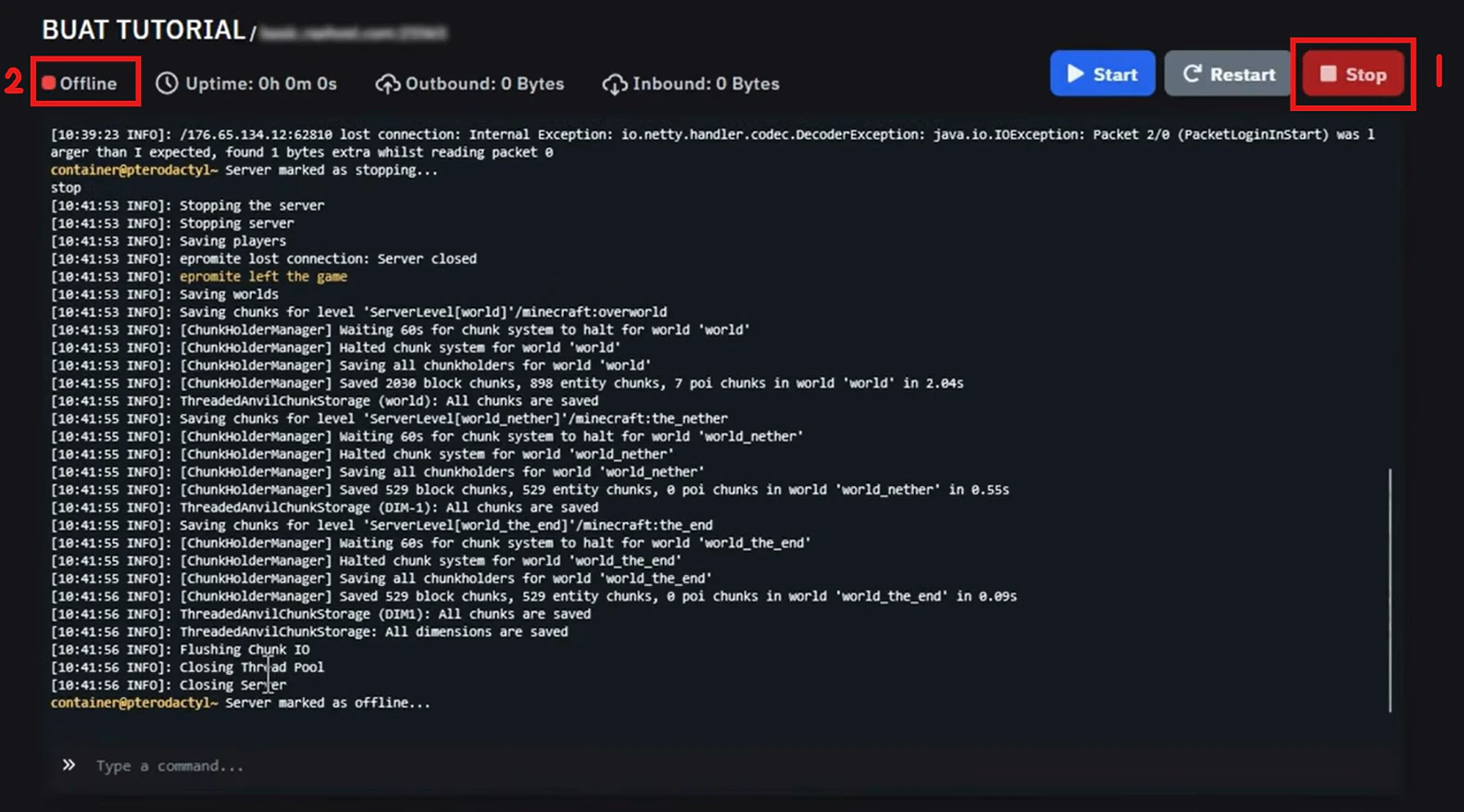
  <Step title="Stop Server">
    Klik tombol `Stop` seperti yang ditampilkan oleh nomor 1. Jika sudah di stop, maka server akan `offline` seperti yang ditampilkan oleh nomor 2.

    <Frame>
      <img src="https://mintcdn.com/raehost/TN8wBDtEi5p7jbSx/images/image-86.png?fit=max&auto=format&n=TN8wBDtEi5p7jbSx&q=85&s=fe658f0c6ff9d4a72fc8072abb0e4052" alt="Image" width="1581" height="877" data-path="images/image-86.png" />
    </Frame>
  </Step>

  <Step title="Hapus file World">
    Ikuti tata cara berikut:

    <Steps>
      <Step title="Cek pada MC Config">
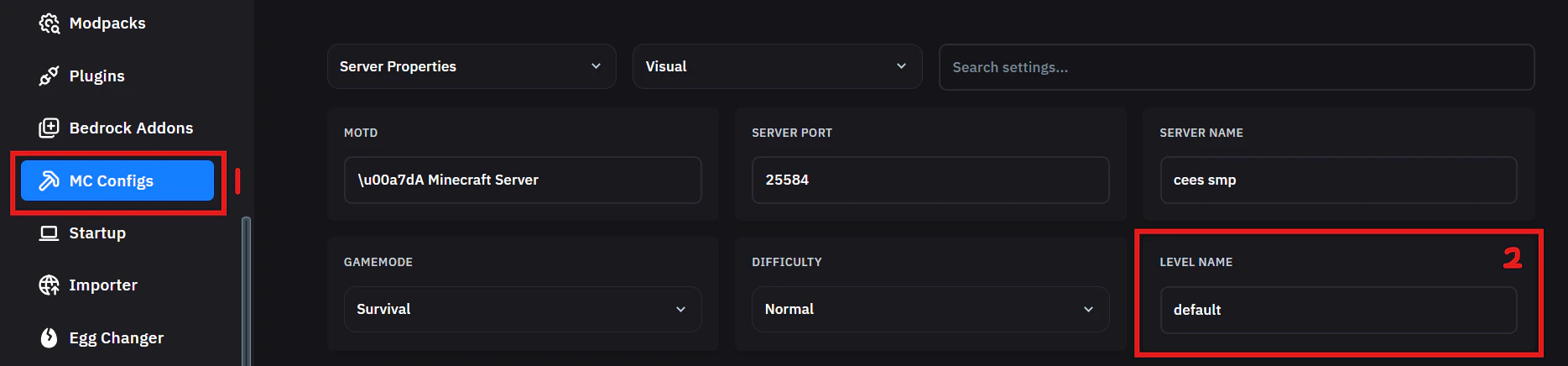
        Pada MC Config, cek dulu `Level Name`nya apa seperti berikut:

        <Frame>
          <img src="https://mintcdn.com/raehost/6NQmdaXjLxxhEd-_/images/cek-level-name.png?fit=max&auto=format&n=6NQmdaXjLxxhEd-_&q=85&s=0ee34ca82449395e461996d72460cb0f" alt="Cek Level Name" width="1869" height="436" data-path="images/cek-level-name.png" />
        </Frame>
      </Step>

      <Step title="Buka tab Files">
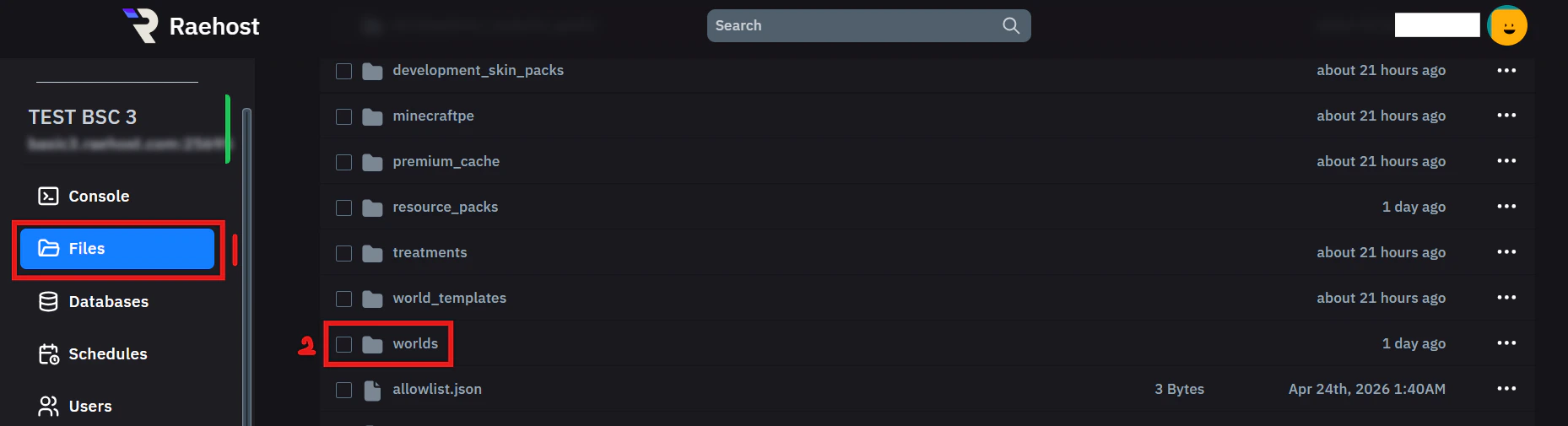
        Buka tab `Files`, klik file `worlds`

        <Frame>
          <img src="https://mintcdn.com/raehost/6NQmdaXjLxxhEd-_/images/hapus-world.png?fit=max&auto=format&n=6NQmdaXjLxxhEd-_&q=85&s=31e92bc0528481090292369249c2954a" alt="Hapus World" width="1858" height="505" data-path="images/hapus-world.png" />
        </Frame>
      </Step>

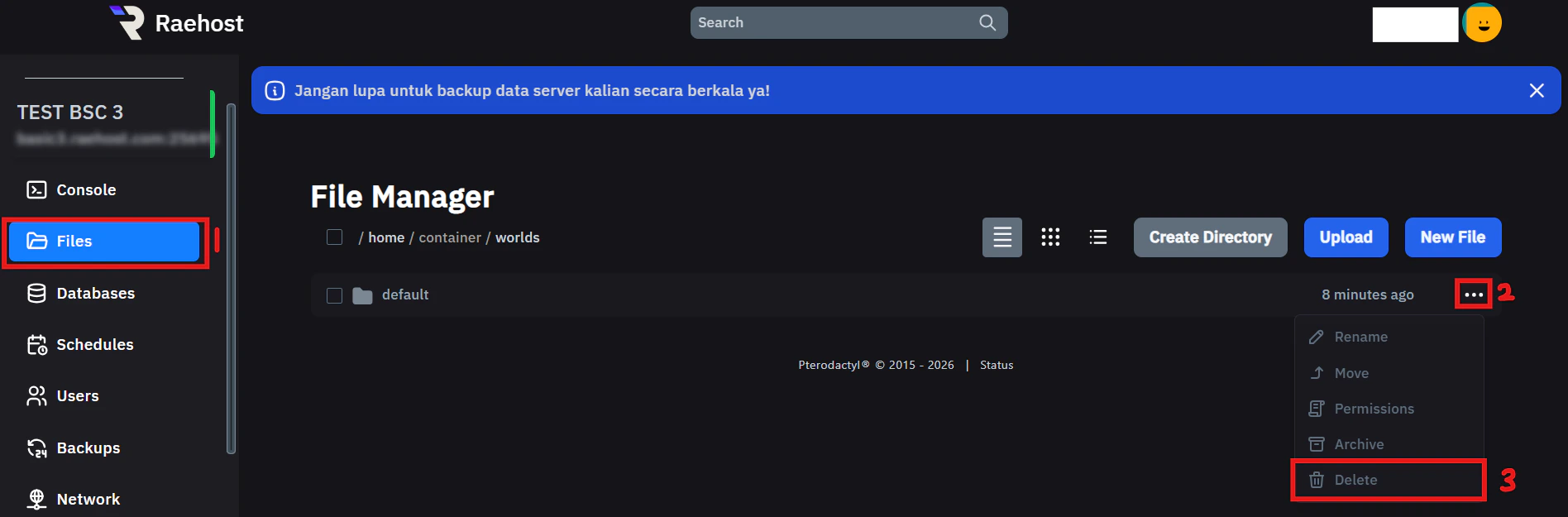
      <Step title="Hapus file">
        Setelah kamu tau `Level Name` pada tab `MC Config`. Hapus file sesuai dengan nama di `Level Name` seperti berikut:

        <Frame>
          <img src="https://mintcdn.com/raehost/6NQmdaXjLxxhEd-_/images/hapus-default.png?fit=max&auto=format&n=6NQmdaXjLxxhEd-_&q=85&s=7bdef9915c560d625e34804d0ac689ae" alt="Hapus Default" width="1896" height="625" data-path="images/hapus-default.png" />
        </Frame>

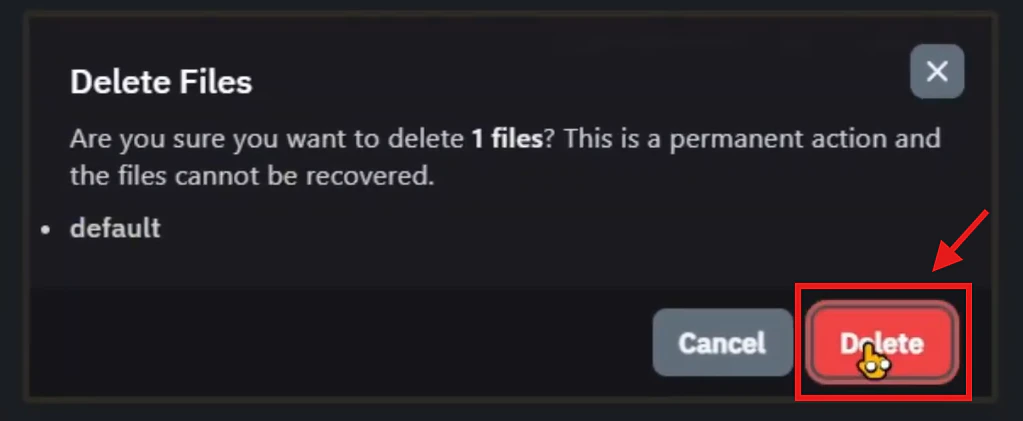
        Kemudian klik tombol `Delete`

        <Frame>
          <img src="https://mintcdn.com/raehost/6NQmdaXjLxxhEd-_/images/delete-default.png?fit=max&auto=format&n=6NQmdaXjLxxhEd-_&q=85&s=7a9a9313c78bb38ffe5fbaade4af881b" alt="Delete Default" title="Delete Default" className="mx-auto" style={{ width:"88%" }} width="1023" height="421" data-path="images/delete-default.png" />
        </Frame>
      </Step>

      <Step title="Ubah Seed">
        Cari baris `level-seed` seperti berikut:

        <Frame>
          <img src="https://mintcdn.com/raehost/VM4682e-YP0WLrOv/images/empty-level-seed.png?fit=max&auto=format&n=VM4682e-YP0WLrOv&q=85&s=2d24f11582a7cbe8b38e7168ef54adff" alt="Empty Level Seed" width="1693" height="979" data-path="images/empty-level-seed.png" />
        </Frame>

        Isi seed sesuai yang kamu mau seperti nomor 1. Kemudian klik tombol `Save Content` seperti pada nomor 2.

        <Frame>
          <img src="https://mintcdn.com/raehost/VM4682e-YP0WLrOv/images/isi-level-seed.png?fit=max&auto=format&n=VM4682e-YP0WLrOv&q=85&s=4cfc65931f0e6d584846b1fc94f4b53a" alt="Isi Level Seed" width="1645" height="982" data-path="images/isi-level-seed.png" />
        </Frame>
      </Step>

      <Step title="Start Server">
        Kemudian start server dengan menekan tombol `Start`pada tab `Console` seperti yang ditunjukkan pada gambar berikut:
        <Frame>
          <img src="https://mintcdn.com/raehost/ob2UuHck6K9vZNuI/images/image-67.png?fit=max&auto=format&n=ob2UuHck6K9vZNuI&q=85&s=0e64ac372bed24d8b38e6e070a92ce27" alt="Image" width="1876" height="451" data-path="images/image-67.png" />
        </Frame>
      </Step>
    </Steps>
  </Step>
</Steps>

<iframe src="https://www.youtube.com/embed/ONFWvqdoObA" title="YouTube video player" frameborder="0" className="w-full aspect-video rounded-xl" allow="accelerometer; autoplay; clipboard-write; encrypted-media; gyroscope; picture-in-picture; web-share" allowfullscreen />