> ## Documentation Index
> Fetch the complete documentation index at: https://docs.raehost.com/llms.txt
> Use this file to discover all available pages before exploring further.

# Cara Merubah Versi

<Info>
  Java: [https://minecraft.fandom.com/wiki/Java\_Edition\_version\_history](https://minecraft.fandom.com/wiki/Java_Edition_version_history)\
  Bedrock: [https://minecraft.wiki/w/Bedrock\_Dedicated\_Server#History](https://minecraft.wiki/w/Bedrock_Dedicated_Server#History)
</Info>

## Java Edition

<Steps>
  <Step title="Login ke Panel">
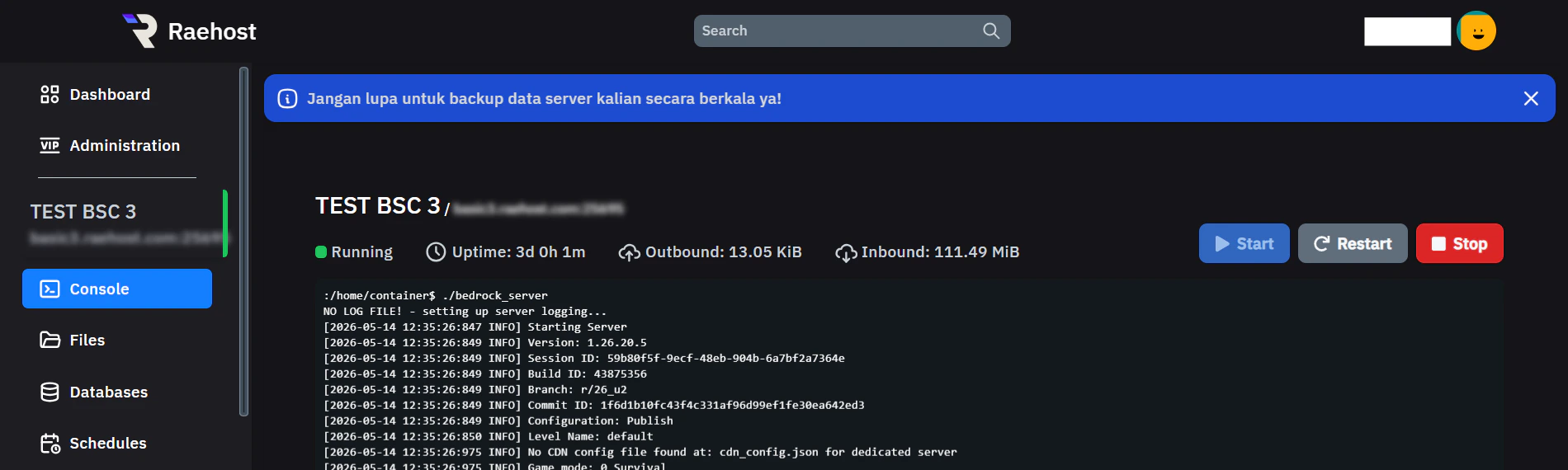
    Untuk melakukan ini, kamu perlu login ke panel melalui [https://panel.raehost.com/](https://panel.raehost.com/) Kemudian pilih servermu.

    <Frame>
      <img src="https://mintcdn.com/raehost/DuBe5lfPUkfPDGjK/images/image-57.png?fit=max&auto=format&n=DuBe5lfPUkfPDGjK&q=85&s=eed2c050c696e585064045b093ba55d9" alt="Image" title="Image" className="mx-auto" width="1900" height="570" data-path="images/image-57.png" />
    </Frame>
  </Step>

  <Step title="Stop Server">
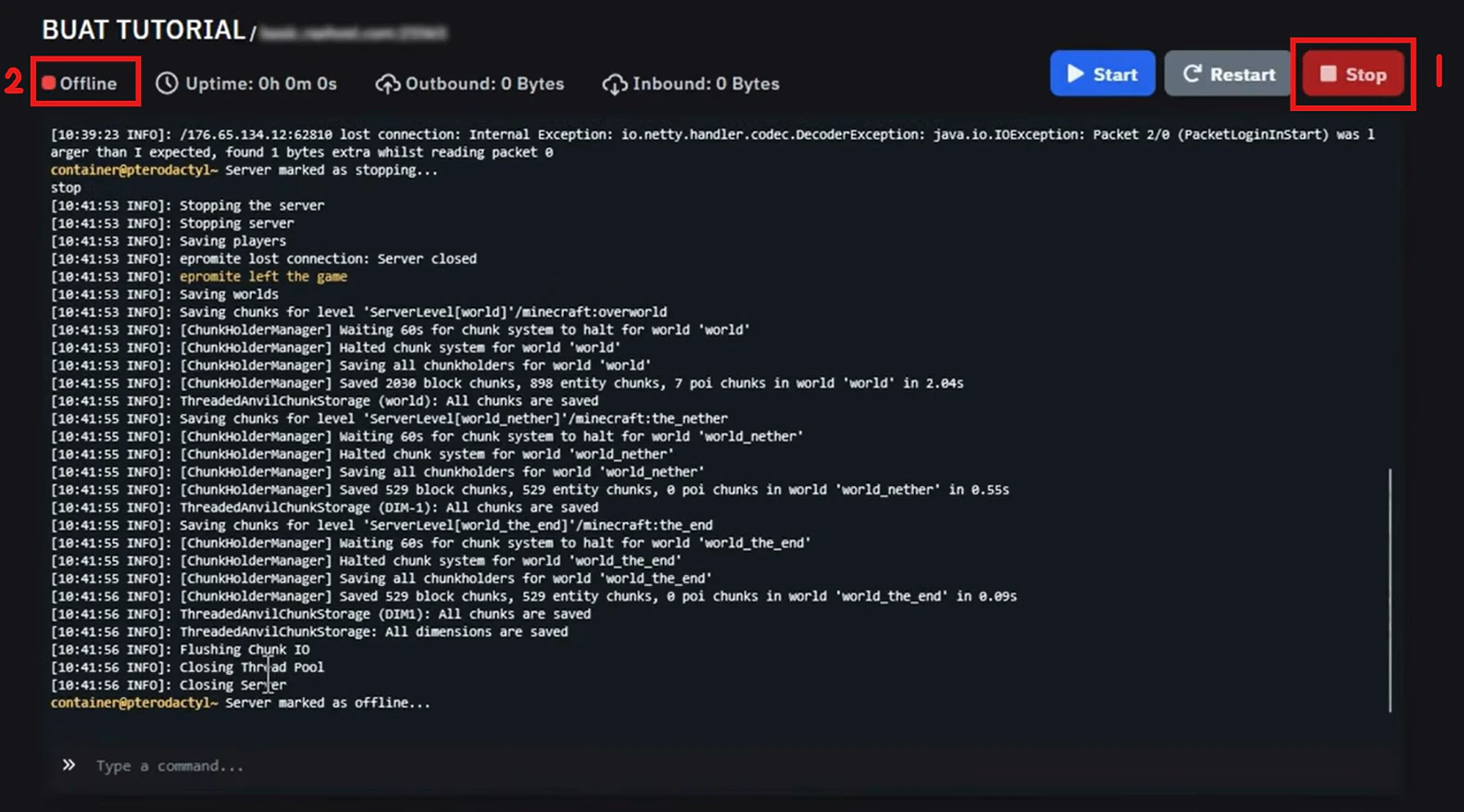
    Klik tombol `Stop` seperti yang ditampilkan oleh nomor 1. Jika sudah di stop, maka server akan `offline` seperti yang ditampilkan oleh nomor 2.

    <Frame>
      <img src="https://mintcdn.com/raehost/TN8wBDtEi5p7jbSx/images/image-86.png?fit=max&auto=format&n=TN8wBDtEi5p7jbSx&q=85&s=fe658f0c6ff9d4a72fc8072abb0e4052" alt="Image" width="1581" height="877" data-path="images/image-86.png" />
    </Frame>
  </Step>

  <Step title="Masukkan versi yang sesuai">
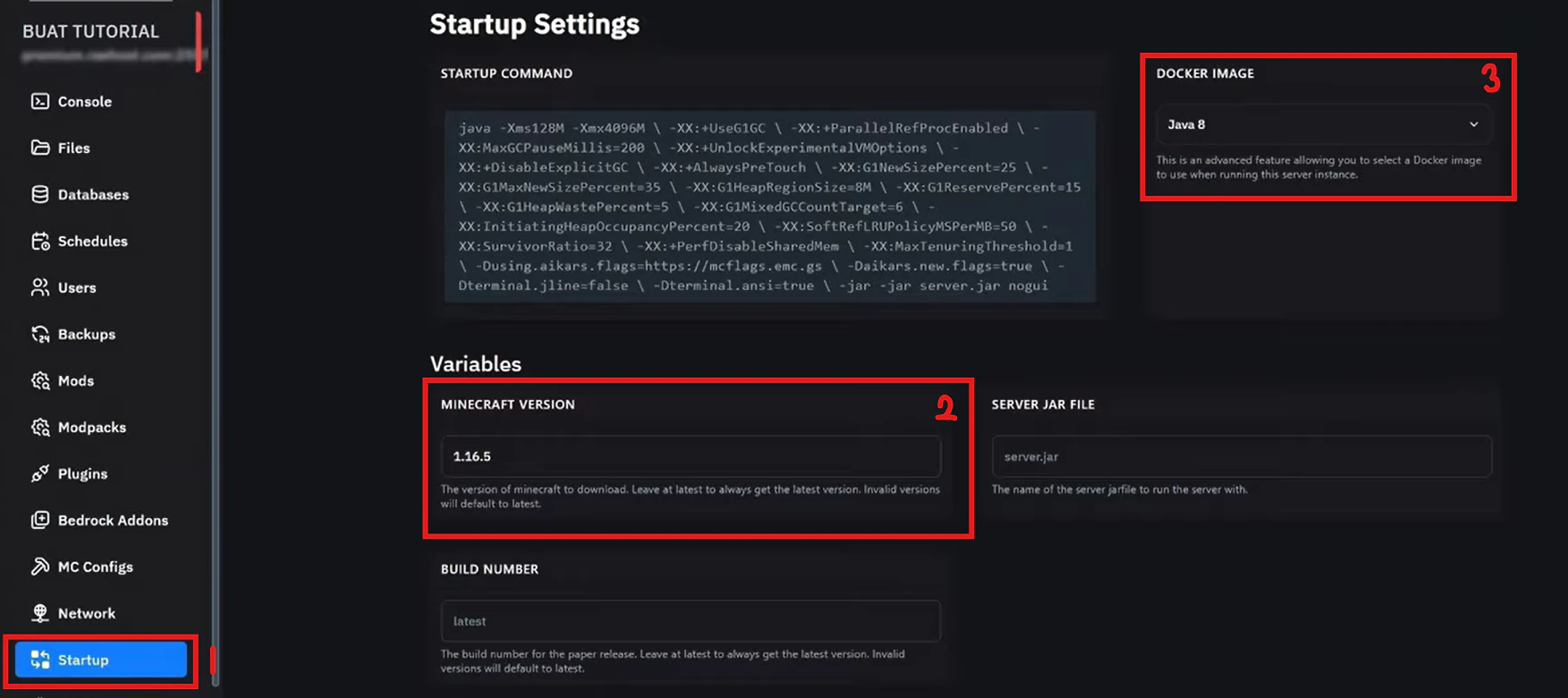
    Masuk ke tab `Startup` seperti yang ditunjuk oleh nomor 1. Masukkan versi yang sesuai dengan minecraft kamu seperti yang ditunjuk oleh nomor 2. Jangan lupa cek apakah docker sudah sesuai apa belum seperti yang ditunjuk oleh nomor 3. 

    > untuk mendapatkan docker berapa, kamu bisa cari versi MC mu menggunakan java berapa

    <Frame>
      <img src="https://mintcdn.com/raehost/TfZvnxcVKYwm-q1G/images/image-97.png?fit=max&auto=format&n=TfZvnxcVKYwm-q1G&q=85&s=a2b1865ebf69add1554b464c3527894f" alt="Image" width="1753" height="780" data-path="images/image-97.png" />
    </Frame>
  </Step>

  <Step title="Reinstall Server">
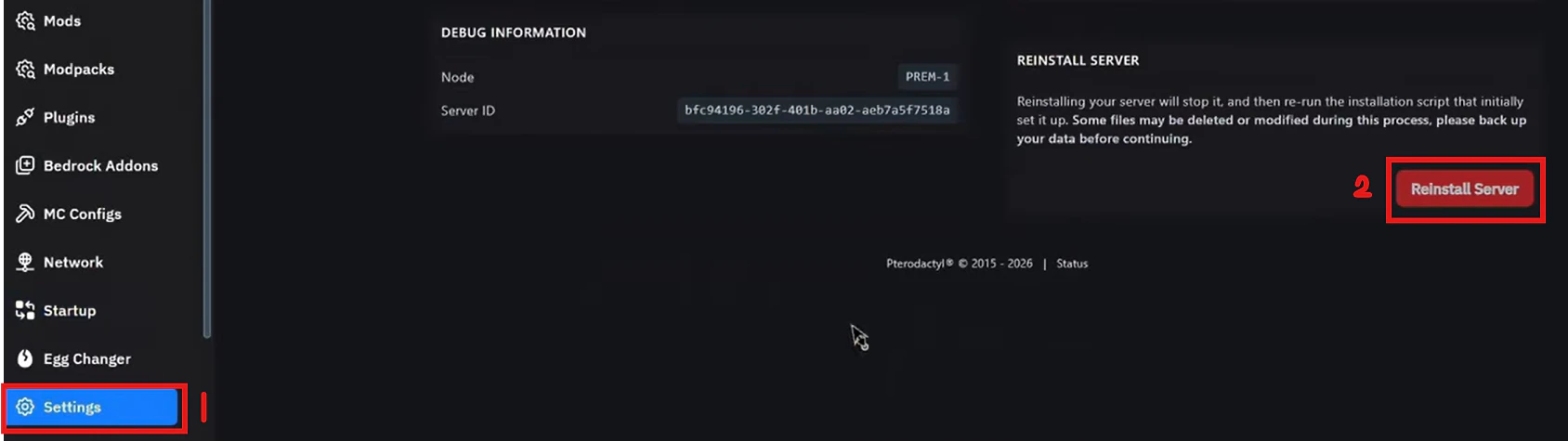
    Untuk melakukan reinstall, kamu dapat masuk ke tab `Settings` seperti yang ditampilkan pada nomor 1. Untuk melakukan reinstall, kamu dapat klik tombol `Reinstall Server` seperti pada nomor 2.

    <Frame>
      <img src="https://mintcdn.com/raehost/TfZvnxcVKYwm-q1G/images/image-96.png?fit=max&auto=format&n=TfZvnxcVKYwm-q1G&q=85&s=31b8e10cd8858be7d5122f73b1d11384" alt="Image" width="1688" height="475" data-path="images/image-96.png" />
    </Frame>

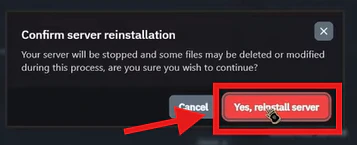
    Kemudian akan muncul konfirmasi. Klik tombol `Yes, reinstall server` seperti pada gambar dibawah ini:
    <Frame>
      <img src="https://mintcdn.com/raehost/TfZvnxcVKYwm-q1G/images/image-98.png?fit=max&auto=format&n=TfZvnxcVKYwm-q1G&q=85&s=9fd7e5fb6831a973721dd45055ec8069" alt="Image" width="357" height="145" data-path="images/image-98.png" />
    </Frame>
  </Step>

  <Step title="Start Server">
    Kembali ke tab `Console` seperti pada nomor 1. 

    <Frame>
      <img src="https://mintcdn.com/raehost/TfZvnxcVKYwm-q1G/images/image-99.png?fit=max&auto=format&n=TfZvnxcVKYwm-q1G&q=85&s=2bfb9ad4185c6672424192c4ac7ef874" alt="Image" width="1882" height="286" data-path="images/image-99.png" />
    </Frame>
  </Step>
</Steps>

## Bedrock Edition

<Steps>
  <Step title="Login ke Panel">
    Untuk melakukan ini, kamu perlu login ke panel melalui [https://panel.raehost.com/](https://panel.raehost.com/) Kemudian pilih servermu.

    <Frame>
      <img src="https://mintcdn.com/raehost/DuBe5lfPUkfPDGjK/images/image-57.png?fit=max&auto=format&n=DuBe5lfPUkfPDGjK&q=85&s=eed2c050c696e585064045b093ba55d9" alt="Image" title="Image" className="mx-auto" width="1900" height="570" data-path="images/image-57.png" />
    </Frame>
  </Step>

  <Step title="Stop Server">
    Klik tombol `Stop` seperti yang ditampilkan oleh nomor 1. Jika sudah di stop, maka server akan `offline` seperti yang ditampilkan oleh nomor 2.

    <Frame>
      <img src="https://mintcdn.com/raehost/TN8wBDtEi5p7jbSx/images/image-86.png?fit=max&auto=format&n=TN8wBDtEi5p7jbSx&q=85&s=fe658f0c6ff9d4a72fc8072abb0e4052" alt="Image" width="1581" height="877" data-path="images/image-86.png" />
    </Frame>
  </Step>

  <Step title="Ubah versi">
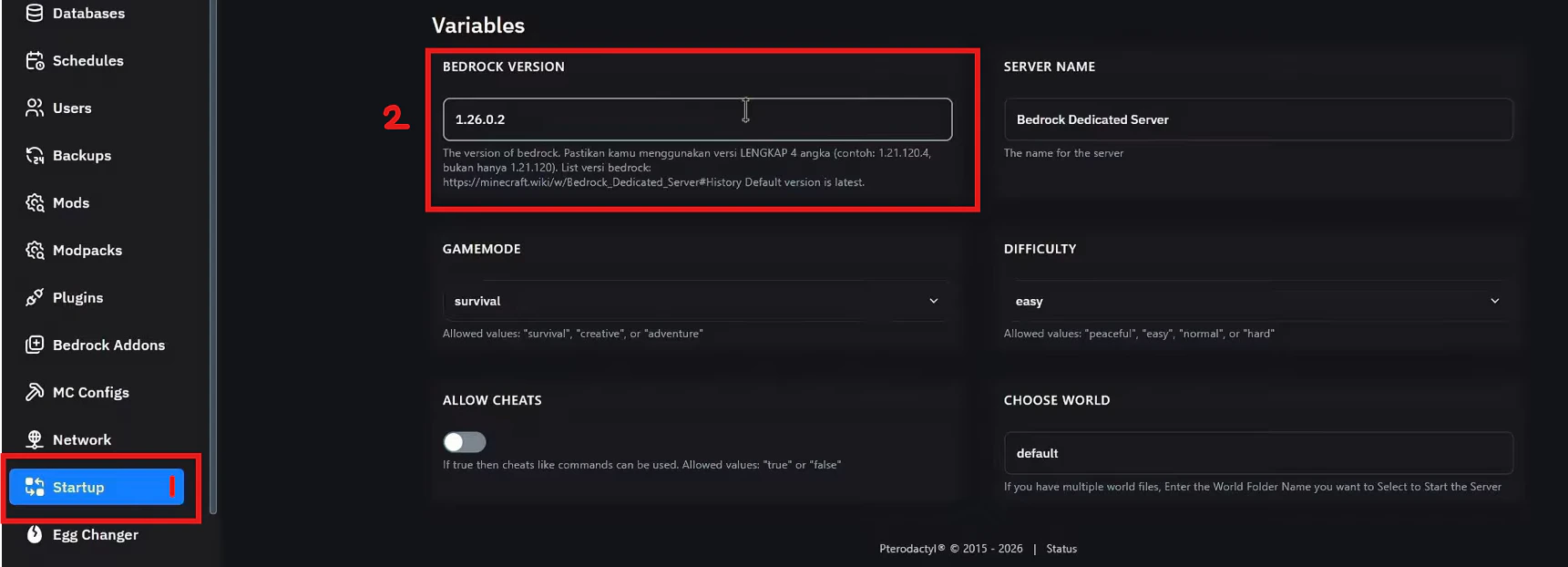
    Untuk mengubah versi, kamu perlu masuk ke tab `Startup` seperti pada nomor 1. Kemudian ubah versi sesuai dengan versi yang kamu miliki seperti pada nomor 2.

    <Frame>
      <img src="https://mintcdn.com/raehost/TfZvnxcVKYwm-q1G/images/image-100.png?fit=max&auto=format&n=TfZvnxcVKYwm-q1G&q=85&s=bfeee23b079b39a41f4bd48aef48baf6" alt="Image" width="1721" height="622" data-path="images/image-100.png" />
    </Frame>

    <Tip>
      Tidak disarankan menggunakan versi beta, kecuali versi client juga menggunakan versi beta.
    </Tip>
  </Step>

  <Step title="Reinstall Server">
    Untuk melakukan reinstall, kamu dapat masuk ke tab `Settings` seperti yang ditampilkan pada nomor 1. Untuk melakukan reinstall, kamu dapat klik tombol `Reinstall Server` seperti pada nomor 2.

    <Frame>
      <img src="https://mintcdn.com/raehost/TfZvnxcVKYwm-q1G/images/image-96.png?fit=max&auto=format&n=TfZvnxcVKYwm-q1G&q=85&s=31b8e10cd8858be7d5122f73b1d11384" alt="Image" width="1688" height="475" data-path="images/image-96.png" />
    </Frame>

    Kemudian akan muncul konfirmasi. Klik tombol `Yes, reinstall server` seperti pada gambar dibawah ini:

    <Frame>
      <img src="https://mintcdn.com/raehost/TfZvnxcVKYwm-q1G/images/image-98.png?fit=max&auto=format&n=TfZvnxcVKYwm-q1G&q=85&s=9fd7e5fb6831a973721dd45055ec8069" alt="Image" width="357" height="145" data-path="images/image-98.png" />
    </Frame>
  </Step>

  <Step title="Start Server">
    Kembali ke tab `Console` seperti pada nomor 1. 

    <Frame>
      <img src="https://mintcdn.com/raehost/TfZvnxcVKYwm-q1G/images/image-99.png?fit=max&auto=format&n=TfZvnxcVKYwm-q1G&q=85&s=2bfb9ad4185c6672424192c4ac7ef874" alt="Image" width="1882" height="286" data-path="images/image-99.png" />
    </Frame>
  </Step>
</Steps>

<Warning>
  * Pastikan world kamu cocok dengan versi server (hindari bug chunk).
  * Untuk Bedrock, update world hanya aman kalau versi server dan world sama.
  * Kalau error `Invalid version` muncul, cek lagi versi yang kamu tulis (harus pakai 4 angka penuh).
</Warning>

## Tutorial video

<iframe src="https://www.youtube.com/embed/izC5isUmxQg" title="YouTube video player" frameborder="0" className="w-full aspect-video rounded-xl" allow="accelerometer; autoplay; clipboard-write; encrypted-media; gyroscope; picture-in-picture; web-share" allowfullscreen />

<iframe src="https://www.youtube.com/embed/4wZFmENktR8" title="YouTube video player" frameborder="0" className="w-full aspect-video rounded-xl" allow="accelerometer; autoplay; clipboard-write; encrypted-media; gyroscope; picture-in-picture; web-share" allowfullscreen />