> ## Documentation Index
> Fetch the complete documentation index at: https://docs.raehost.com/llms.txt
> Use this file to discover all available pages before exploring further.

# Cara Pasang Add On

## Perbedaan

Kamu harus tau dulu perbedaan resource pack dan behaviour pack

<Columns cols={2}>
  <Column>
    ### Resource Pack

    Mengubah **tampilan dan suara** game, tanpa mengubah gameplay utama.

    Contoh:

    * Texture block berubah HD
    * UI/menu berubah
    * Sound effect baru
    * Animasi entity beda
    * Model item/custom mob appearance

    Yang diubah:

    * Texture
    * Model
    * Font
    * Music/sound
    * Particle
    * Animasi visual
  </Column>

  <Column>
    ### Behaviour Pack

    Mengubah **cara kerja/gameplay** di Minecraft.

    Contoh:

    * Mob punya skill baru
    * Item punya fungsi custom
    * Sistem quest
    * Custom crafting
    * Addon senjata
    * Mob attack berbeda
    * Survival mechanics baru

    Yang diubah:

    * AI mob
    * Damage
    * Loot
    * Crafting recipe
    * Spawn rules
  </Column>
</Columns>

## Melalui Panel

### Download di Panel

<Steps>
  <Step title="Login ke Panel">
    Untuk melakukan ini, kamu perlu login ke panel melalui [https://panel.raehost.com/](https://panel.raehost.com/) Kemudian pilih servermu.

    <Frame>
      <img src="https://mintcdn.com/raehost/DuBe5lfPUkfPDGjK/images/image-57.png?fit=max&auto=format&n=DuBe5lfPUkfPDGjK&q=85&s=eed2c050c696e585064045b093ba55d9" alt="Image" title="Image" className="mx-auto" width="1900" height="570" data-path="images/image-57.png" />
    </Frame>
  </Step>

  <Step title="Stop Server">
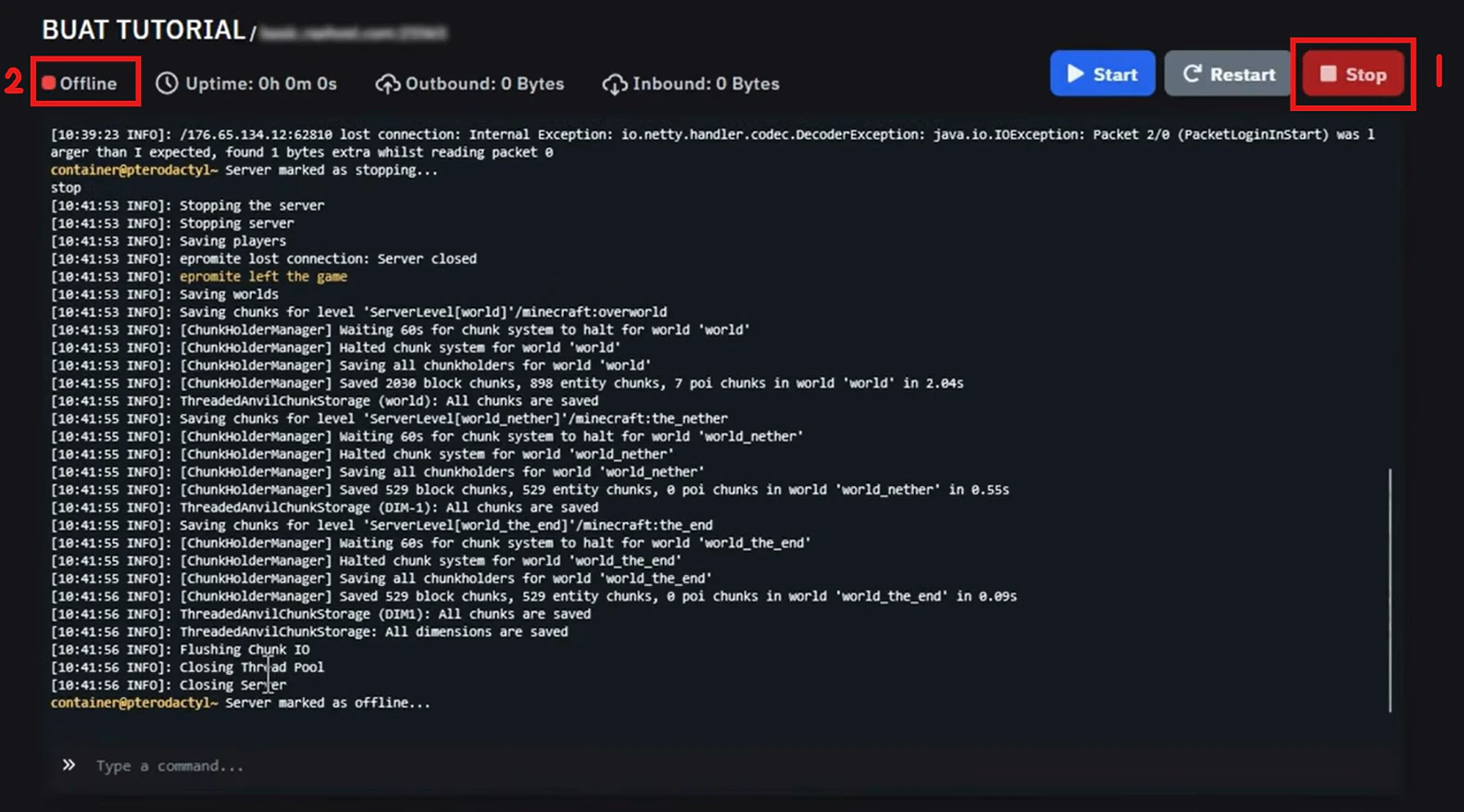
    Klik tombol `Stop` seperti yang ditampilkan oleh nomor 1. Jika sudah di stop, maka server akan `offline` seperti yang ditampilkan oleh nomor 2.

    <Frame>
      <img src="https://mintcdn.com/raehost/TN8wBDtEi5p7jbSx/images/image-86.png?fit=max&auto=format&n=TN8wBDtEi5p7jbSx&q=85&s=fe658f0c6ff9d4a72fc8072abb0e4052" alt="Image" width="1581" height="877" data-path="images/image-86.png" />
    </Frame>
  </Step>

  <Step title="Download Add On">
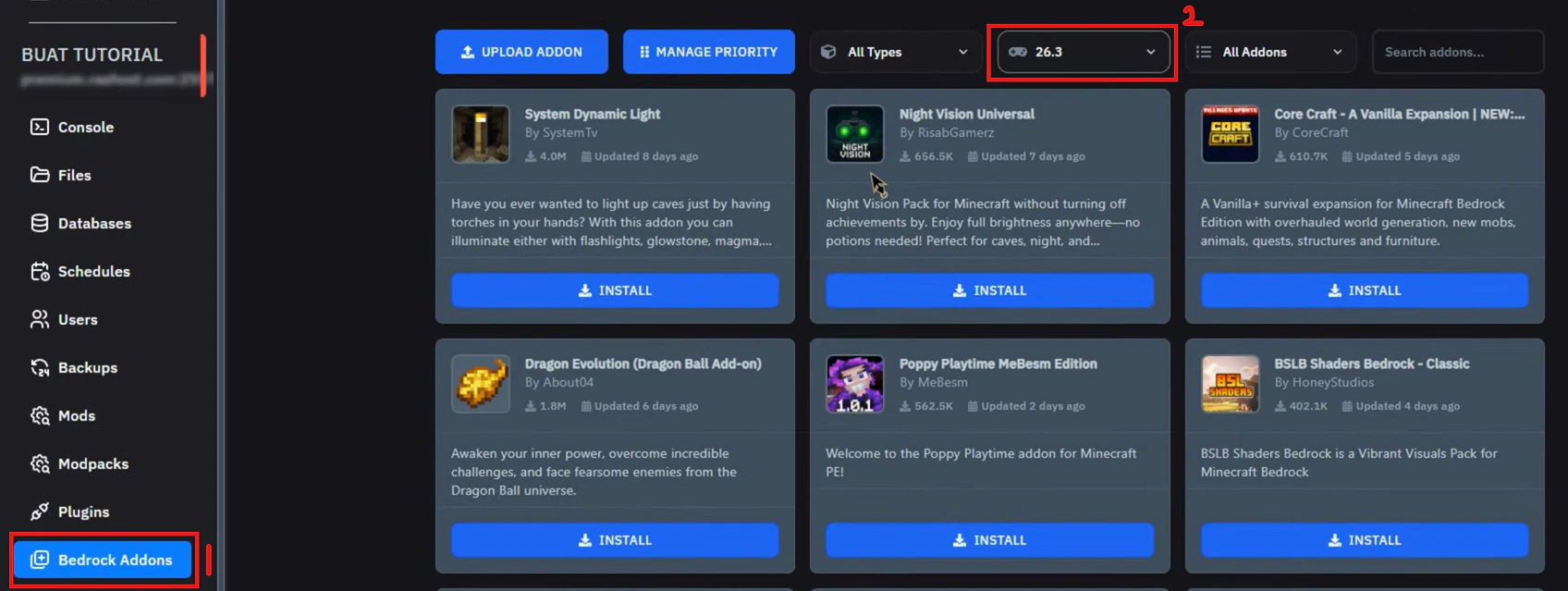
    1. Masuk ke tab `Bedrock Add On` seperti pada nomor 1. Cari add on yang mau kamu  versi yang sesuai seperti nomor 2.
           <Frame>
             <img src="https://mintcdn.com/raehost/_I0Bz6WwapqpolQI/images/choose-version.png?fit=max&auto=format&n=_I0Bz6WwapqpolQI&q=85&s=aa5c286dc05fc2efb71b5a1859f2a3f1" alt="Choose Version" width="1696" height="639" data-path="images/choose-version.png" />
           </Frame>
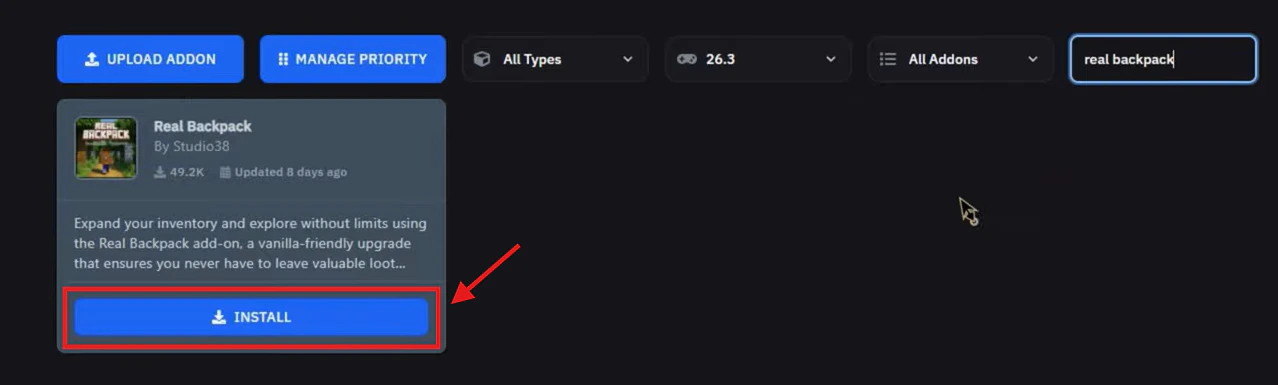
    2. Klik tombol `Install`
           <Frame>
             <img src="https://mintcdn.com/raehost/_I0Bz6WwapqpolQI/images/install-addon.png?fit=max&auto=format&n=_I0Bz6WwapqpolQI&q=85&s=7d1544d83956048231bd0610c95c7dfd" alt="Install Addon" width="1278" height="385" data-path="images/install-addon.png" />
           </Frame>
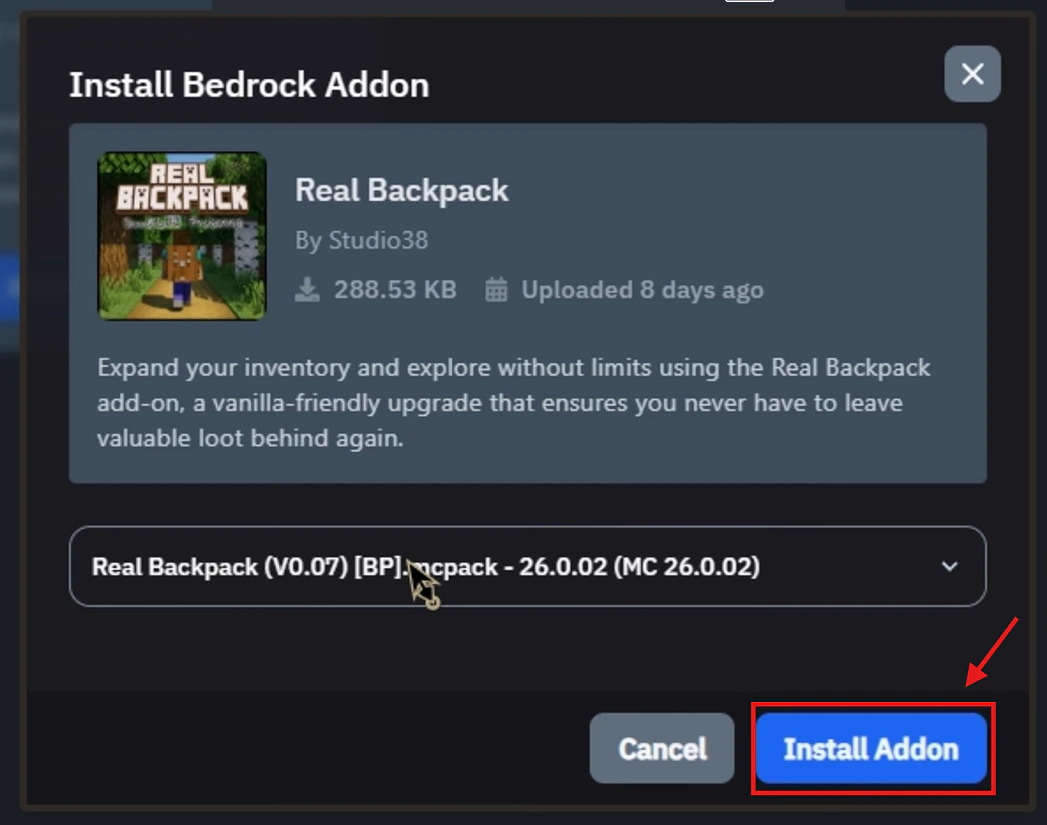
    3. Klik tombol `Install Addon`
       > Kita dapat melihat informasi dari add on yang ingin di download. Contonya, dapat dilihat pada addon ini dibutuhkan \[BP] atau behaviour pack. 
           <Frame>
             <img src="https://mintcdn.com/raehost/_I0Bz6WwapqpolQI/images/isnatlling.png?fit=max&auto=format&n=_I0Bz6WwapqpolQI&q=85&s=88161c913ab3cb66cf20d8e0842a6650" alt="Isnatlling" width="1047" height="825" data-path="images/isnatlling.png" />
           </Frame>
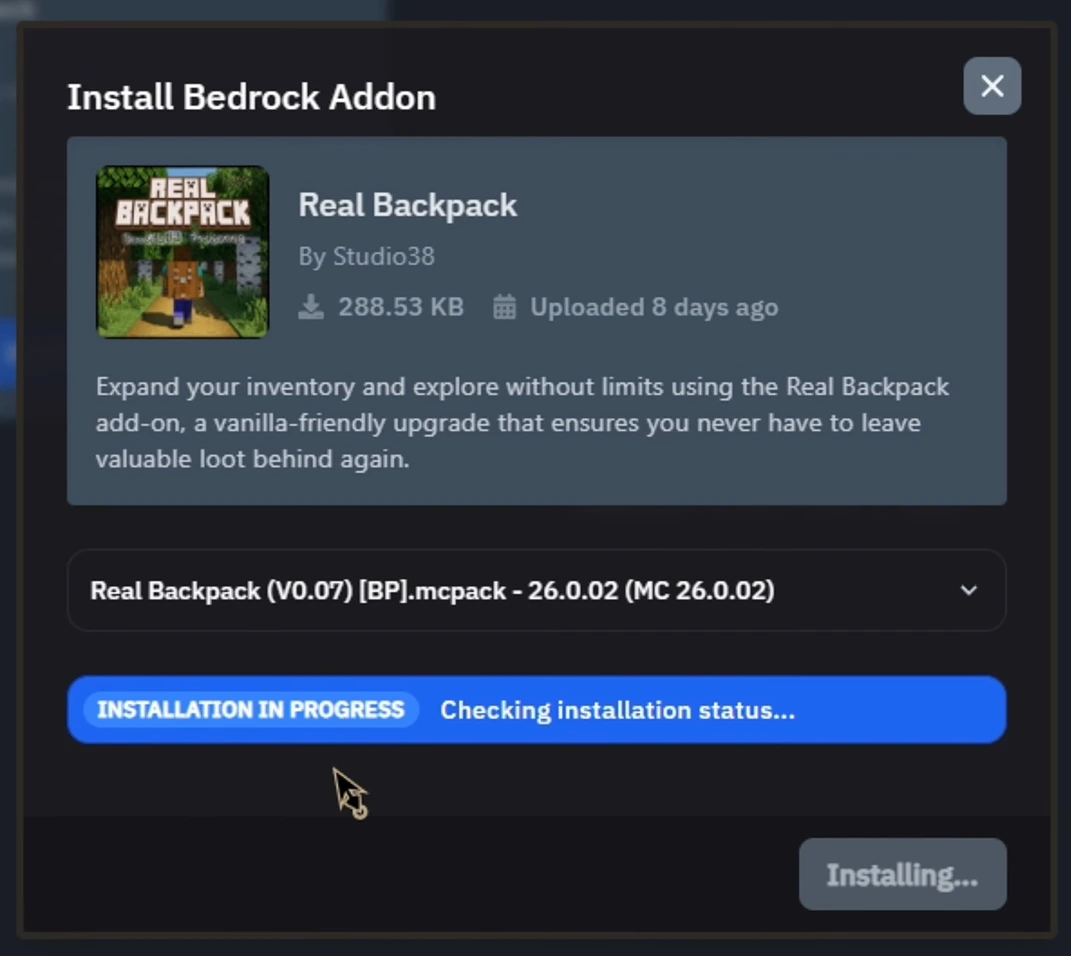
    4. Tunggu Installing
           <Frame>
             <img src="https://mintcdn.com/raehost/_I0Bz6WwapqpolQI/images/proggress.png?fit=max&auto=format&n=_I0Bz6WwapqpolQI&q=85&s=6915263db29a384a3c4ccc06c0b7be66" alt="Proggress" width="1071" height="956" data-path="images/proggress.png" />
           </Frame>
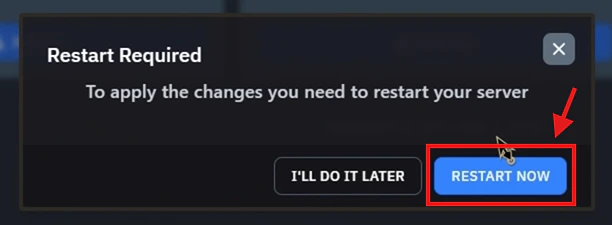
    5. Jika sudah tidak ada addon yang ingin di download, silahkan klik `Restart Now`
           <Frame>
             <img src="https://mintcdn.com/raehost/_I0Bz6WwapqpolQI/images/restart-now.png?fit=max&auto=format&n=_I0Bz6WwapqpolQI&q=85&s=685c3f7983627f90b28c9501951fc43f" alt="Restart Now" width="612" height="225" data-path="images/restart-now.png" />
           </Frame>
  </Step>

  <Step title="Start Server">
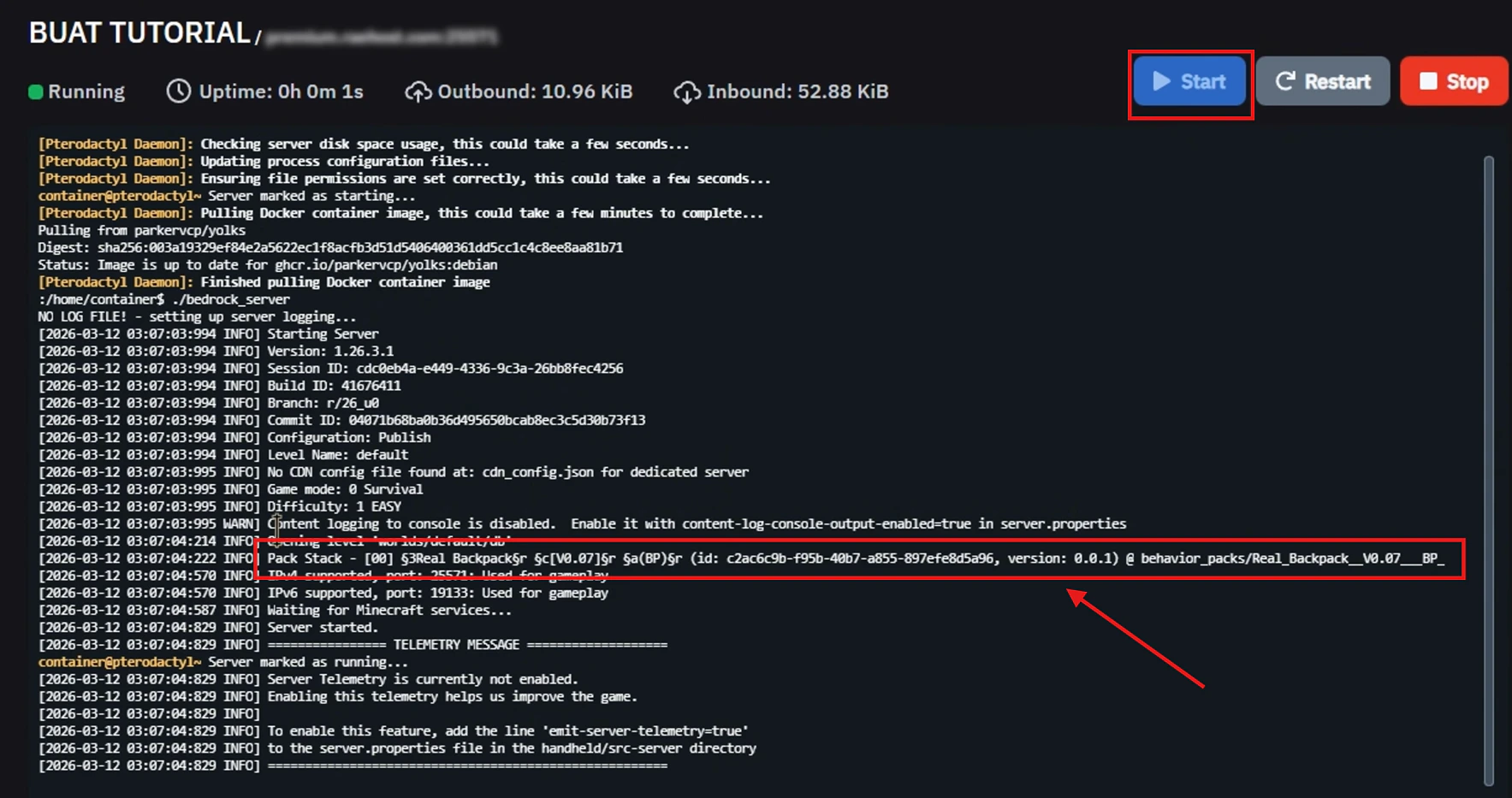
    Klik start server dan jika sudah muncul `Pack Stack` dari addon yang di download pada console seperti dibawah ini, artinya addon sudah berhasil terpasang ke server.

    <Frame>
      <img src="https://mintcdn.com/raehost/_I0Bz6WwapqpolQI/images/packtack.png?fit=max&auto=format&n=_I0Bz6WwapqpolQI&q=85&s=468a4e60e9b525b300bde1950a862dfb" alt="Packtack" width="1767" height="933" data-path="images/packtack.png" />
    </Frame>
  </Step>
</Steps>

### Download di Internet

<Steps>
  <Step title="Login ke Panel">
    Untuk melakukan ini, kamu perlu login ke panel melalui [https://panel.raehost.com/](https://panel.raehost.com/) Kemudian pilih servermu.

    <Frame>
      <img src="https://mintcdn.com/raehost/DuBe5lfPUkfPDGjK/images/image-57.png?fit=max&auto=format&n=DuBe5lfPUkfPDGjK&q=85&s=eed2c050c696e585064045b093ba55d9" alt="Image" title="Image" className="mx-auto" width="1900" height="570" data-path="images/image-57.png" />
    </Frame>
  </Step>

  <Step title="Stop Server">
    Klik tombol `Stop` seperti yang ditampilkan oleh nomor 1. Jika sudah di stop, maka server akan `offline` seperti yang ditampilkan oleh nomor 2.

    <Frame>
      <img src="https://mintcdn.com/raehost/TN8wBDtEi5p7jbSx/images/image-86.png?fit=max&auto=format&n=TN8wBDtEi5p7jbSx&q=85&s=fe658f0c6ff9d4a72fc8072abb0e4052" alt="Image" width="1581" height="877" data-path="images/image-86.png" />
    </Frame>
  </Step>

  <Step title="Download Add On">
    > Disarankan menggunakan website yang credible ya. Jangan yang **ilegal**. Contoh web yang dapat digunakan adalah \[[https://www.curseforge.com/\](https://www.curseforge.com/)](https://www.curseforge.com/]\(https://www.curseforge.com/\))
  </Step>

  <Step title="Upload File">
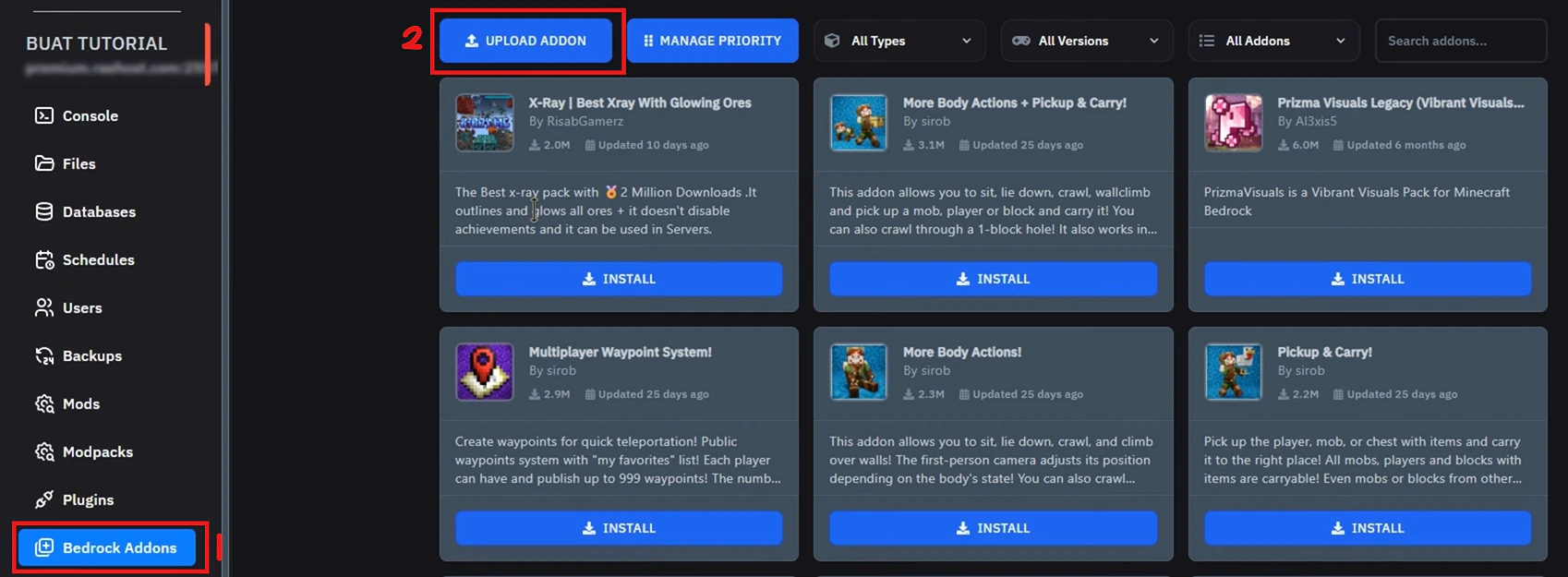
    Pada tab `Bedrock Addons` klik tombol `Upload Addon`

    <Frame>
      <img src="https://mintcdn.com/raehost/XUSIGflLEzk7_5hI/images/upload-panel.png?fit=max&auto=format&n=XUSIGflLEzk7_5hI&q=85&s=64604f18f724ff893a8634723bada054" alt="Upload Panel" width="1698" height="625" data-path="images/upload-panel.png" />
    </Frame>
  </Step>

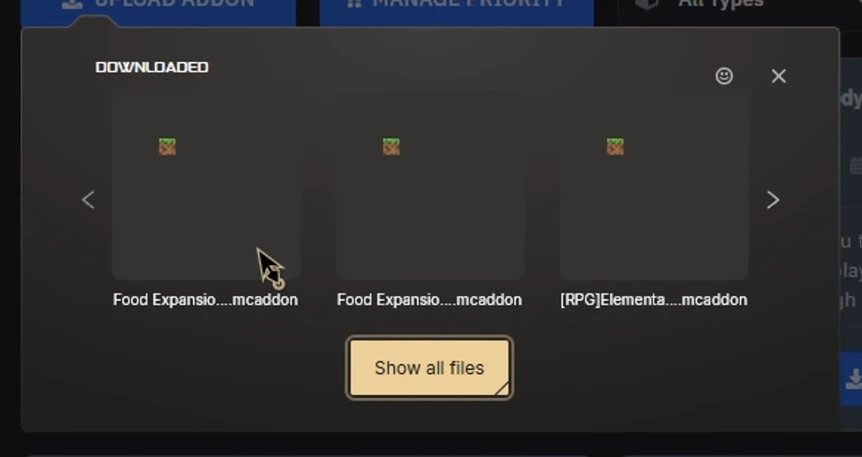
  <Step title="Pilih Addon yang Mau di Upload">
    <Frame>
      <img src="https://mintcdn.com/raehost/XUSIGflLEzk7_5hI/images/pilih-addon.png?fit=max&auto=format&n=XUSIGflLEzk7_5hI&q=85&s=fe049124f99e55716c1167fc97a32a98" alt="Pilih Addon" title="Pilih Addon" className="mx-auto" style={{ width:"81%" }} width="862" height="457" data-path="images/pilih-addon.png" />
    </Frame>
  </Step>

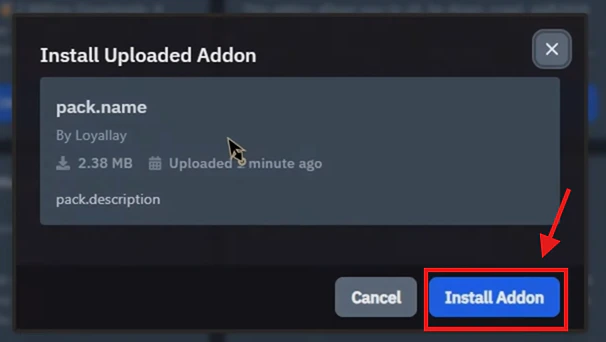
  <Step title="Jika Sudah Terupload, Klik Tombol Install Addon">
    <Frame>
      <img src="https://mintcdn.com/raehost/XUSIGflLEzk7_5hI/images/install-uploaded.png?fit=max&auto=format&n=XUSIGflLEzk7_5hI&q=85&s=6612f71fb0cfca2ab6b4551e8e5056ac" alt="Install Uploaded" width="606" height="342" data-path="images/install-uploaded.png" />
    </Frame>
  </Step>

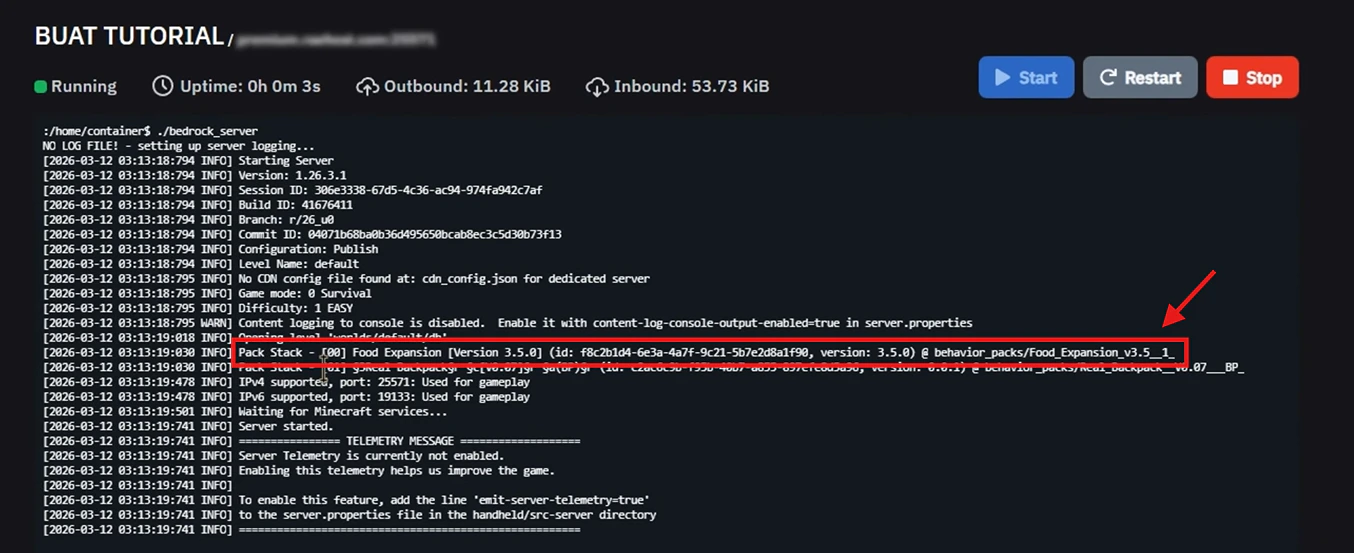
  <Step title="Start Server">
    Klik start server dan jika sudah muncul `Pack Stack` dari addon yang di download pada console seperti dibawah ini, artinya addon sudah berhasil terpasang ke server.

    <Frame>
      <img src="https://mintcdn.com/raehost/XUSIGflLEzk7_5hI/images/pack-stack.png?fit=max&auto=format&n=XUSIGflLEzk7_5hI&q=85&s=6ba456fd8a72af485043ba176841d86c" alt="Pack Stack" width="1354" height="553" data-path="images/pack-stack.png" />
    </Frame>
  </Step>
</Steps>

<iframe src="https://www.youtube.com/embed/Knww2Lj3w-k" title="YouTube video player" frameborder="0" className="w-full aspect-video rounded-xl" allow="accelerometer; autoplay; clipboard-write; encrypted-media; gyroscope; picture-in-picture; web-share" allowfullscreen />

## Manual

<Steps>
  <Step title="Download Add On">
    > Disarankan menggunakan website yang credible ya. Jangan yang **ilegal**. Contoh web yang dapat digunakan adalah [https://www.curseforge.com/](https://www.curseforge.com/)

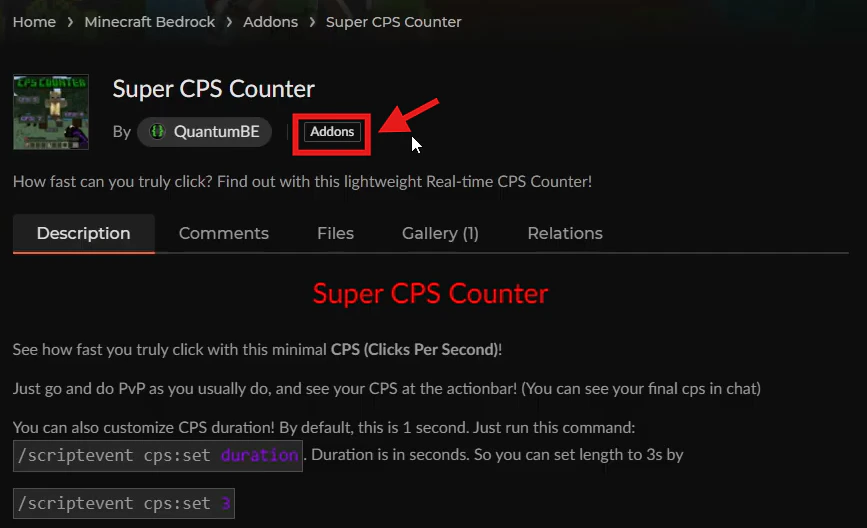
    Untuk behavior pack, akan ditandai dengan badge bertuliskan `Addons` seperti berikut:

    <Frame>
      <img src="https://mintcdn.com/raehost/h1ReTANpBE2YjxXJ/images/file-behavior-packs.png?fit=max&auto=format&n=h1ReTANpBE2YjxXJ&q=85&s=42196ef86ad7f31eb0897156980caaa9" alt="File Behavior Packs" title="File Behavior Packs" className="mx-auto" style={{ width:"83%" }} width="867" height="528" data-path="images/file-behavior-packs.png" />
    </Frame>

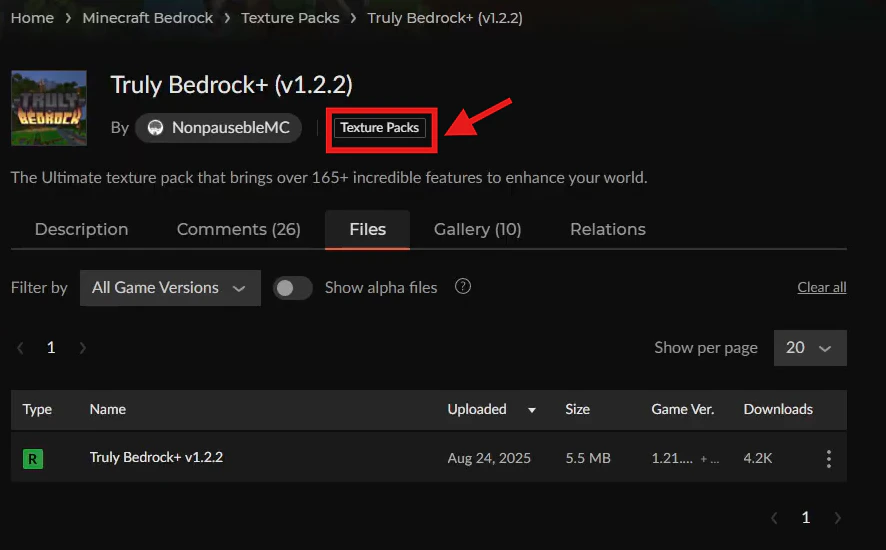
    Untuk behavior pack, akan ditandai dengan badge bertuliskan `Textrue Packs`seperti berikut:

    <Frame>
      <img src="https://mintcdn.com/raehost/h1ReTANpBE2YjxXJ/images/file-resource-packs.png?fit=max&auto=format&n=h1ReTANpBE2YjxXJ&q=85&s=0a4db5e26f69d714fb4342216618e585" alt="File Resource Packs" title="File Resource Packs" className="mx-auto" style={{ width:"80%" }} width="886" height="550" data-path="images/file-resource-packs.png" />
    </Frame>

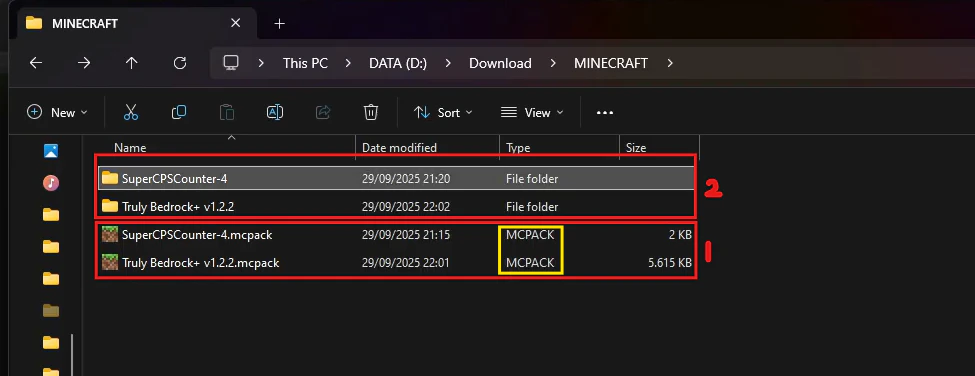
    File akan terdownload dengan tipe `MCPACK` seperti yang ditunjuk oleh nomor 1. Kemudian extract file tersebut menjasi folder biasa seperti pada nomor 2.

    <Frame>
      <img src="https://mintcdn.com/raehost/h1ReTANpBE2YjxXJ/images/download-file.png?fit=max&auto=format&n=h1ReTANpBE2YjxXJ&q=85&s=78744c251fadc9c945c8dd0066e3a9cf" alt="Download File" width="975" height="376" data-path="images/download-file.png" />
    </Frame>

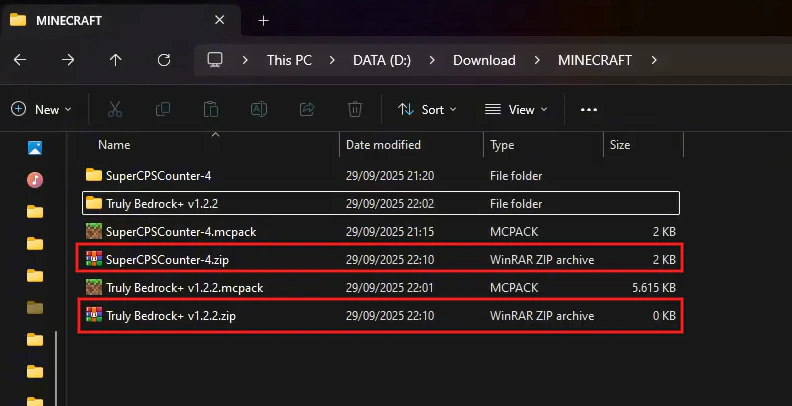
    Ubah folder tersebut menjadi .zip seperti berikut

    <Frame>
      <img src="https://mintcdn.com/raehost/h1ReTANpBE2YjxXJ/images/zip-file.png?fit=max&auto=format&n=h1ReTANpBE2YjxXJ&q=85&s=c345e5c4bc81c5485cfa959b2c19b94d" alt="Zip File" title="Zip File" className="mx-auto" style={{ width:"95%" }} width="792" height="406" data-path="images/zip-file.png" />
    </Frame>
  </Step>

  <Step title="Login ke Panel">
    Untuk melakukan ini, kamu perlu login ke panel melalui [https://panel.raehost.com/](https://panel.raehost.com/) Kemudian pilih servermu.

    <Frame>
      <img src="https://mintcdn.com/raehost/DuBe5lfPUkfPDGjK/images/image-57.png?fit=max&auto=format&n=DuBe5lfPUkfPDGjK&q=85&s=eed2c050c696e585064045b093ba55d9" alt="Image" title="Image" className="mx-auto" width="1900" height="570" data-path="images/image-57.png" />
    </Frame>
  </Step>

  <Step title="Stop Server">
    Klik tombol `Stop` seperti yang ditampilkan oleh nomor 1. Jika sudah di stop, maka server akan `offline` seperti yang ditampilkan oleh nomor 2.

    <Frame>
      <img src="https://mintcdn.com/raehost/TN8wBDtEi5p7jbSx/images/image-86.png?fit=max&auto=format&n=TN8wBDtEi5p7jbSx&q=85&s=fe658f0c6ff9d4a72fc8072abb0e4052" alt="Image" width="1581" height="877" data-path="images/image-86.png" />
    </Frame>
  </Step>

  <Step title="Masukkan File Add On">
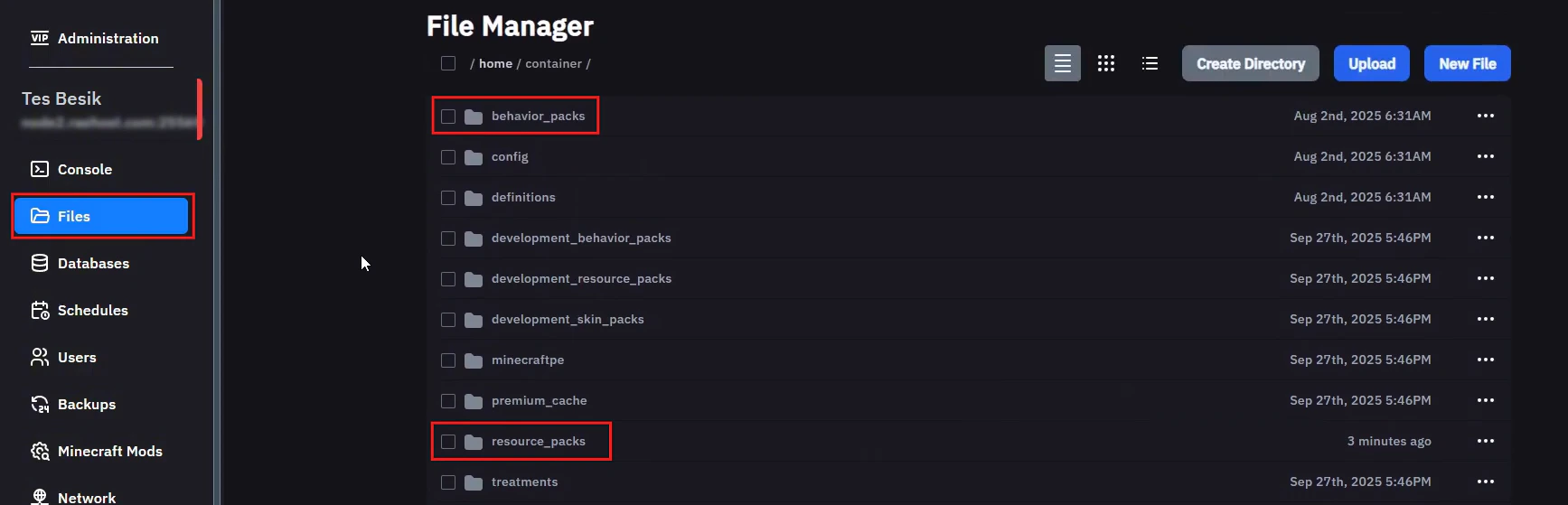
    Cek dulu apakah sudah ada `resource_packs` dan `behaviour_packs`

    <Frame>
      <img src="https://mintcdn.com/raehost/h1ReTANpBE2YjxXJ/images/cek-bp-rp.png?fit=max&auto=format&n=h1ReTANpBE2YjxXJ&q=85&s=a449ceec31a81baffeef764836b391db" alt="Cek Bp Rp" title="Cek Bp Rp" className="mx-auto" width="1735" height="559" data-path="images/cek-bp-rp.png" />
    </Frame>

    <Card title="Jika belum, silahkan buat terlebih dahulu seperti ini" icon="sparkles">
      1. Klik tombol `Create Directory`
               <Frame>
                 <img src="https://mintcdn.com/raehost/h1ReTANpBE2YjxXJ/images/create-directory.png?fit=max&auto=format&n=h1ReTANpBE2YjxXJ&q=85&s=b6e4100d9f8c348b5630859e955d26d9" alt="Create Directory" width="1291" height="123" data-path="images/create-directory.png" />
               </Frame>
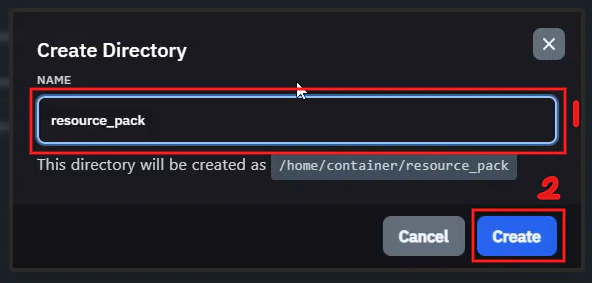
      2. Isi seperti ini
               <Frame>
                 <img src="https://mintcdn.com/raehost/h1ReTANpBE2YjxXJ/images/create-file.png?fit=max&auto=format&n=h1ReTANpBE2YjxXJ&q=85&s=fe80f5962c28485433a0b97b1e018644" alt="Create File" title="Create File" className="mx-auto" style={{ width:"70%" }} width="592" height="283" data-path="images/create-file.png" />
               </Frame>
    </Card>

    ### Resource Pack

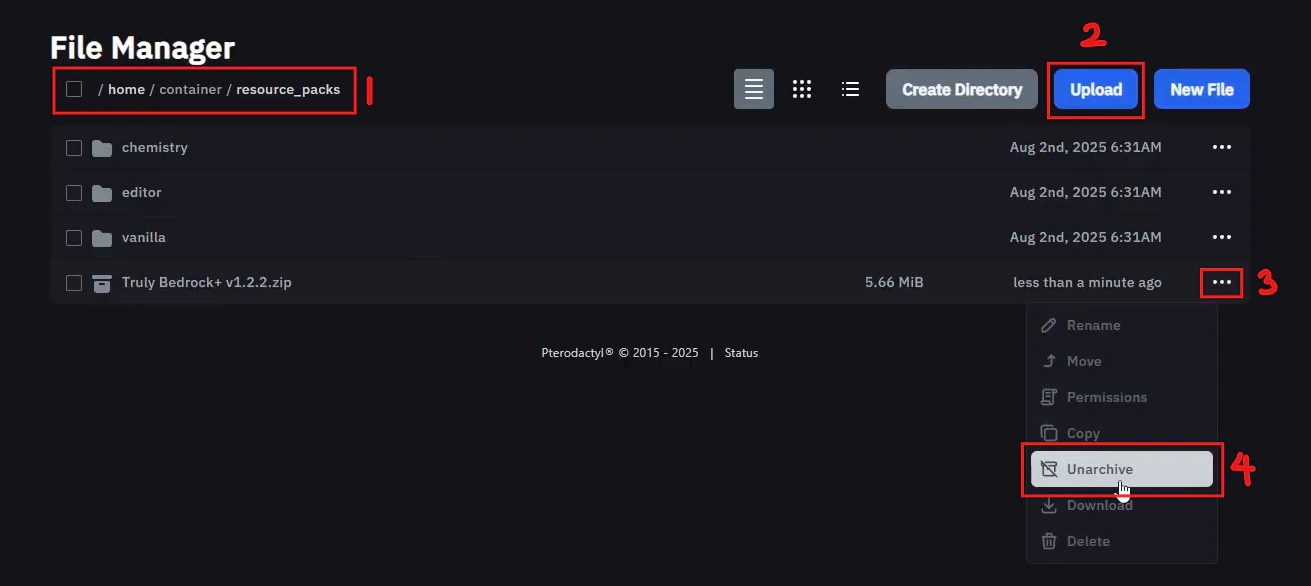
    Buka file `/home/container/resource_packs` seperti pada nomor 1. Kemudian drag and drop file zip atau bisa menggunakan tombol `Upload` seperti nomor 2. Setelah folder masuk, klik icon detail seperti pada nomor 3. Kemudian klik menu `Unarchive` seperti nomor 4.

    <Frame>
      <img src="https://mintcdn.com/raehost/h1ReTANpBE2YjxXJ/images/add-file-rp.png?fit=max&auto=format&n=h1ReTANpBE2YjxXJ&q=85&s=4657587dc3c14ab016f625de6a3a96f7" alt="Add File Rp" width="1311" height="586" data-path="images/add-file-rp.png" />
    </Frame>

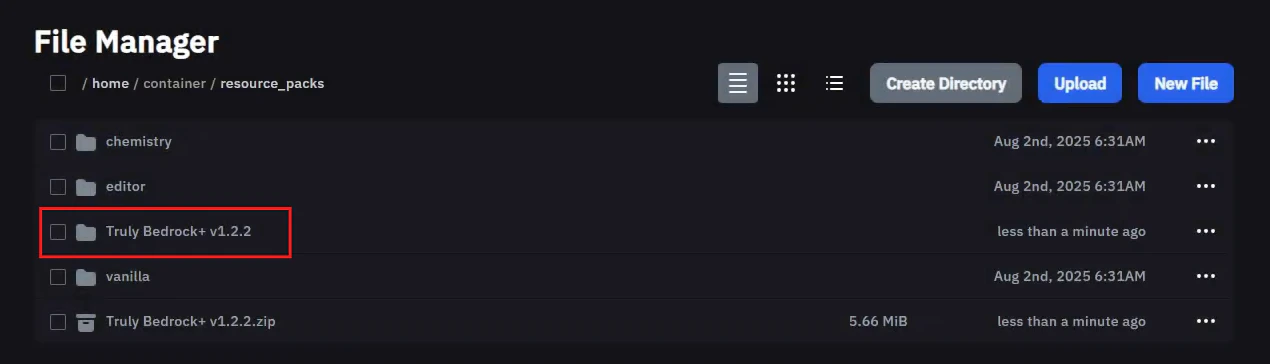
    File mu sudah berhasil di unarchive.

    <Frame>
      <img src="https://mintcdn.com/raehost/h1ReTANpBE2YjxXJ/images/unarchive.png?fit=max&auto=format&n=h1ReTANpBE2YjxXJ&q=85&s=cfc4ccdc27b4a399b4be85db98affeba" alt="Unarchive" width="1270" height="364" data-path="images/unarchive.png" />
    </Frame>
  </Step>

  <Step title="Masukkan ke World">
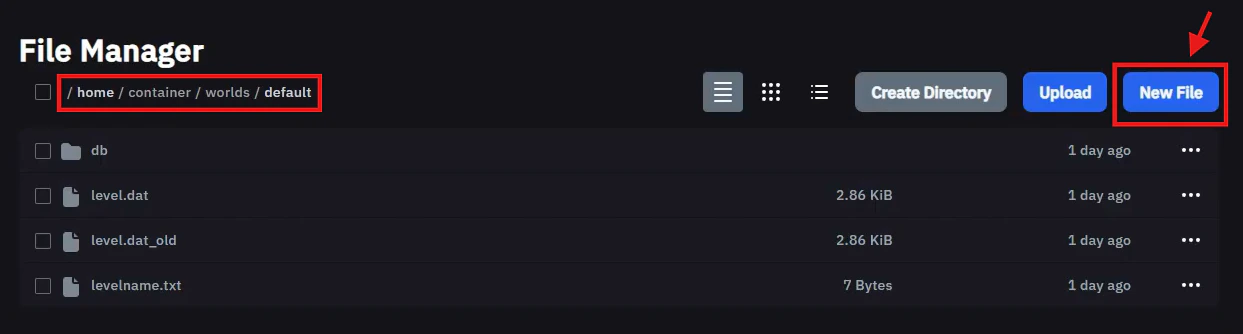
    Masuk ke file `/home/container/worlds/<nama_world>` . Kemudian klik tombol `New File`.

    <Frame>
      <img src="https://mintcdn.com/raehost/h1ReTANpBE2YjxXJ/images/new-file.png?fit=max&auto=format&n=h1ReTANpBE2YjxXJ&q=85&s=1332c07c66bb457b07c7bbf44ac70f32" alt="New File" width="1243" height="334" data-path="images/new-file.png" />
    </Frame>

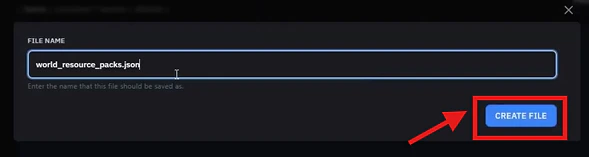
    Buat file dengan nama: `world_resource_packs.json`. Kemudian klik `Create File`. Seperti ini:

    <Frame>
      <img src="https://mintcdn.com/raehost/h1ReTANpBE2YjxXJ/images/create-rp.png?fit=max&auto=format&n=h1ReTANpBE2YjxXJ&q=85&s=e33fceff30e6260a652f2dd625fe543d" alt="Create Rp" width="589" height="157" data-path="images/create-rp.png" />
    </Frame>

    Klik tombol `Create File` 

    <Frame>
      <img src="https://mintcdn.com/raehost/h1ReTANpBE2YjxXJ/images/create-file2.png?fit=max&auto=format&n=h1ReTANpBE2YjxXJ&q=85&s=b226a7294cdb86204af852029e604aca" alt="Create File2" width="1278" height="141" data-path="images/create-file2.png" />
    </Frame>

    Isi dengan code berikut ini:

    ```text theme={null}
         [
           { "pack_id": "UUID-RESOURCE", "version": [1,0,0] }
         ]
    ```

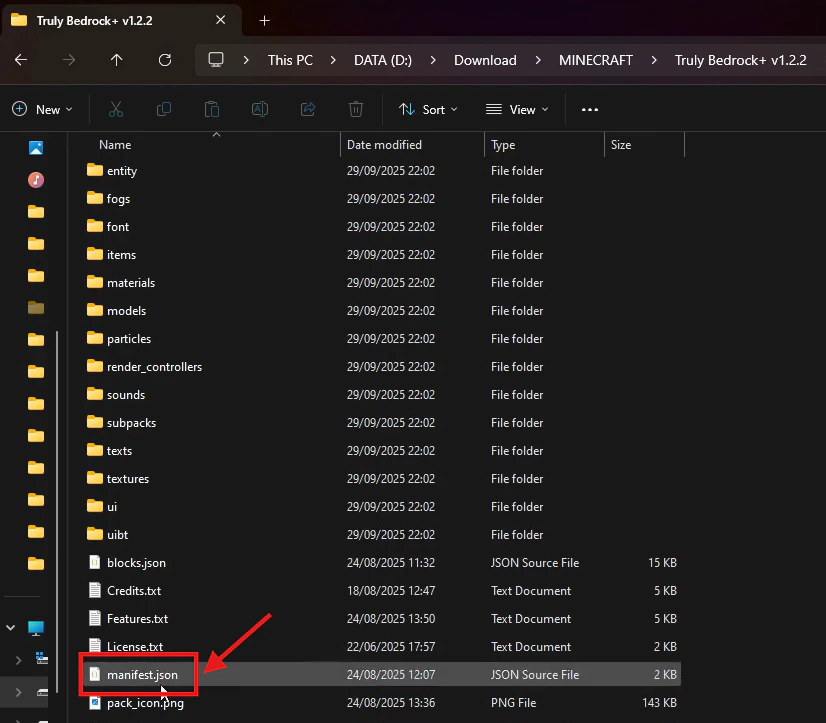
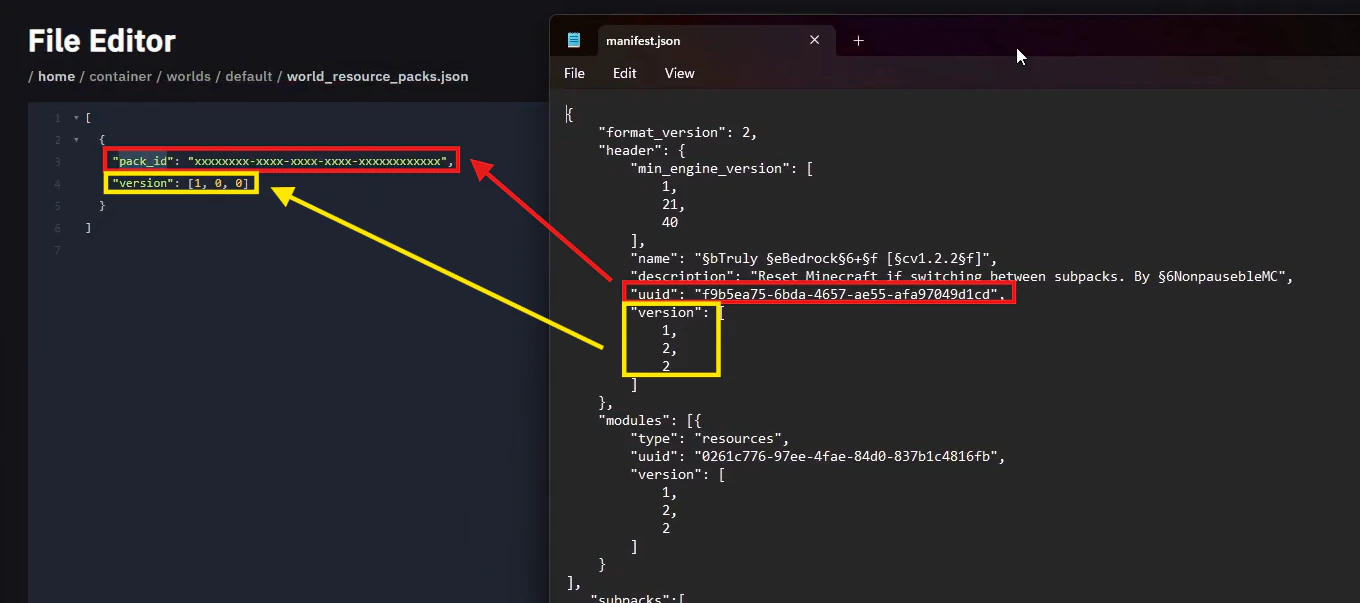
    Tambahkan entry baru sesuai UUID & version di manifest.json addon pada file add on

    <Frame>
      <img src="https://mintcdn.com/raehost/h1ReTANpBE2YjxXJ/images/open-manifest-rp.png?fit=max&auto=format&n=h1ReTANpBE2YjxXJ&q=85&s=90ff5b8e062def36f230a4aa5f5b173c" alt="Open Manifest Rp" title="Open Manifest Rp" className="mx-auto" style={{ width:"81%" }} width="826" height="723" data-path="images/open-manifest-rp.png" />
    </Frame>

    Isi file sesuai ini

    <Frame>
      <img src="https://mintcdn.com/raehost/h1ReTANpBE2YjxXJ/images/isi-rp.png?fit=max&auto=format&n=h1ReTANpBE2YjxXJ&q=85&s=5ecaa415b39dc8c7fbbb3563bef44f9d" alt="Isi Rp" width="1360" height="603" data-path="images/isi-rp.png" />
    </Frame>

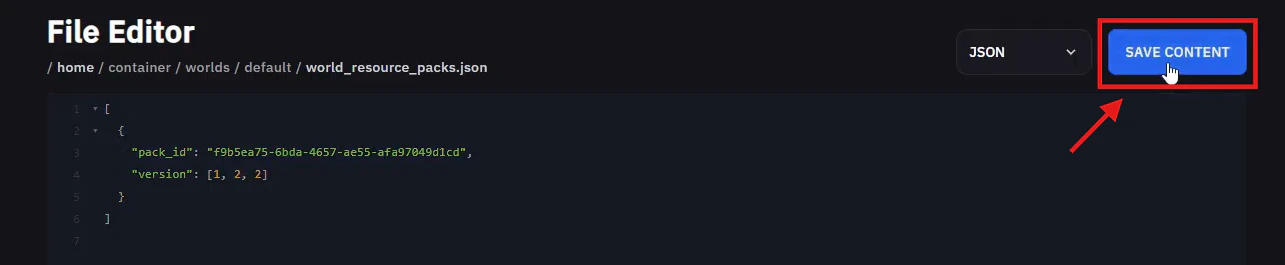
    Klik tombol `Save Content` 

    <Frame>
      <img src="https://mintcdn.com/raehost/h1ReTANpBE2YjxXJ/images/save-rp.png?fit=max&auto=format&n=h1ReTANpBE2YjxXJ&q=85&s=8777134477a6681f79c0882e6e649c88" alt="Save Rp" width="1285" height="265" data-path="images/save-rp.png" />
    </Frame>

    ### Behaviour Pack

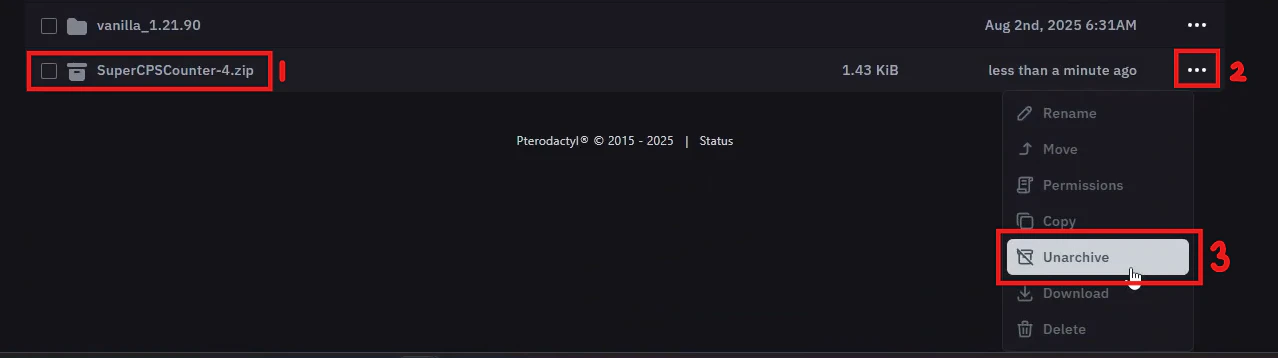
    Buka file `/home/container/behaviour_packs`. Kemudian drag and drop file zip atau bisa menggunakan tombol `Upload`. Setelah folder masuk, klik icon detail seperti pada nomor 2. Kemudian klik menu `Unarchive` seperti nomor 3.

    <Frame>
      <img src="https://mintcdn.com/raehost/h1ReTANpBE2YjxXJ/images/unarchive-bp.png?fit=max&auto=format&n=h1ReTANpBE2YjxXJ&q=85&s=561a3b195f1ed6e0d5ef5aee2751255b" alt="Unarchive Bp" width="1278" height="358" data-path="images/unarchive-bp.png" />
    </Frame>

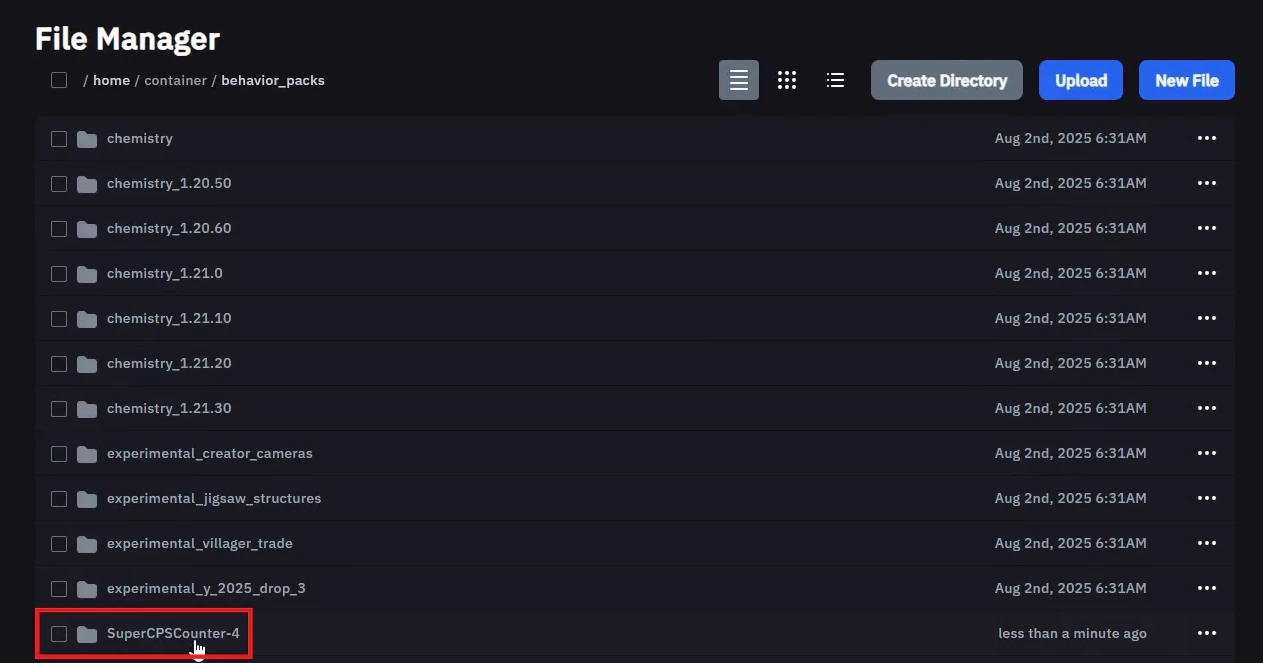
    File mu sudah berhasil di unarchive.

    <Frame>
      <img src="https://mintcdn.com/raehost/h1ReTANpBE2YjxXJ/images/udah-kebuka.png?fit=max&auto=format&n=h1ReTANpBE2YjxXJ&q=85&s=77d42dc1584dffe0befb64cd0db72f67" alt="Udah Kebuka" width="1263" height="663" data-path="images/udah-kebuka.png" />
    </Frame>
  </Step>

  <Step title="Masukkan ke World">
    Masuk ke file `/home/container/worlds/<nama_world>` . Kemudian klik tombol `New File`.

    <Frame>
      <img src="https://mintcdn.com/raehost/h1ReTANpBE2YjxXJ/images/new-file.png?fit=max&auto=format&n=h1ReTANpBE2YjxXJ&q=85&s=1332c07c66bb457b07c7bbf44ac70f32" alt="New File" width="1243" height="334" data-path="images/new-file.png" />
    </Frame>

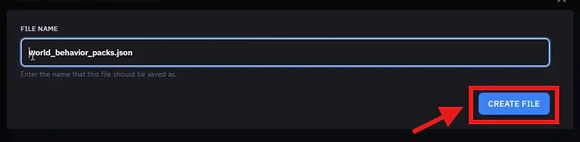
    Buat file dengan nama: `world_behaviour_packs.json`. Kemudian klik `Create File`. Seperti ini:

    <Frame>
      <img src="https://mintcdn.com/raehost/h1ReTANpBE2YjxXJ/images/create-bp.png?fit=max&auto=format&n=h1ReTANpBE2YjxXJ&q=85&s=0afc36fe6fc0291f9eed8c55132d6318" alt="Create Bp" width="580" height="142" data-path="images/create-bp.png" />
    </Frame>

    Klik tombol `Create File` 

    <Frame>
      <img src="https://mintcdn.com/raehost/h1ReTANpBE2YjxXJ/images/create-file2.png?fit=max&auto=format&n=h1ReTANpBE2YjxXJ&q=85&s=b226a7294cdb86204af852029e604aca" alt="Create File2" width="1278" height="141" data-path="images/create-file2.png" />
    </Frame>

    Isi dengan code berikut ini:

    ```text theme={null}
         [
           { "pack_id": "UUID-RESOURCE", "version": [1,0,0] }
         ]
    ```

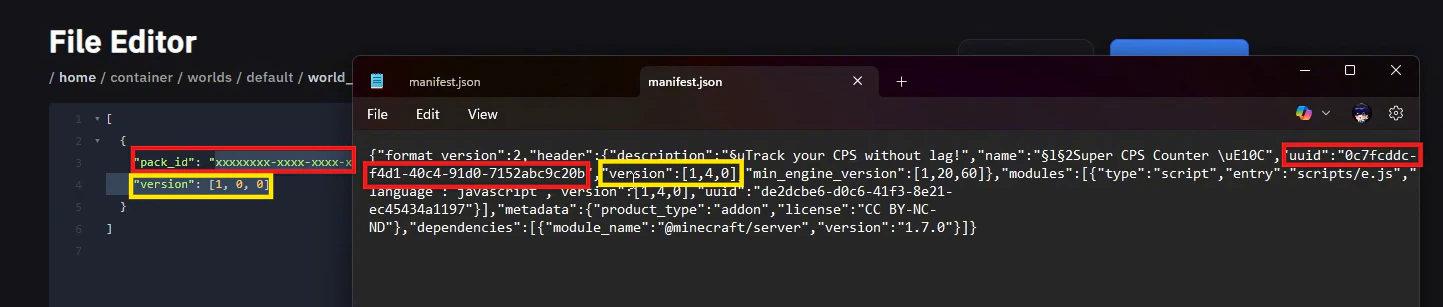
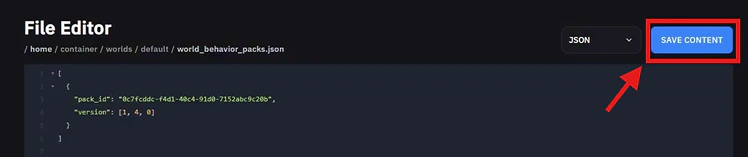
    Tambahkan entry baru sesuai UUID & version di manifest.json addon pada file add on. Isi file sesuai ini:

    <Frame>
      <img src="https://mintcdn.com/raehost/rEuVki2UN6eFP-X3/images/uuid.png?fit=max&auto=format&n=rEuVki2UN6eFP-X3&q=85&s=f67daeaa95228d9f7a114db92ff90bd1" alt="Uuid" width="1443" height="307" data-path="images/uuid.png" />
    </Frame>

    Klik tombol `Save Content` 

    <Frame>
      <img src="https://mintcdn.com/raehost/rEuVki2UN6eFP-X3/images/save-bp.png?fit=max&auto=format&n=rEuVki2UN6eFP-X3&q=85&s=ef32e6f129b79a88290d45cca29b4667" alt="Save Bp" width="748" height="157" data-path="images/save-bp.png" />
    </Frame>
  </Step>

  <Step title="Ubah texturepack-required">
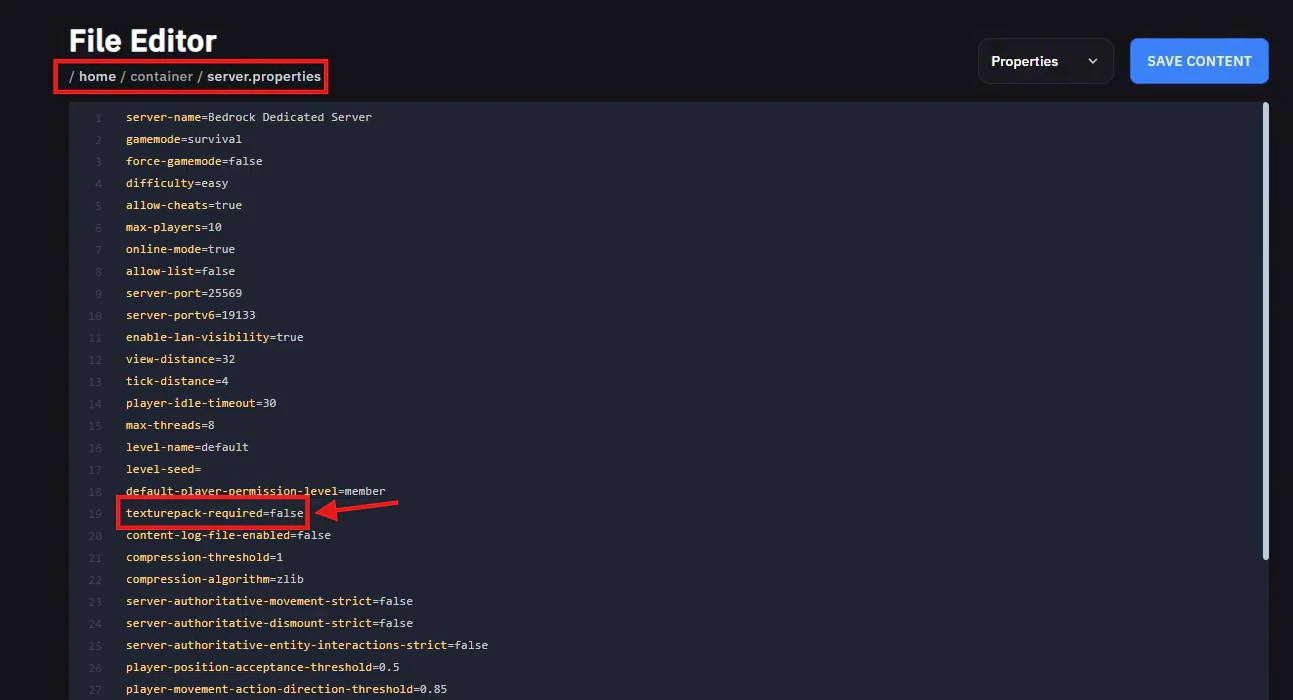
    Masuk ke file `/home/container/server.properties`. Ubah texturepack-required.

    <Frame>
      <img src="https://mintcdn.com/raehost/6Z32d6X6UwY65rH2/images/tp-false.png?fit=max&auto=format&n=6Z32d6X6UwY65rH2&q=85&s=e9ec5a7453f818ae9b0b572580e6de15" alt="Tp False" width="1293" height="700" data-path="images/tp-false.png" />
    </Frame>

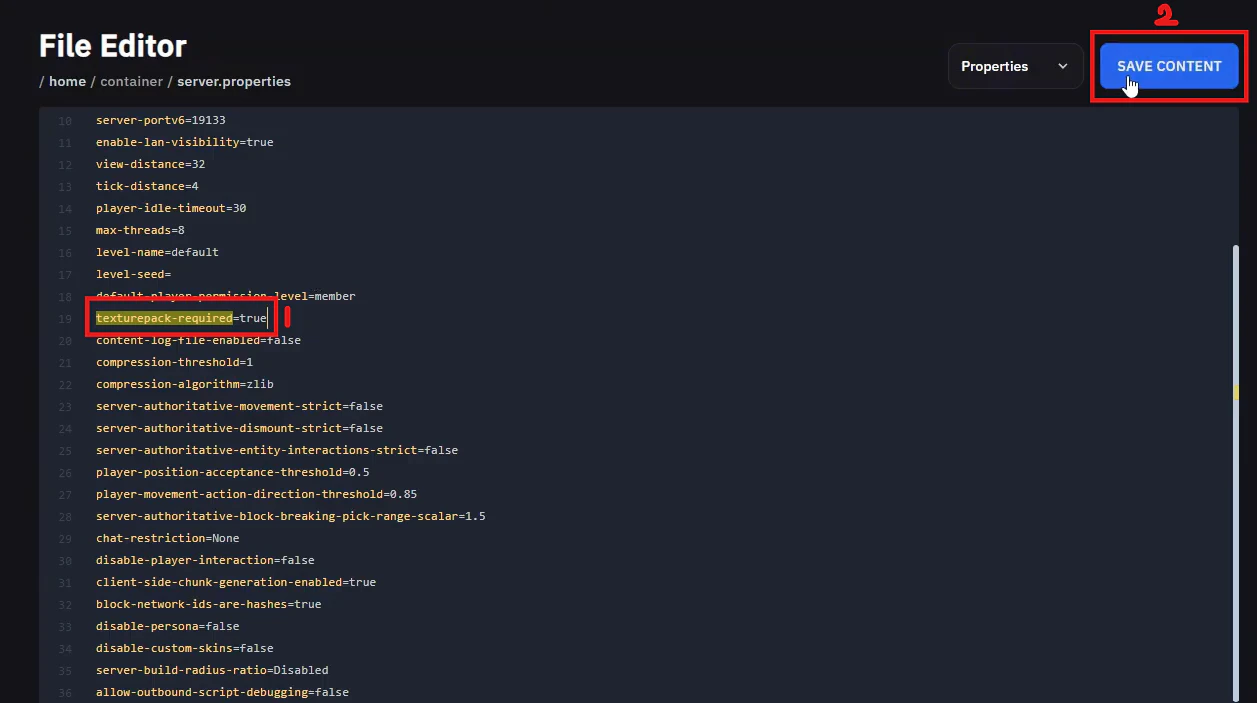
    Ubah menjadi true. Lalu klik `Save Content`

    <Frame>
      <img src="https://mintcdn.com/raehost/6Z32d6X6UwY65rH2/images/tp-true.png?fit=max&auto=format&n=6Z32d6X6UwY65rH2&q=85&s=e9ab8084ec34d340229e8b1a2f258996" alt="Tp True" width="1257" height="703" data-path="images/tp-true.png" />
    </Frame>
  </Step>

  <Step title="Start Server">
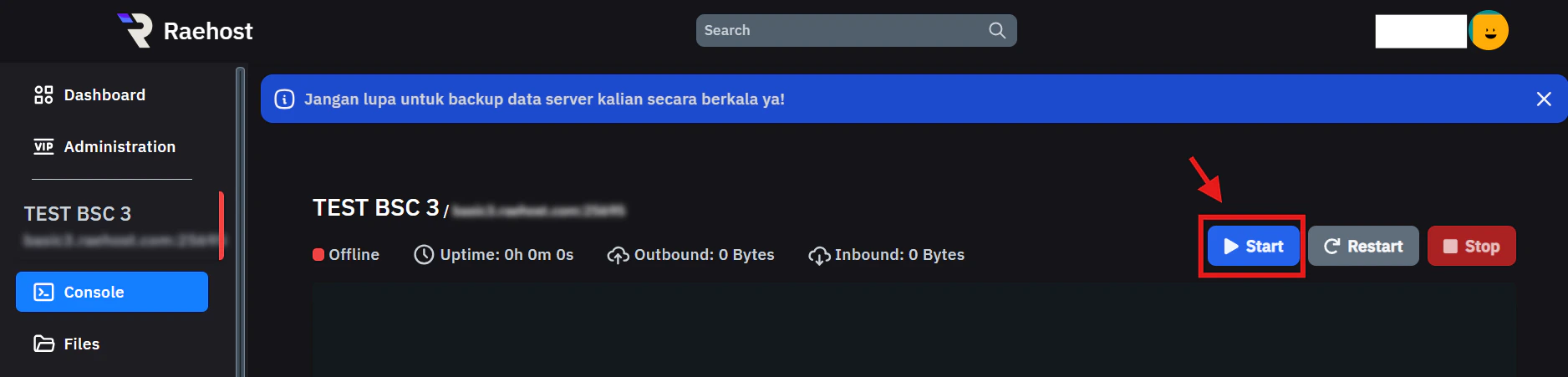
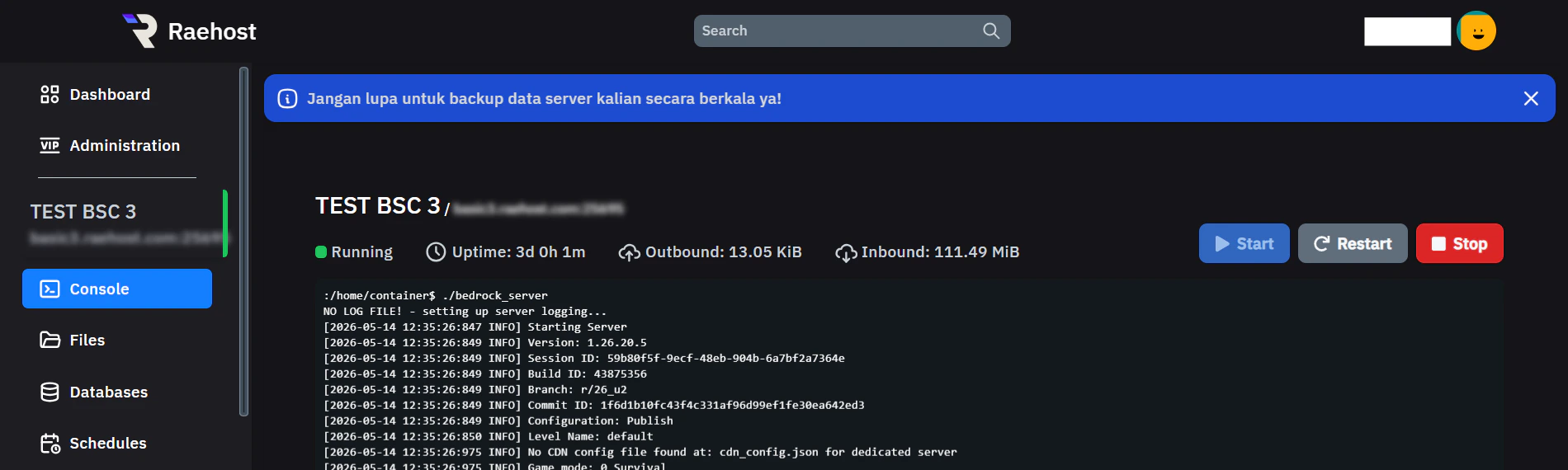
    Kemudian start server dengan menekan tombol `Start`pada tab `Console` seperti yang ditunjukkan pada gambar berikut:
    <Frame>
      <img src="https://mintcdn.com/raehost/ob2UuHck6K9vZNuI/images/image-67.png?fit=max&auto=format&n=ob2UuHck6K9vZNuI&q=85&s=0e64ac372bed24d8b38e6e070a92ce27" alt="Image" width="1876" height="451" data-path="images/image-67.png" />
    </Frame>
  </Step>
</Steps>

<iframe src="https://www.youtube.com/embed/u50vjDi1NdQ" title="YouTube video player" frameborder="0" className="w-full aspect-video rounded-xl" allow="accelerometer; autoplay; clipboard-write; encrypted-media; gyroscope; picture-in-picture; web-share" allowfullscreen />