> ## Documentation Index
> Fetch the complete documentation index at: https://docs.raehost.com/llms.txt
> Use this file to discover all available pages before exploring further.

# Cara Pasang Mod di Server Hytale

Pilih metode pemasangan mod yang ingin kamu gunakan:

<CardGroup cols={2}>
  <Card title="Lewat Panel" icon="browser" href="#panel">
    Install mod langsung dari menu Hytale Mods di panel, tanpa perlu download & upload manual.
  </Card>

  <Card title="Manual" icon="folder" href="#manual">
    Download mod dari web pihak ketiga (contoh: CurseForge), lalu upload ke folder `mods` di panel.
  </Card>
</CardGroup>

## Panel

<Steps>
  <Step title="Pastikan Server Mati">
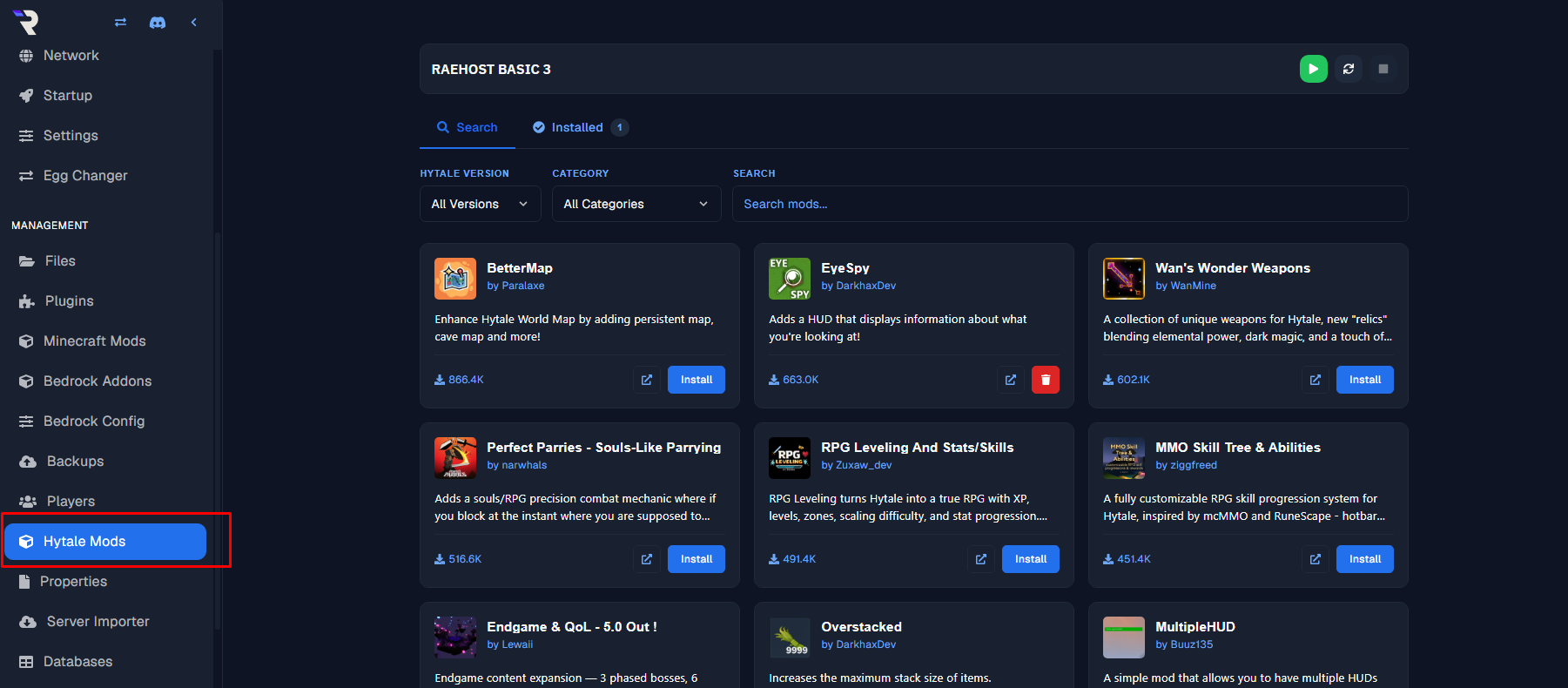
    Login ke panel melalui [https://panel.raehost.com/](https://panel.raehost.com/), lalu pastikan servermu dalam status `Offline`. Setelah itu, buka menu `Hytale Mods` pada sidebar.

    <Frame>
      <img src="https://mintcdn.com/raehost/TC873XyJq15N382T/images/hytale-mods-1.png?fit=max&auto=format&n=TC873XyJq15N382T&q=85&s=3e13a8d2da20cfc7f68292ce20153227" alt="Hytale Mods 1" width="1801" height="790" data-path="images/hytale-mods-1.png" />
    </Frame>
  </Step>

  <Step title="Pilih Mod">
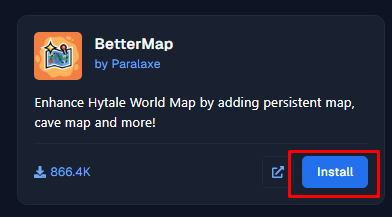
    Cari mod yang ingin kamu gunakan, lalu klik tombol `Install` pada mod tersebut.

    <Frame>
      <img src="https://mintcdn.com/raehost/TC873XyJq15N382T/images/hytale-mods-2.png?fit=max&auto=format&n=TC873XyJq15N382T&q=85&s=481f8145200eeb753ed1c9255900c23f" alt="Hytale Mods 2" width="392" height="217" data-path="images/hytale-mods-2.png" />
    </Frame>
  </Step>

  <Step title="Pilih Versi Mod">
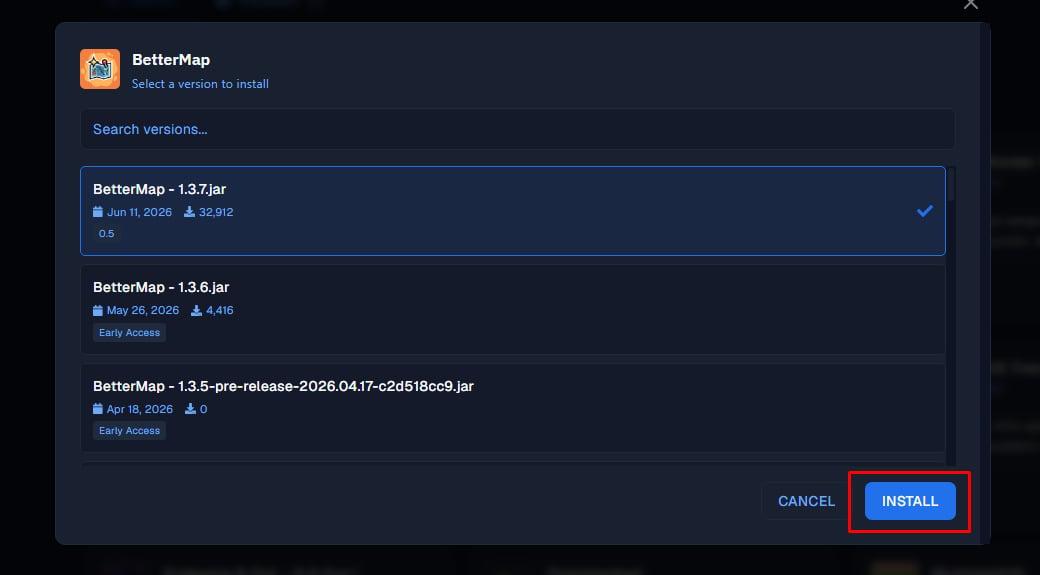
    Akan muncul pop up untuk memilih versi mod yang ingin digunakan. Disarankan untuk memilih versi yang paling atas/terbaru, lalu klik tombol `INSTALL`.

    <Frame>
      <img src="https://mintcdn.com/raehost/TC873XyJq15N382T/images/hytale-mods-3.png?fit=max&auto=format&n=TC873XyJq15N382T&q=85&s=4a86241f767287afe07c52a98b7f81bf" alt="Hytale Mods 3" width="1040" height="575" data-path="images/hytale-mods-3.png" />
    </Frame>
  </Step>

  <Step title="Tunggu Proses Instalasi">
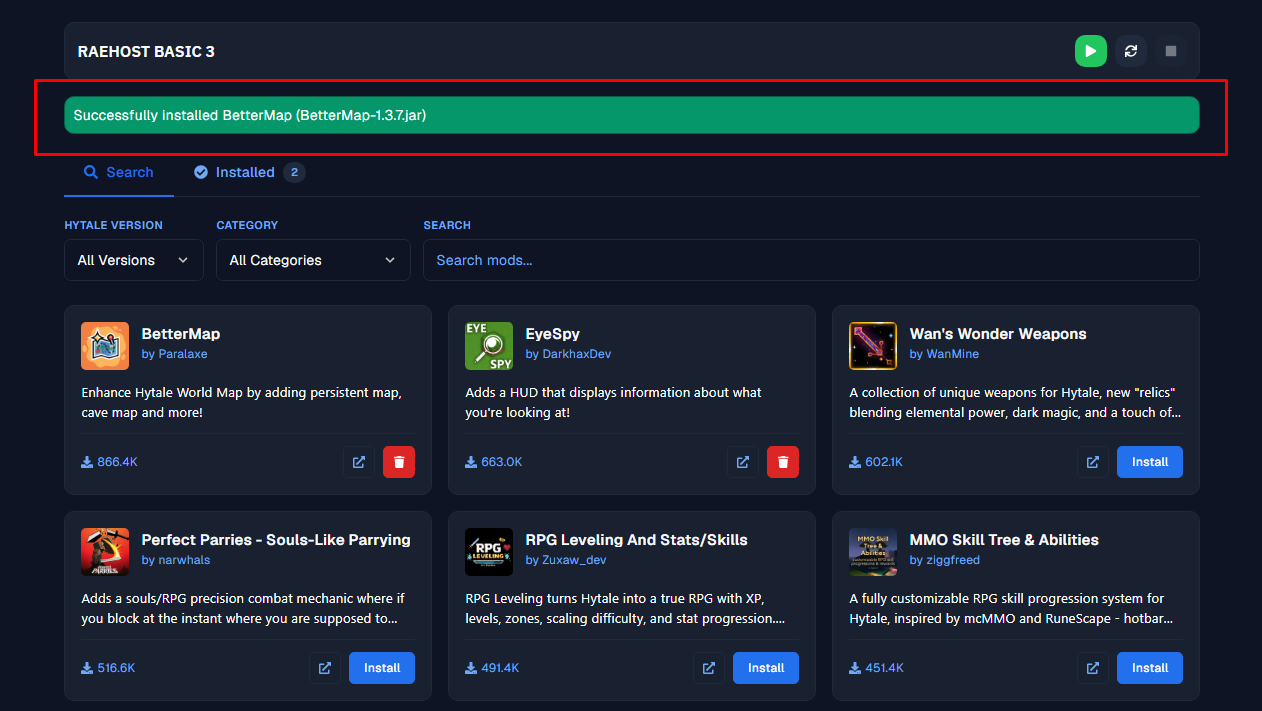
    Tunggu hingga muncul notifikasi `Successfully installed <Nama Mod>` yang menandakan mod sudah berhasil terinstall. Mod yang sudah terinstall bisa dicek pada tab `Installed`.

    <Frame>
      <img src="https://mintcdn.com/raehost/TC873XyJq15N382T/images/hytale-mods-4.png?fit=max&auto=format&n=TC873XyJq15N382T&q=85&s=4a54780e2fde0e103134a55a3c45309f" alt="Hytale Mods 4" width="1262" height="711" data-path="images/hytale-mods-4.png" />
    </Frame>
  </Step>

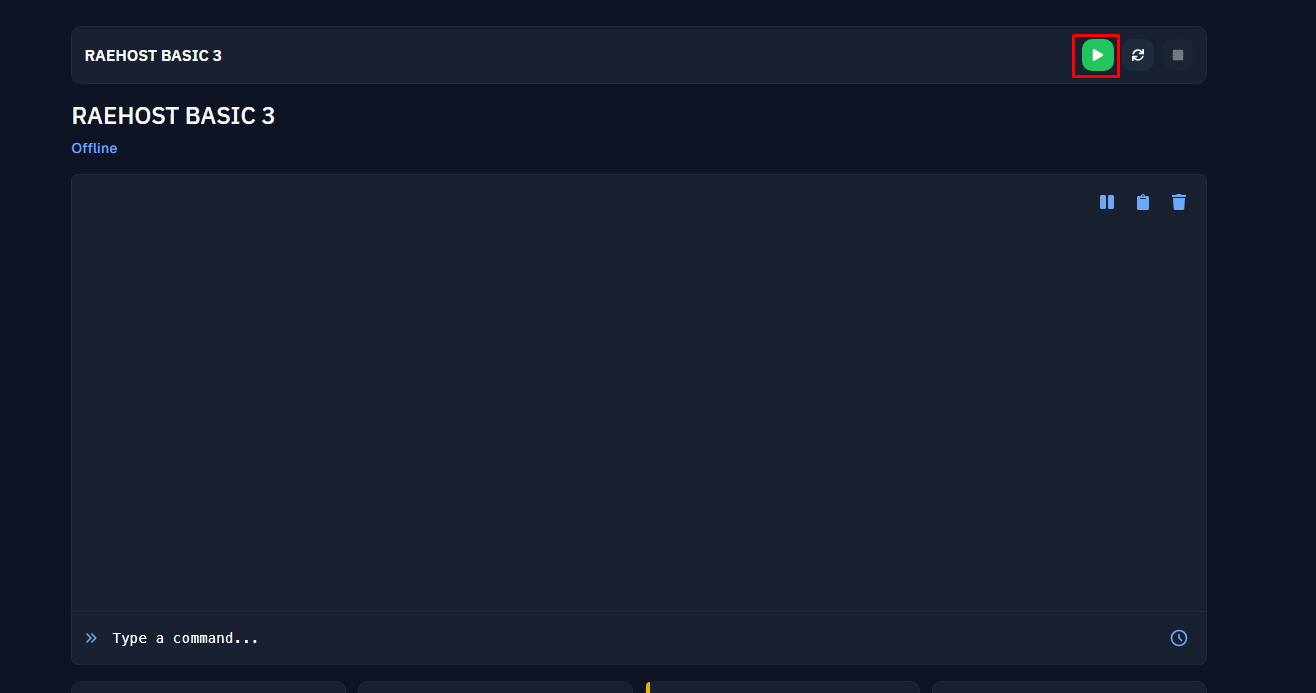
  <Step title="Start Server">
    Setelah mod berhasil terinstall, kembali ke tab `Console` dan klik tombol `Start` untuk menjalankan server.

    <Frame>
      <img src="https://mintcdn.com/raehost/TC873XyJq15N382T/images/hytale-mods-5.png?fit=max&auto=format&n=TC873XyJq15N382T&q=85&s=13b286be849a977297f7a613b09fa9e2" alt="Start Hytale" width="1316" height="693" data-path="images/hytale-mods-5.png" />
    </Frame>
  </Step>
</Steps>

## Manual

<Steps>
  <Step title="Login ke Panel">
    Untuk melakukan ini, kamu perlu login ke panel melalui [https://panel.raehost.com/](https://panel.raehost.com/). Kemudian pilih servermu, dan pastikan statusnya `Offline`. Jika server masih menyala, klik tombol `Stop` terlebih dahulu sebelum lanjut ke langkah berikutnya.
  </Step>

  <Step title="Download Mod">
    <Steps>
      <Step title="Masuk ke Web Pilihanmu">
        <Info>
          Contoh: [https://www.curseforge.com/](https://www.curseforge.com/)
        </Info>

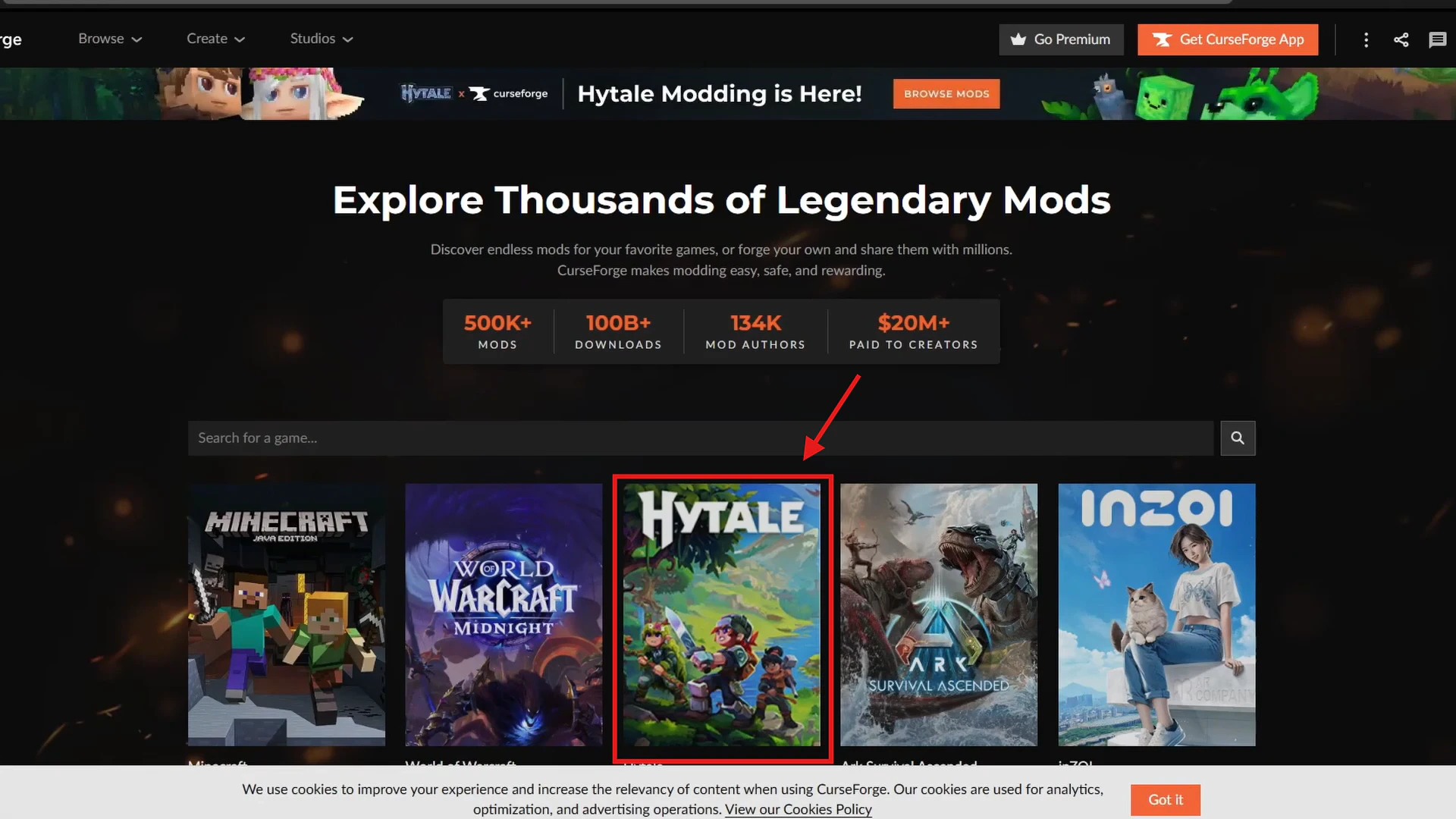
        Setelah masuk ke web nya, cari Hytale

        <Frame>
          <img src="https://mintcdn.com/raehost/gHf3bg7TytGVFBWS/images/curse-forgde-hytale.png?fit=max&auto=format&n=gHf3bg7TytGVFBWS&q=85&s=c0700b891a7b72dfe6c447e36cd6be13" alt="Curse Forgde Hytale" width="1920" height="1080" data-path="images/curse-forgde-hytale.png" />
        </Frame>
      </Step>

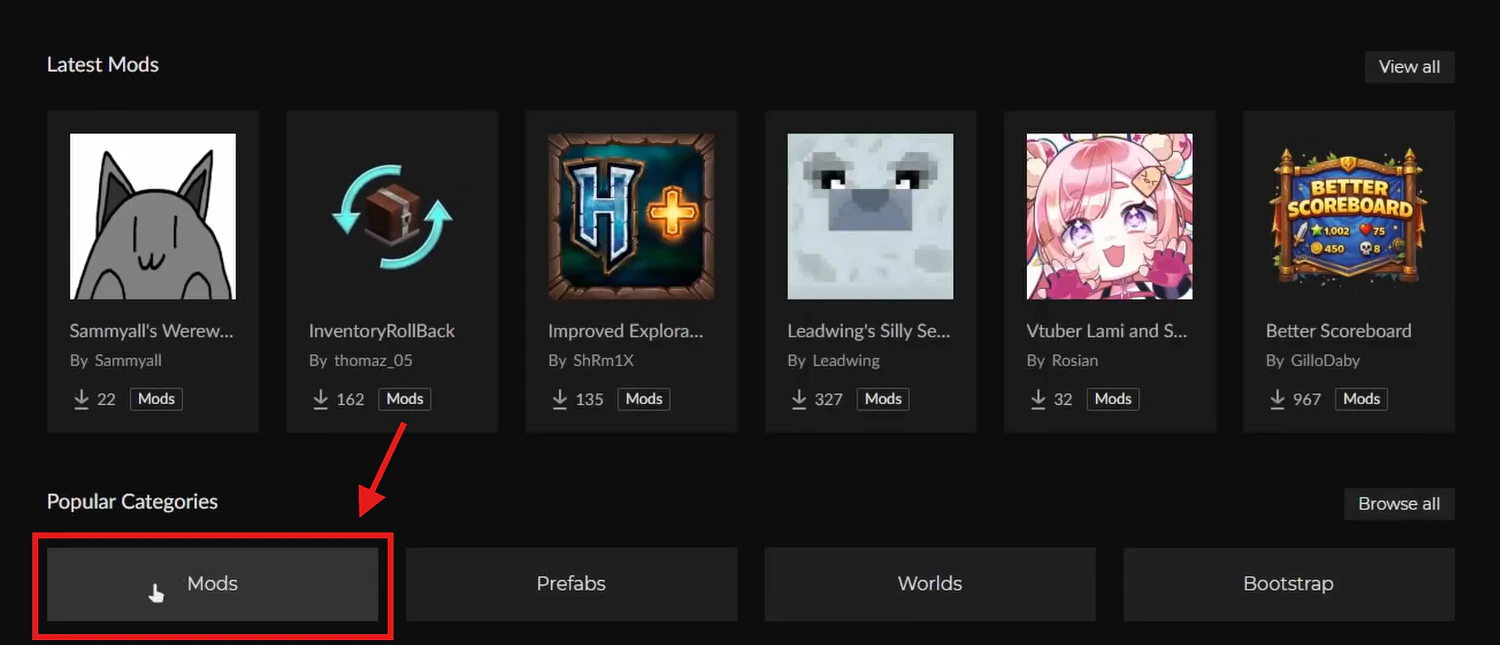
      <Step title="Pilih Kategori">
        Pilih `Mod` pada kategori

        <Frame>
          <img src="https://mintcdn.com/raehost/gHf3bg7TytGVFBWS/images/categories-mod.png?fit=max&auto=format&n=gHf3bg7TytGVFBWS&q=85&s=7f97cdaa992e5912b3d1191d2464507b" alt="Categories Mod" width="1500" height="645" data-path="images/categories-mod.png" />
        </Frame>
      </Step>

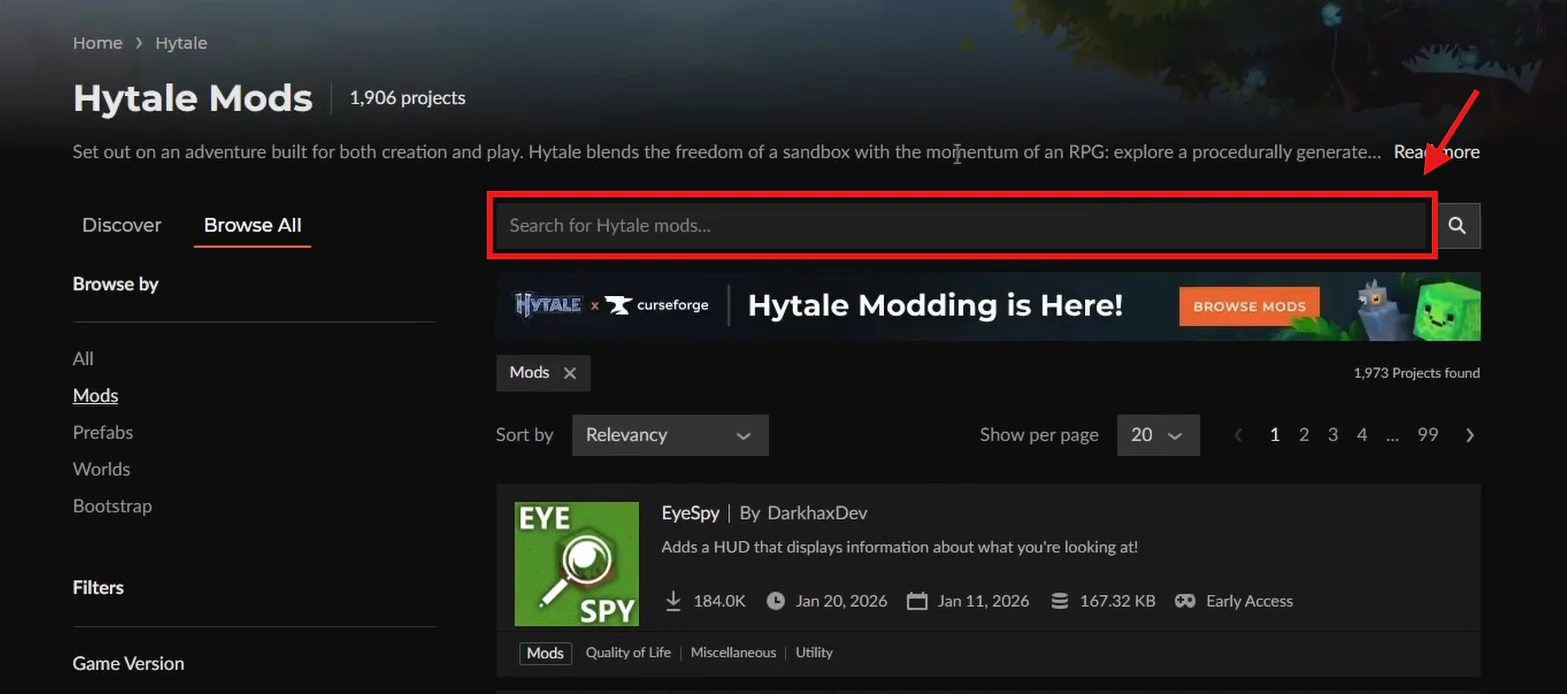
      <Step title="Cari Mod">
        Cari Mod yang kamu inginkan

        <Frame>
          <img src="https://mintcdn.com/raehost/gHf3bg7TytGVFBWS/images/find-mod.png?fit=max&auto=format&n=gHf3bg7TytGVFBWS&q=85&s=bd8f90c11848033fa60c2956fb0d4bc1" alt="Find Mod" width="1567" height="694" data-path="images/find-mod.png" />
        </Frame>
      </Step>

      <Step title="Download File">
        <Frame>
          <img src="https://mintcdn.com/raehost/gHf3bg7TytGVFBWS/images/download-mod.png?fit=max&auto=format&n=gHf3bg7TytGVFBWS&q=85&s=b4b5bb2d19d7d2051d102f15b9fea219" alt="Download Mod" width="1537" height="673" data-path="images/download-mod.png" />
        </Frame>

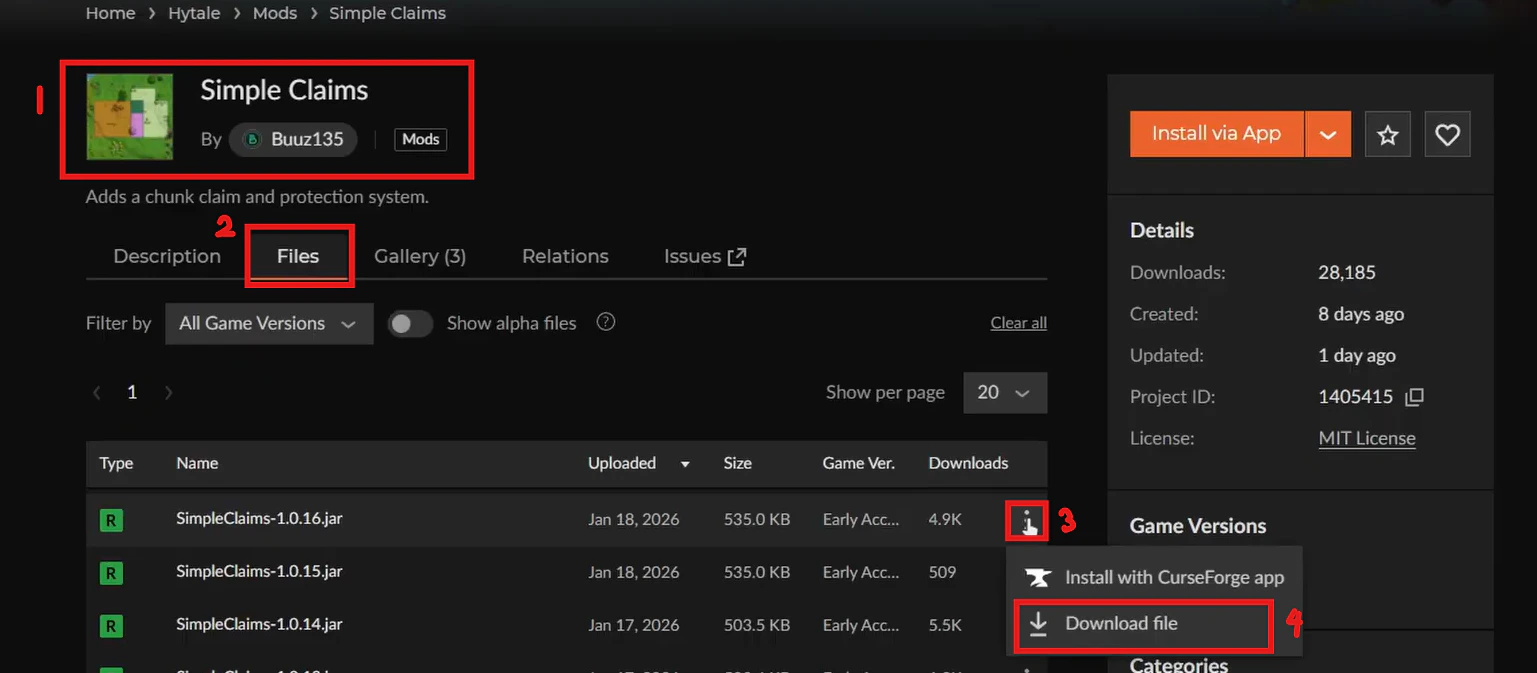
        1. Klik Mod yang kamu ingin seperti berikut
        2. Plih tab `Files`
        3. Klik icon detail
        4. Klik menu `Download File`. Tunggu hingga file terdownload sempurna.
      </Step>
    </Steps>
  </Step>

  <Step title="Upload File">
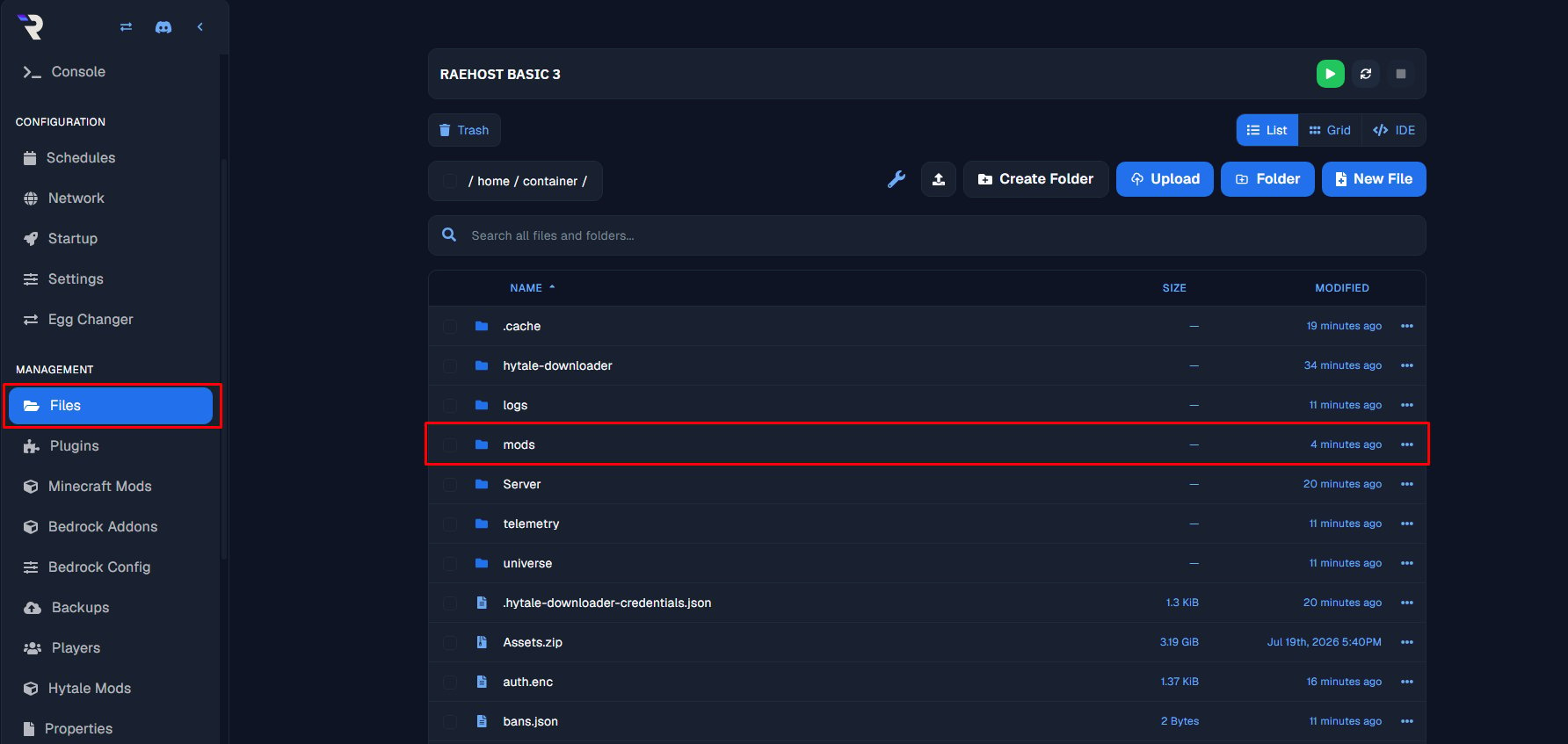
    Kembali ke [https://panel.raehost.com/](https://panel.raehost.com/) dan masuk ke tab `Files`. Kemudian klik folder `mods` seperti berikut:

    <Frame>
      <img src="https://mintcdn.com/raehost/TC873XyJq15N382T/images/file-mod-1.png?fit=max&auto=format&n=TC873XyJq15N382T&q=85&s=2a5e60d36853711f39d656ee0b91d73b" alt="File Mod" className="mx-auto" style={{ width:"76%" }} width="1784" height="847" data-path="images/file-mod-1.png" />
    </Frame>

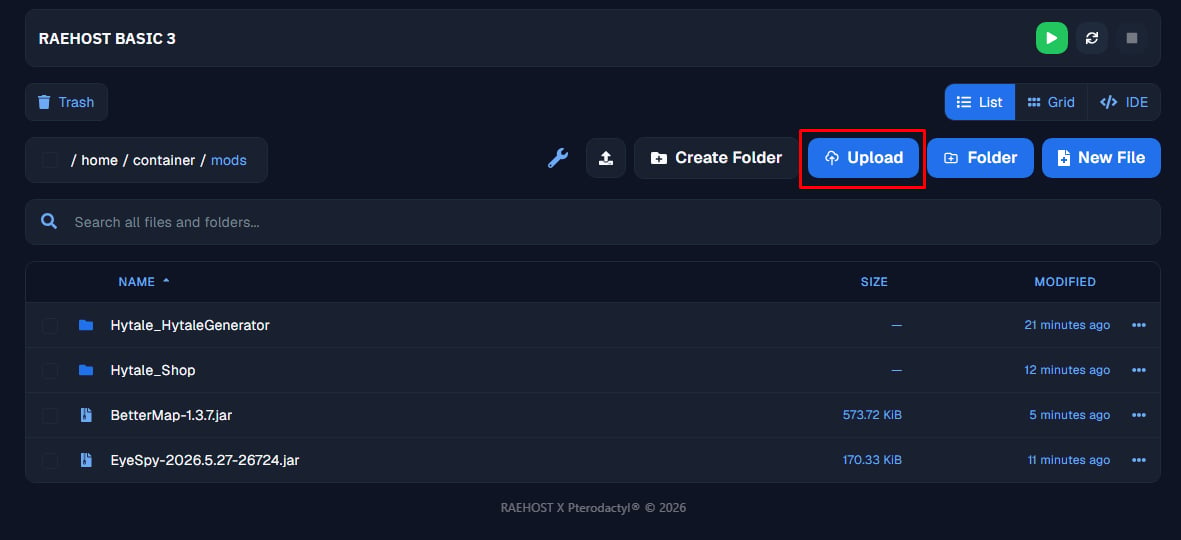
    Upload fils yang sudah di download dengan cara di drag and drop atau klik tombol `Upload` seperti yang ditunjuk oleh nomor 1. Setelahnya file akan tersimpan di `File Manager` seperti nomor 2.
    <Frame>
      <img src="https://mintcdn.com/raehost/TC873XyJq15N382T/images/hytale-file-in.png?fit=max&auto=format&n=TC873XyJq15N382T&q=85&s=2a174c6897144b410da65600a785dff2" alt="File In" lightAlt="File In" darkAlt="File In" className="dark:hidden" width="1181" height="540" data-path="images/hytale-file-in.png" />

      <img src="https://mintcdn.com/raehost/TC873XyJq15N382T/images/hytale-file-in.png?fit=max&auto=format&n=TC873XyJq15N382T&q=85&s=2a174c6897144b410da65600a785dff2" alt="File In" lightAlt="File In" darkAlt="File In" className="hidden dark:block" width="1181" height="540" data-path="images/hytale-file-in.png" />
    </Frame>
  </Step>

  <Step title="Start Server">
    Klik tombol `Start` pada tab `Console`

    <Frame>
      <img src="https://mintcdn.com/raehost/TC873XyJq15N382T/images/hytale-mods-5.png?fit=max&auto=format&n=TC873XyJq15N382T&q=85&s=13b286be849a977297f7a613b09fa9e2" alt="Start Hytale" width="1316" height="693" data-path="images/hytale-mods-5.png" />
    </Frame>
  </Step>
</Steps>

<iframe src="https://www.youtube.com/embed/qT5v0TifxW0" title="YouTube video player" frameborder="0" className="w-full aspect-video rounded-xl" allow="accelerometer; autoplay; clipboard-write; encrypted-media; gyroscope; picture-in-picture; web-share" allowfullscreen />

\\