> ## Documentation Index
> Fetch the complete documentation index at: https://docs.raehost.com/llms.txt
> Use this file to discover all available pages before exploring further.
# Cara Pindah/Migrasi Server
Pastikan server sudah support SFTP atau FTP
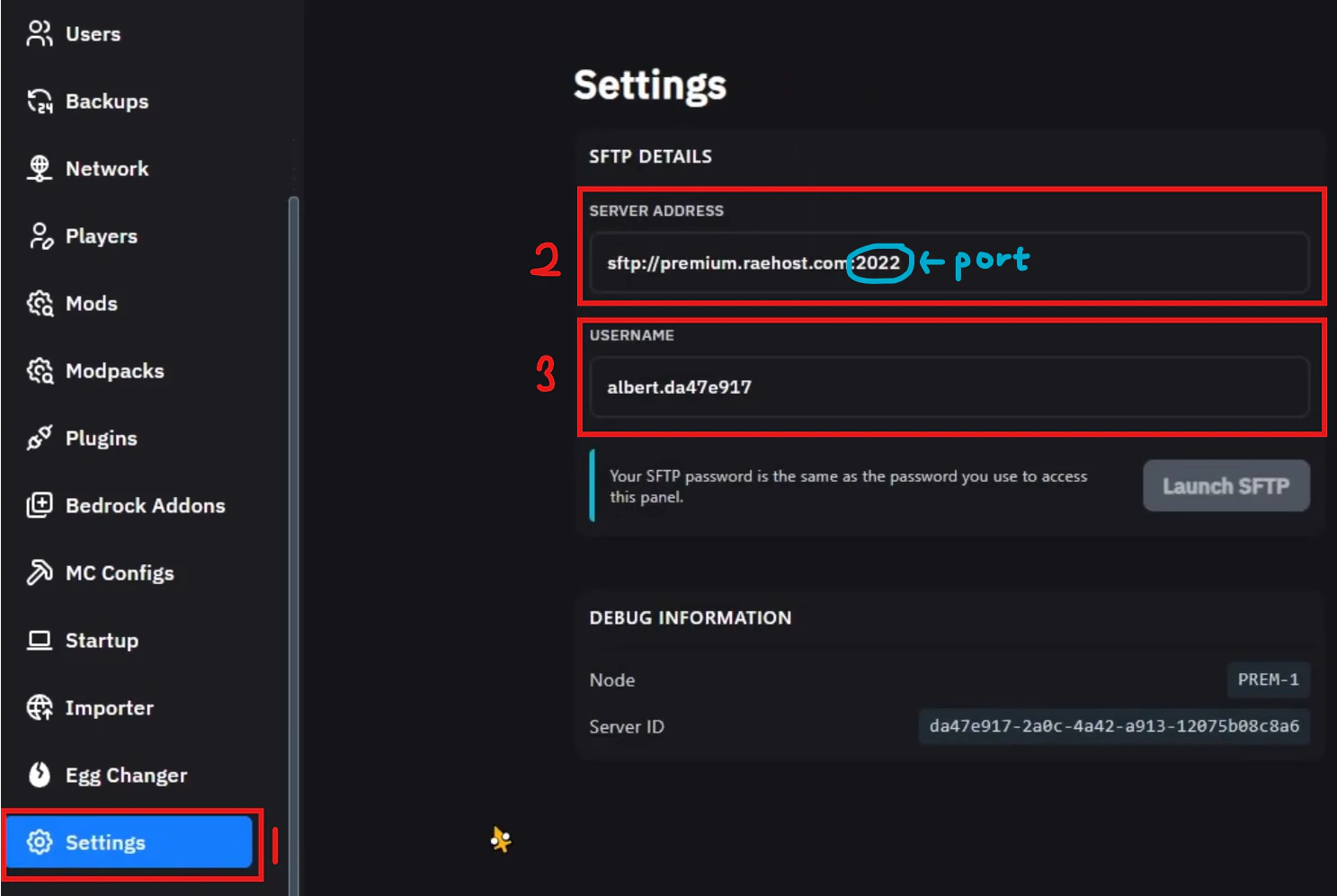
Lihat SFTP detail di server yang ingin dipindahkan.
1. Kalau di RaeHost, SFTP details berada di tab `Settings`
2. Terdapat server address untuk SFTP dari server yang ingin dipindahkan
3. Nomor 3 menampilkan username akun SFTP
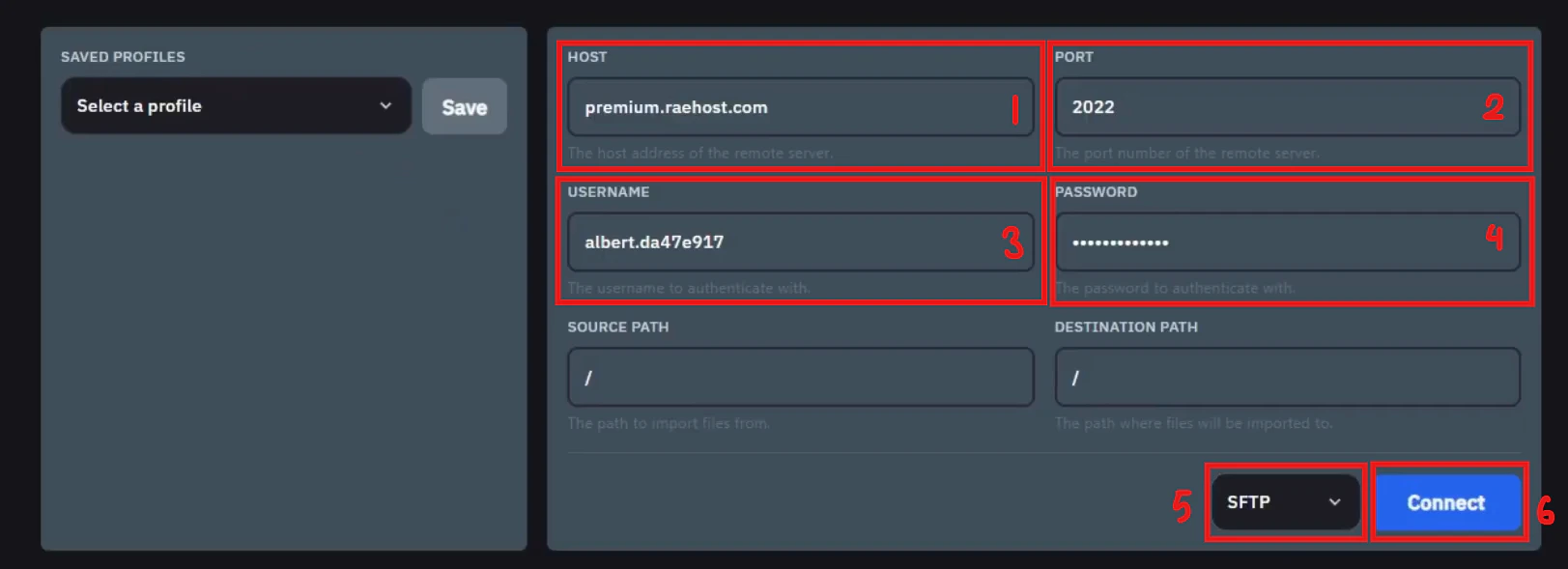
Untuk mengisi form ini, kamu perlu akses ke tab `Importer` pada panel.
1. Isi host address SFTP yang sudah di dapat dari server sebelumnya
2. Isi port dari SFTP server yang sudah di dapat sebelumnya
3. Masukkan username dari akun SFTP kamu yang sudah di dapat pada server sebelumnya
4. Masukkan password panel kamu
5. Nomor 5 merupakan pilihan apakah kamu menggunakan SFTP atau FTP (ditandai dengan **sftp**://premium.raehost.com:2022)
6. Tombol connect untuk menghubungkan server yang ingin dipindahkan ke server tujuan.
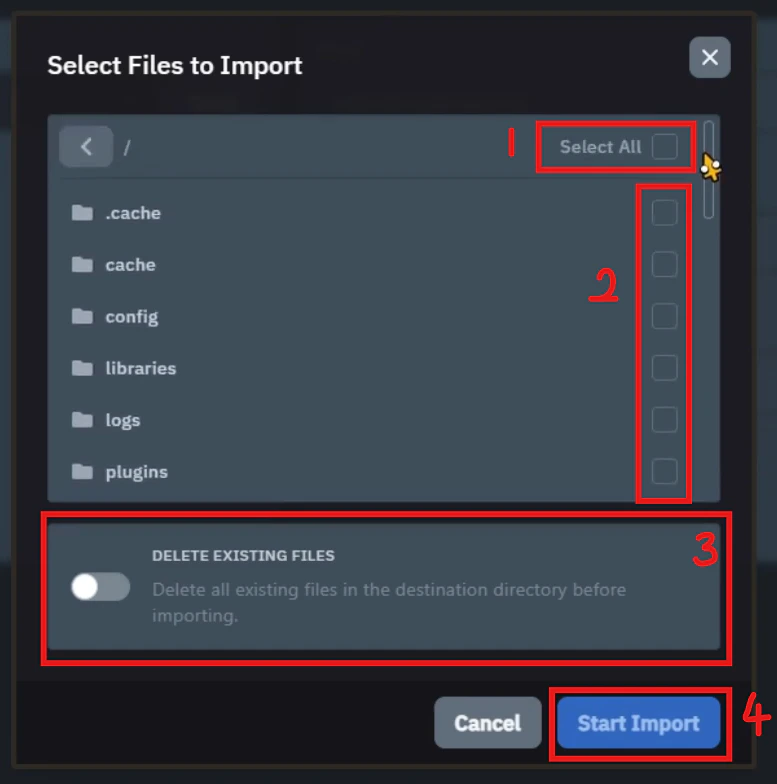
1. Nomor 1 berisi apakah kamu mau `select all` atau memilih seluruh file untuk dipindahkan. (Better centang bagian ini)
2. Nomor 2 berisi pilihan untuk memilih mau file apa aja yang dipindahkan.
3. Nomor 3 berisi apakah mau menghapus semua file pada server tujuan. (Better aktifkan ini)
4. Nomor 4 berisi tombol untuk kegiatan import dilakukan.
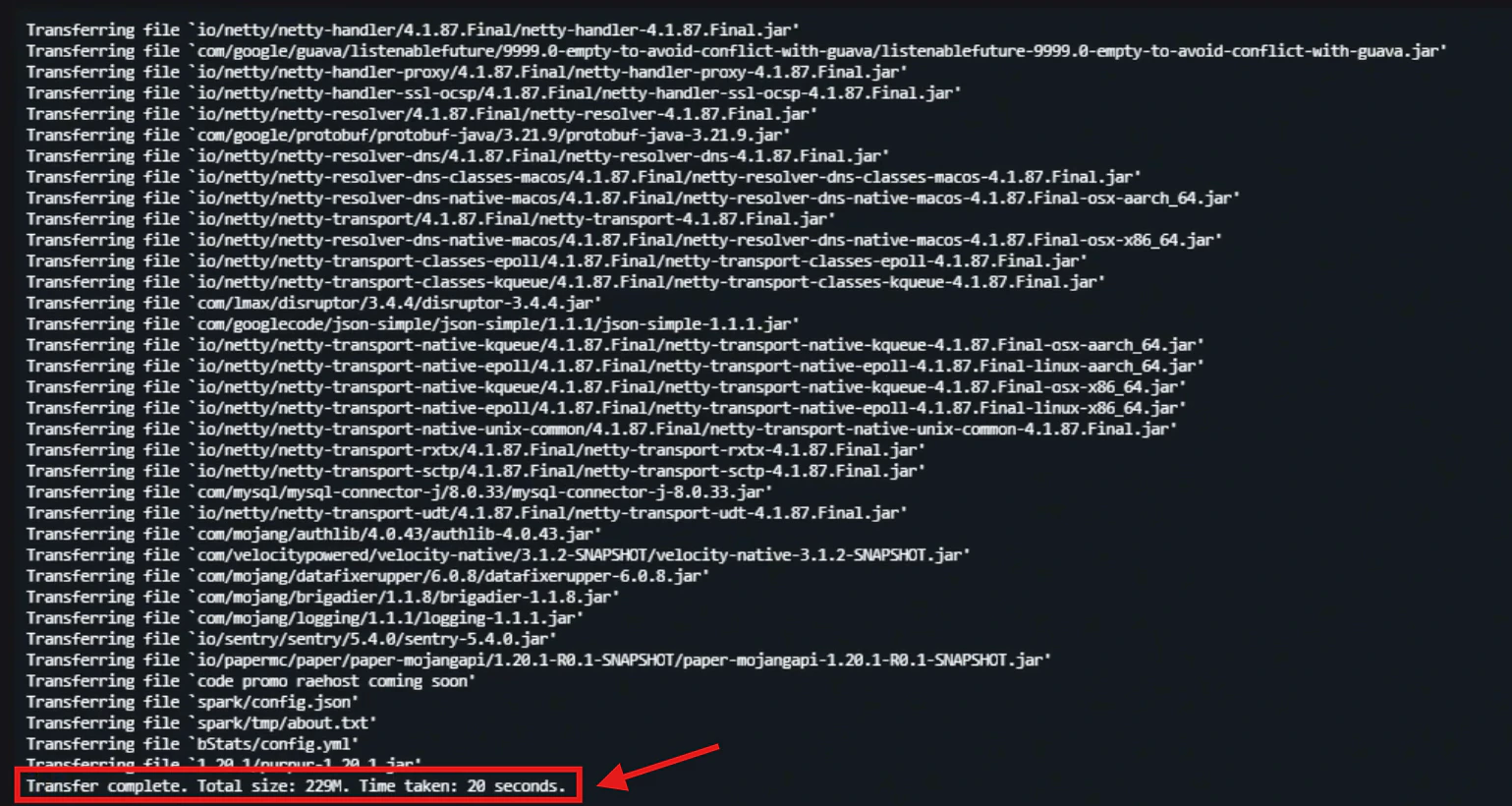
Pada tab `Console`, tunggu hingga semua file berpindah.
 1. Kalau di RaeHost, SFTP details berada di tab `Settings`
2. Terdapat server address untuk SFTP dari server yang ingin dipindahkan
3. Nomor 3 menampilkan username akun SFTP
1. Kalau di RaeHost, SFTP details berada di tab `Settings`
2. Terdapat server address untuk SFTP dari server yang ingin dipindahkan
3. Nomor 3 menampilkan username akun SFTP
 Untuk mengisi form ini, kamu perlu akses ke tab `Importer` pada panel.
1. Isi host address SFTP yang sudah di dapat dari server sebelumnya
2. Isi port dari SFTP server yang sudah di dapat sebelumnya
3. Masukkan username dari akun SFTP kamu yang sudah di dapat pada server sebelumnya
4. Masukkan password panel kamu
5. Nomor 5 merupakan pilihan apakah kamu menggunakan SFTP atau FTP (ditandai dengan **sftp**://premium.raehost.com:2022)
6. Tombol connect untuk menghubungkan server yang ingin dipindahkan ke server tujuan.
Untuk mengisi form ini, kamu perlu akses ke tab `Importer` pada panel.
1. Isi host address SFTP yang sudah di dapat dari server sebelumnya
2. Isi port dari SFTP server yang sudah di dapat sebelumnya
3. Masukkan username dari akun SFTP kamu yang sudah di dapat pada server sebelumnya
4. Masukkan password panel kamu
5. Nomor 5 merupakan pilihan apakah kamu menggunakan SFTP atau FTP (ditandai dengan **sftp**://premium.raehost.com:2022)
6. Tombol connect untuk menghubungkan server yang ingin dipindahkan ke server tujuan.
 1. Nomor 1 berisi apakah kamu mau `select all` atau memilih seluruh file untuk dipindahkan. (Better centang bagian ini)
2. Nomor 2 berisi pilihan untuk memilih mau file apa aja yang dipindahkan.
3. Nomor 3 berisi apakah mau menghapus semua file pada server tujuan. (Better aktifkan ini)
4. Nomor 4 berisi tombol untuk kegiatan import dilakukan.
1. Nomor 1 berisi apakah kamu mau `select all` atau memilih seluruh file untuk dipindahkan. (Better centang bagian ini)
2. Nomor 2 berisi pilihan untuk memilih mau file apa aja yang dipindahkan.
3. Nomor 3 berisi apakah mau menghapus semua file pada server tujuan. (Better aktifkan ini)
4. Nomor 4 berisi tombol untuk kegiatan import dilakukan.