> ## Documentation Index
> Fetch the complete documentation index at: https://docs.raehost.com/llms.txt
> Use this file to discover all available pages before exploring further.
# Cara Merubah Egg
Lihat minecraft yang kamu inginkan:
* [Java Edition Melalui Tab Versions (Lebih Mudah)](#melalui-tab-versions)
* [Java Edition Melalui Tab Egg Changer](#melalui-tab-versions)
* [Bedrock Edition](#bedrock-edition)
## Java Edition
### Melalui Tab Versions
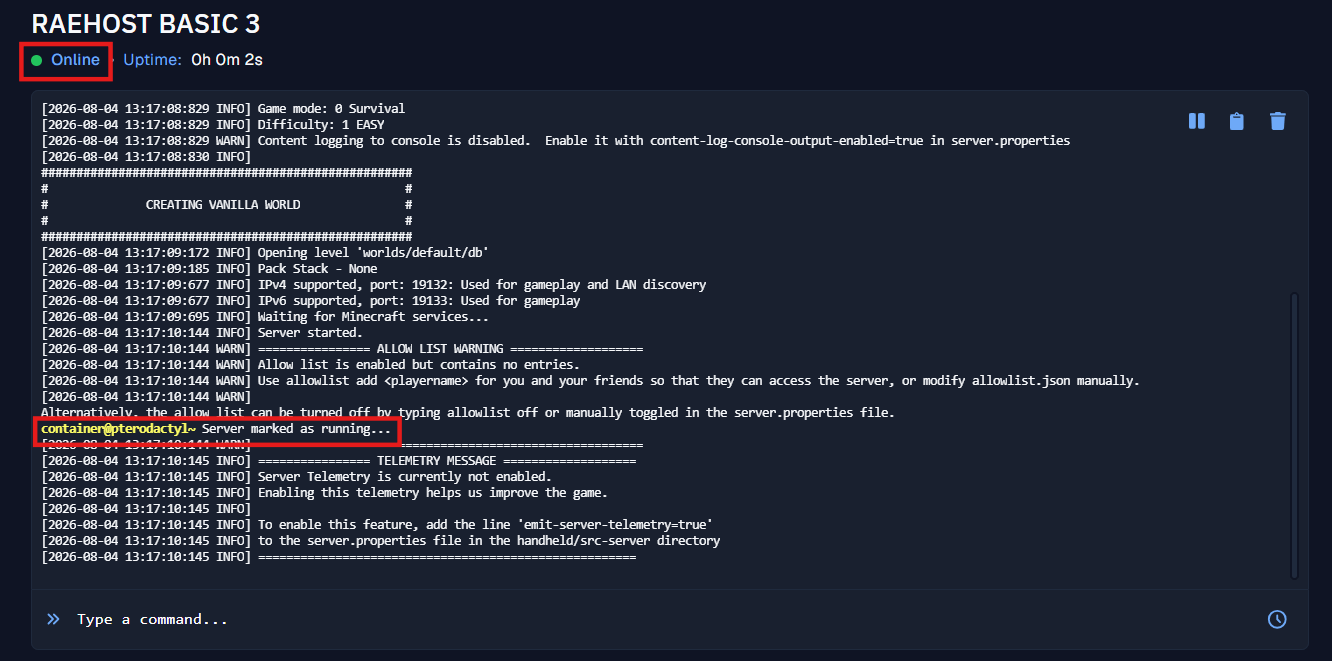
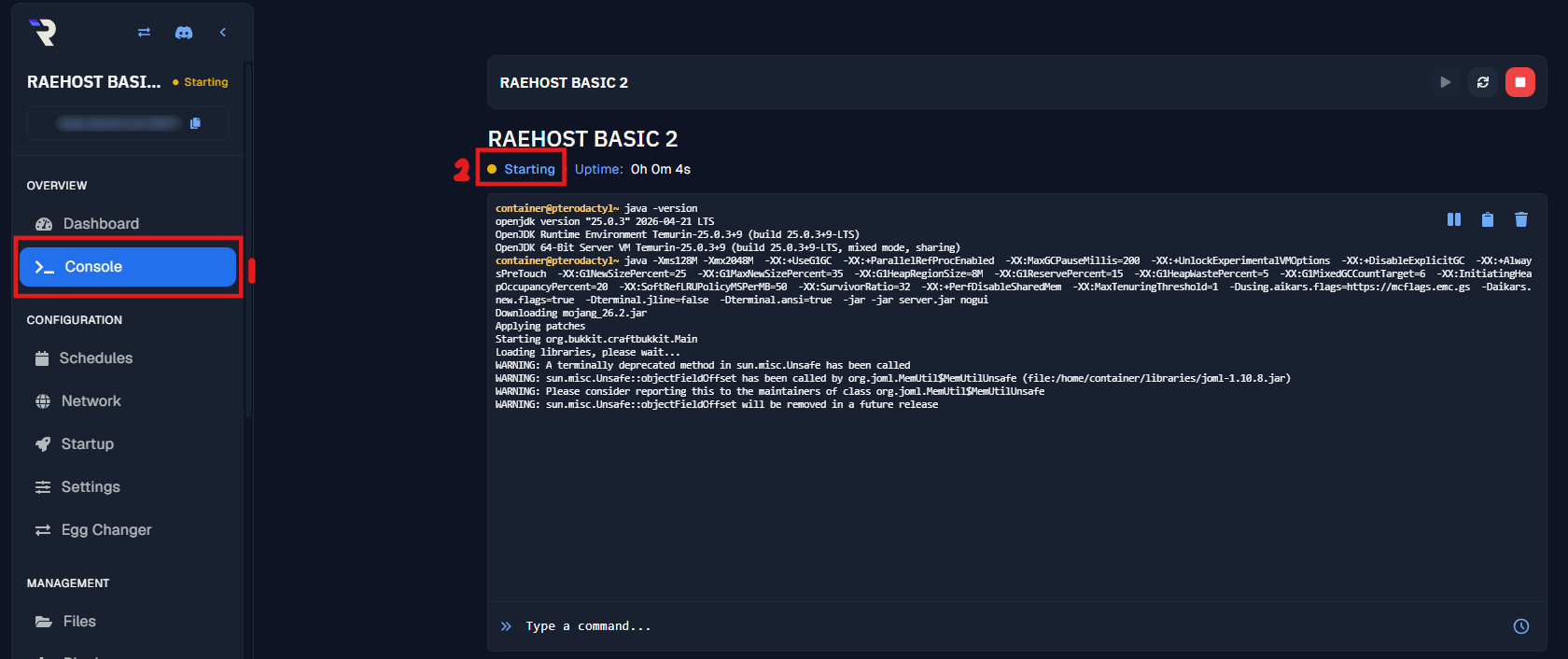
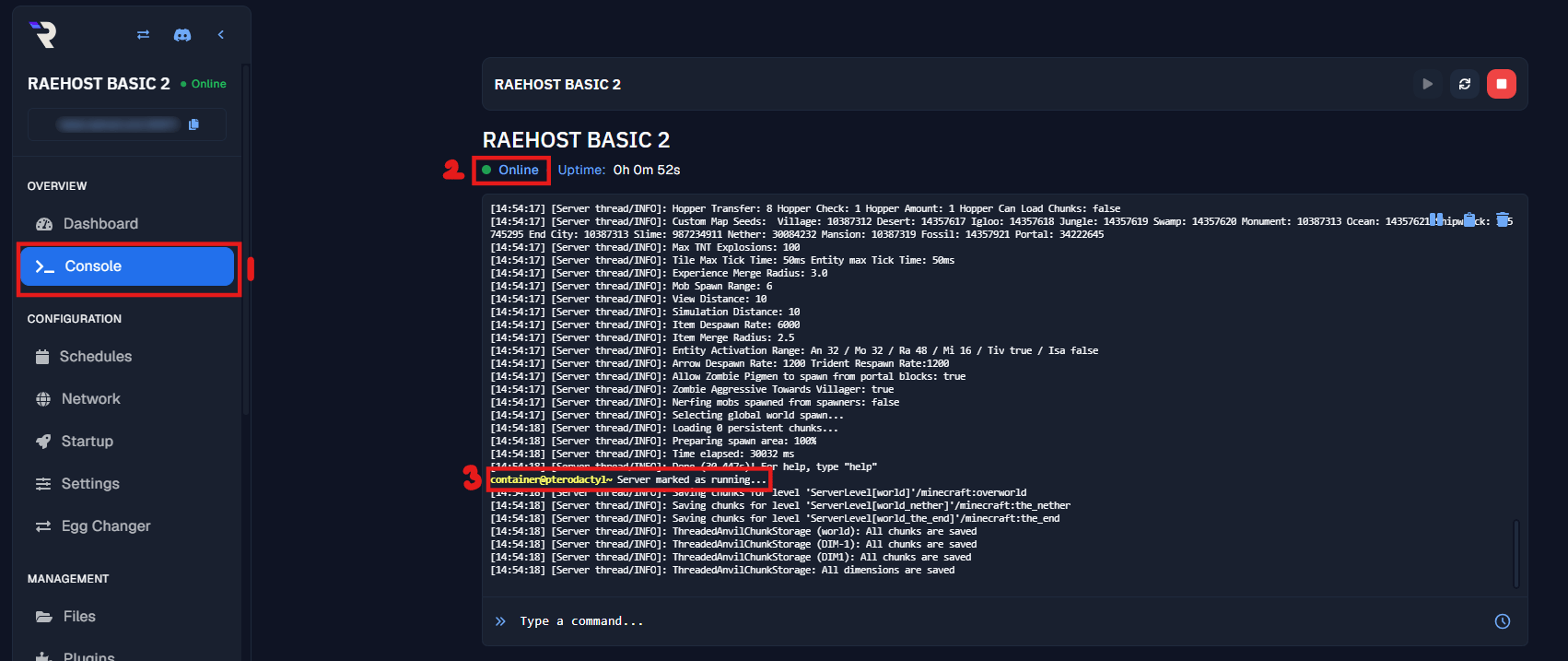
Untuk melakukan ini, kamu perlu login ke panel melalui [https://panel.raehost.com/](https://panel.raehost.com/) Kemudian pilih servermu. Klik tombol `Stop` seperti yang ditampilkan oleh nomor 3. Jika sudah di stop, maka server akan `offline` seperti yang ditampilkan oleh nomor 2.

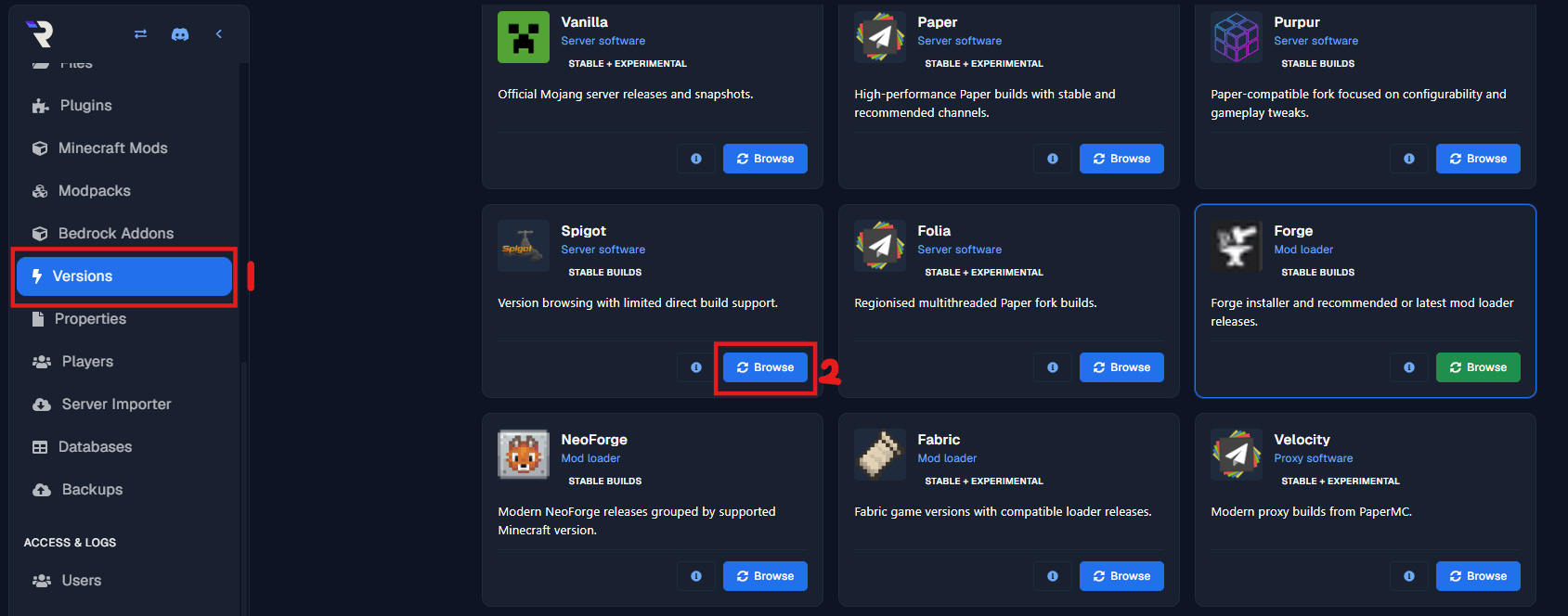 1. Masuk ke tab Versions
2. Klik `Browse` pada egg yang kamu inginkan
1. Masuk ke tab Versions
2. Klik `Browse` pada egg yang kamu inginkan
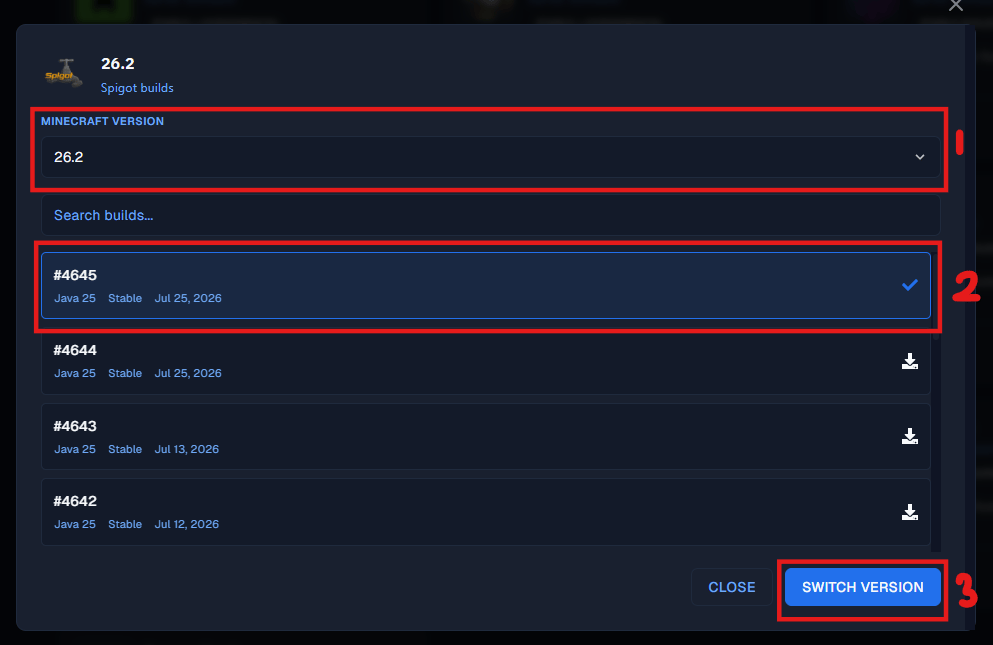 Contohnya adalah Spigot:
1. Pilih Minecraft Version sesuai dengan versi server yang ingin digunakan.
2. Pilih Build yang tersedia. Gunakan build terbaru (nomor build paling tinggi) untuk rekomendasi penggunaan.
3. Klik Switch Version untuk menerapkan perubahan versi server.
Contohnya adalah Spigot:
1. Pilih Minecraft Version sesuai dengan versi server yang ingin digunakan.
2. Pilih Build yang tersedia. Gunakan build terbaru (nomor build paling tinggi) untuk rekomendasi penggunaan.
3. Klik Switch Version untuk menerapkan perubahan versi server.
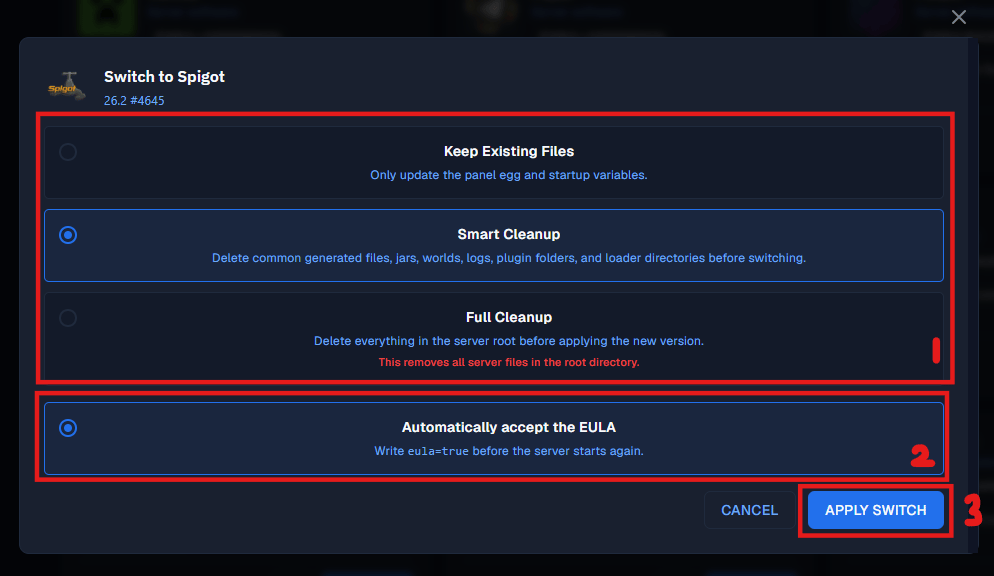 Contohnya adalah Spigot:
1. Pilih metode pembersihan file saat mengganti versi server:
* Keep Existing Files: Tidak menghapus file server yang ada.
* Smart Cleanup: Menghapus file yang berpotensi konflik (rekomendasi).
* Full Cleanup: Menghapus seluruh file server sebelum mengganti versi.
2. Centang otomatis menyetujui EULA Minecraft agar server dapat langsung dijalankan.
3. Klik untuk penerapkan perubahan versi server sesuai pengaturan yang dipilih.
Contohnya adalah Spigot:
1. Pilih metode pembersihan file saat mengganti versi server:
* Keep Existing Files: Tidak menghapus file server yang ada.
* Smart Cleanup: Menghapus file yang berpotensi konflik (rekomendasi).
* Full Cleanup: Menghapus seluruh file server sebelum mengganti versi.
2. Centang otomatis menyetujui EULA Minecraft agar server dapat langsung dijalankan.
3. Klik untuk penerapkan perubahan versi server sesuai pengaturan yang dipilih.
 ### Melalui Tab Egg Changer
Untuk melakukan ini, kamu perlu login ke panel melalui [https://panel.raehost.com/](https://panel.raehost.com/) Kemudian pilih servermu. Klik tombol `Stop` seperti yang ditampilkan oleh nomor 3. Jika sudah di stop, maka server akan `offline` seperti yang ditampilkan oleh nomor 2.
### Melalui Tab Egg Changer
Untuk melakukan ini, kamu perlu login ke panel melalui [https://panel.raehost.com/](https://panel.raehost.com/) Kemudian pilih servermu. Klik tombol `Stop` seperti yang ditampilkan oleh nomor 3. Jika sudah di stop, maka server akan `offline` seperti yang ditampilkan oleh nomor 2.
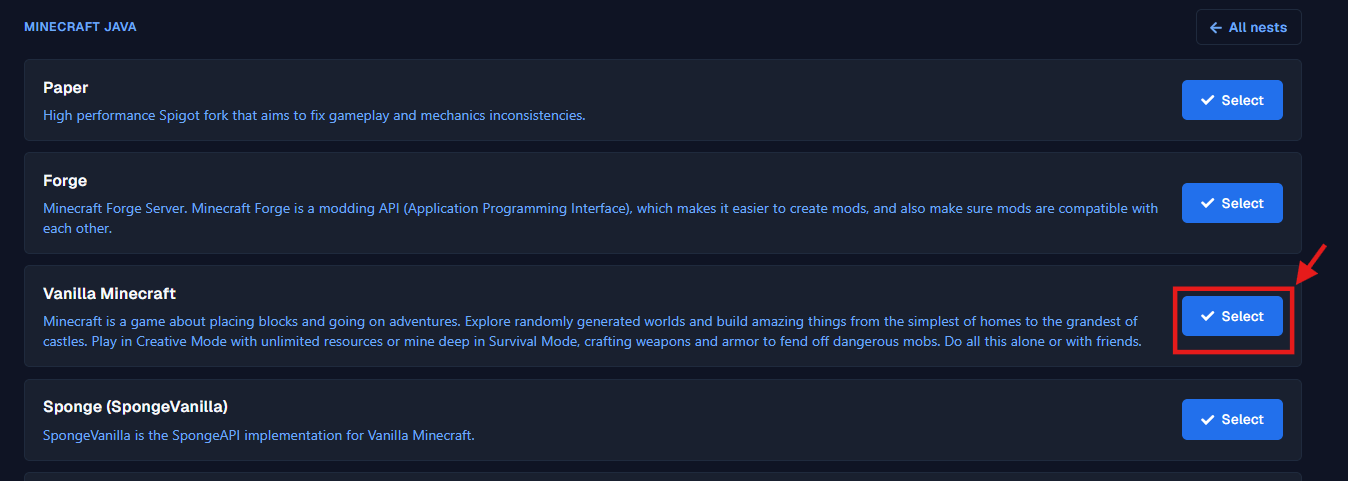
 1. Masuk ke tab `Egg Changer`
2. Klik tombol `Browse` pada Minecraft Java
1. Masuk ke tab `Egg Changer`
2. Klik tombol `Browse` pada Minecraft Java
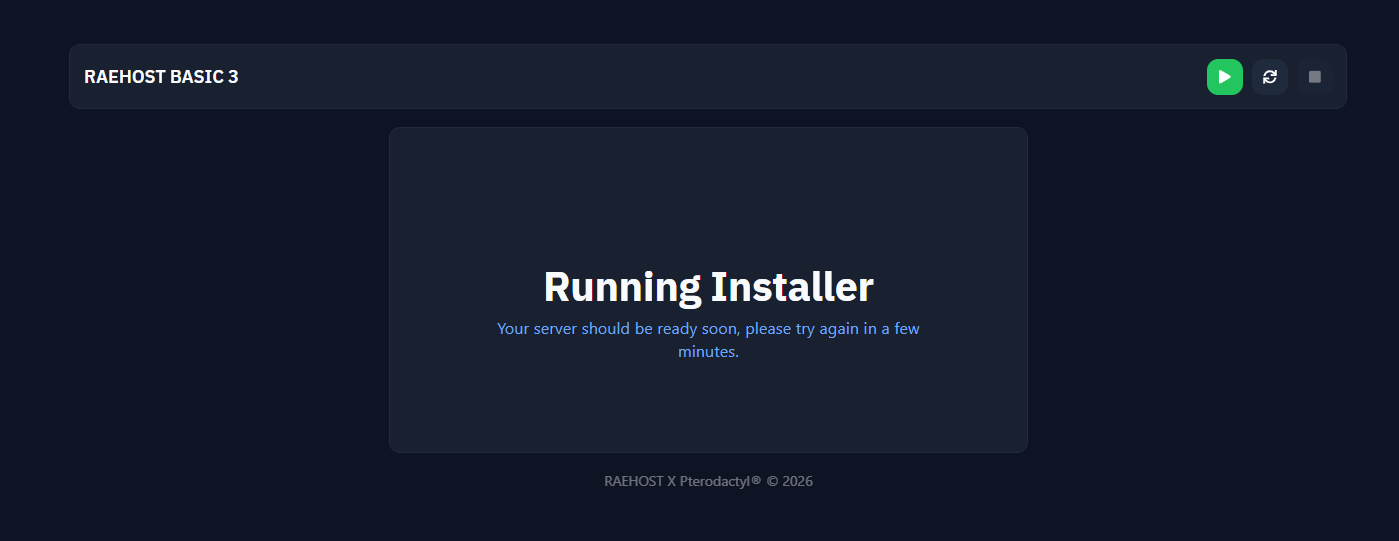
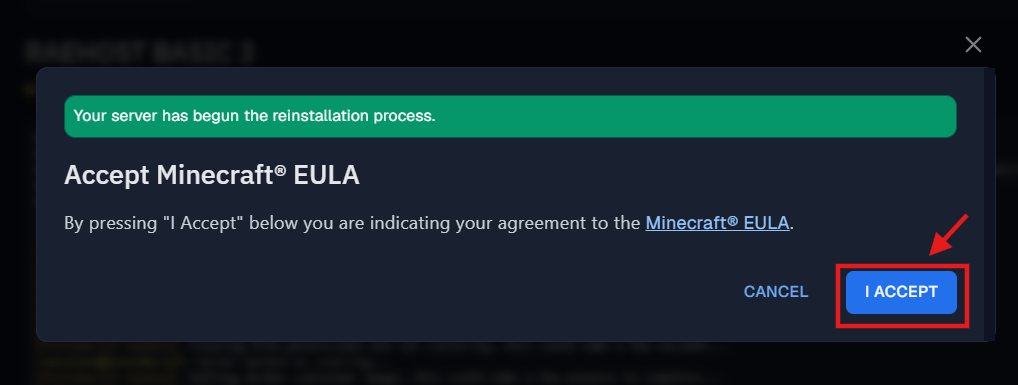
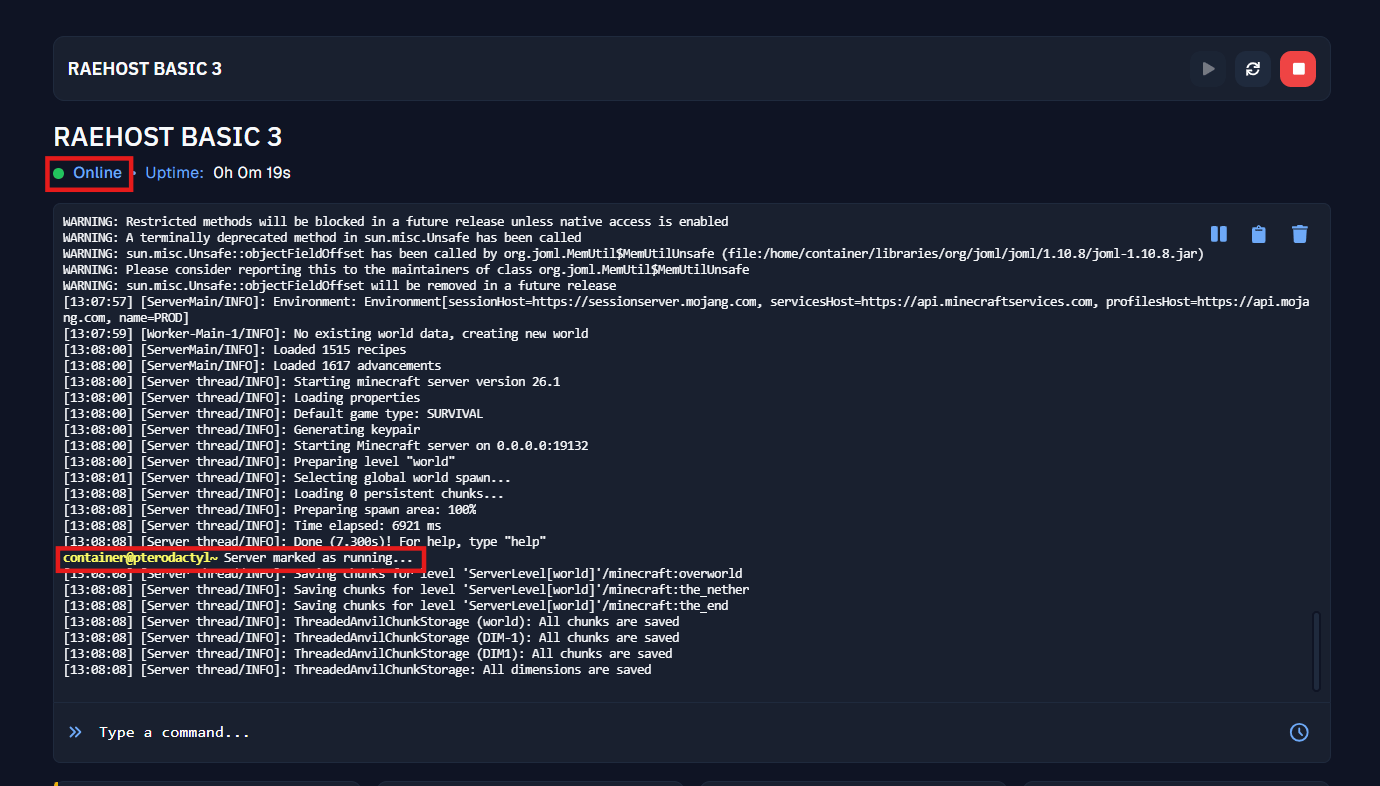
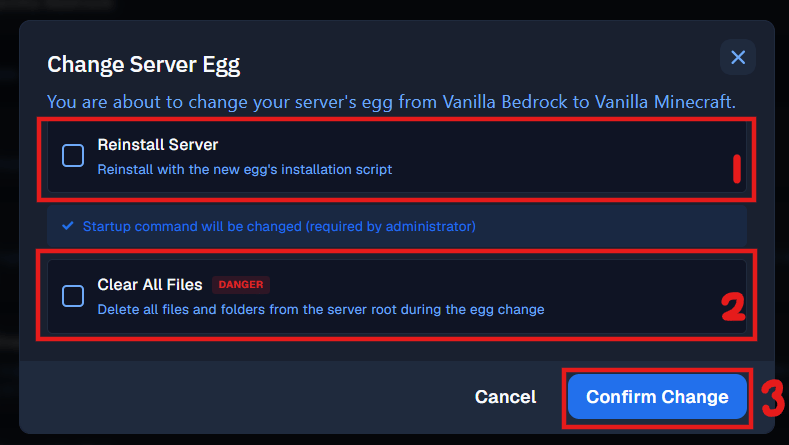 1. Klik `Reinstall Server` jika ingin menjalankan ulang script instalasi sesuai egg baru yang dipilih.
2. Tombol ini bertujuan untuk menghapus seluruh file dan folder server sebelum mengganti egg. **Data server akan terhapus**.
3. Klik tombol `Confirm Change` untuk mengonfirmasi dan menerapkan perubahan egg server.
1. Klik `Reinstall Server` jika ingin menjalankan ulang script instalasi sesuai egg baru yang dipilih.
2. Tombol ini bertujuan untuk menghapus seluruh file dan folder server sebelum mengganti egg. **Data server akan terhapus**.
3. Klik tombol `Confirm Change` untuk mengonfirmasi dan menerapkan perubahan egg server.

 ## Bedrock Edition
Untuk melakukan ini, kamu perlu login ke panel melalui [https://panel.raehost.com/](https://panel.raehost.com/) Kemudian pilih servermu. Klik tombol `Stop` seperti yang ditampilkan oleh nomor 3. Jika sudah di stop, maka server akan `offline` seperti yang ditampilkan oleh nomor 2.
## Bedrock Edition
Untuk melakukan ini, kamu perlu login ke panel melalui [https://panel.raehost.com/](https://panel.raehost.com/) Kemudian pilih servermu. Klik tombol `Stop` seperti yang ditampilkan oleh nomor 3. Jika sudah di stop, maka server akan `offline` seperti yang ditampilkan oleh nomor 2.
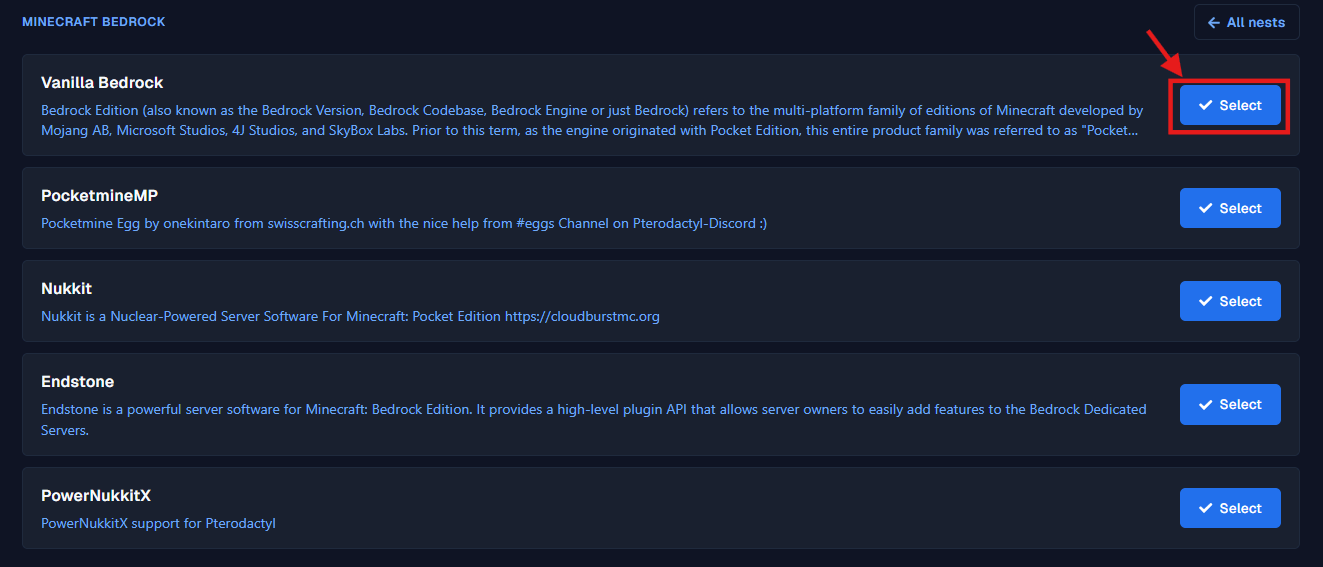
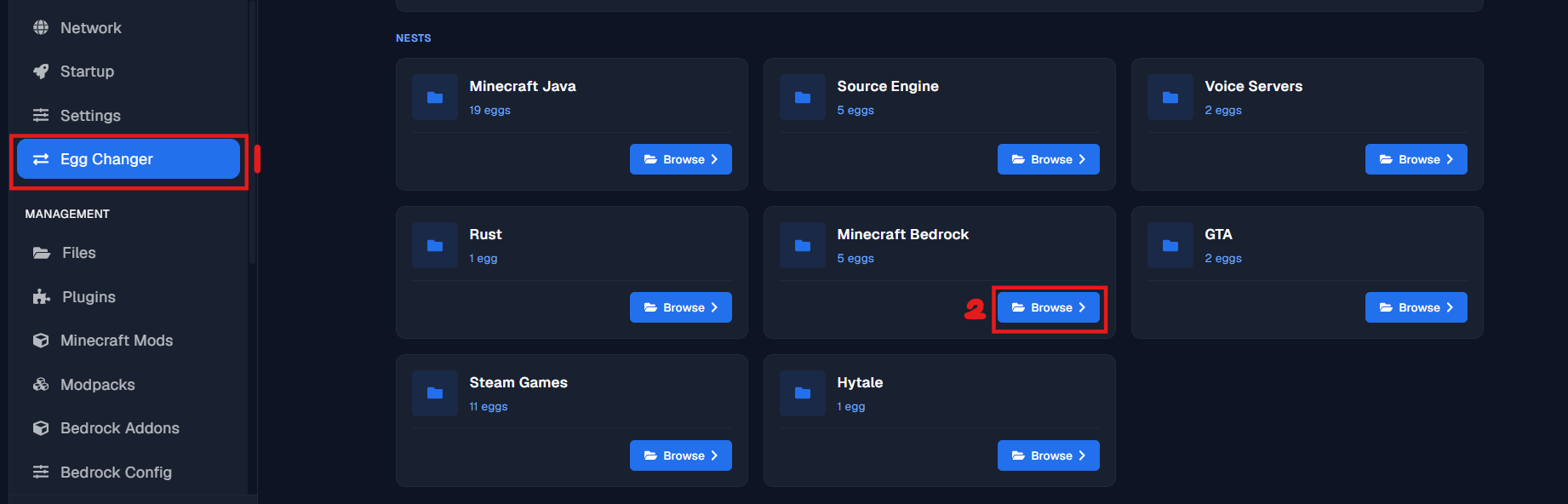 1. Masuk ke tab `Egg Changer`
2. Klik tombol `Browse` pada Minecraft Bedrock
1. Masuk ke tab `Egg Changer`
2. Klik tombol `Browse` pada Minecraft Bedrock
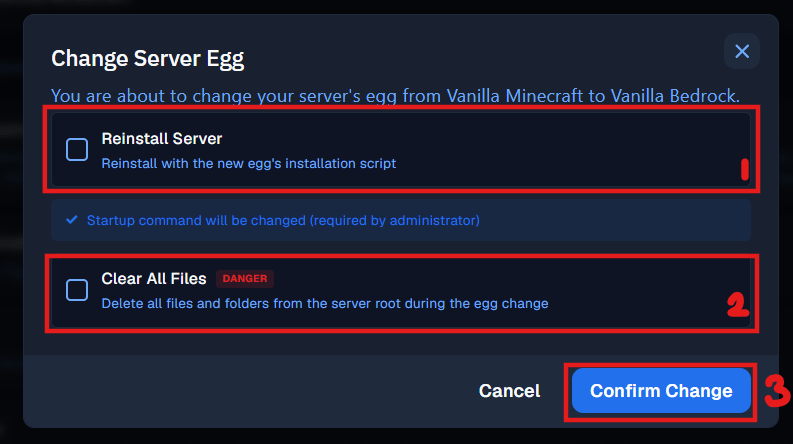 1. Klik `Reinstall Server` jika ingin menjalankan ulang script instalasi sesuai egg baru yang dipilih.
2. Tombol ini bertujuan untuk menghapus seluruh file dan folder server sebelum mengganti egg. **Data server akan terhapus**.
3. Klik tombol `Confirm Change` untuk mengonfirmasi dan menerapkan perubahan egg server.
1. Klik `Reinstall Server` jika ingin menjalankan ulang script instalasi sesuai egg baru yang dipilih.
2. Tombol ini bertujuan untuk menghapus seluruh file dan folder server sebelum mengganti egg. **Data server akan terhapus**.
3. Klik tombol `Confirm Change` untuk mengonfirmasi dan menerapkan perubahan egg server.