> ## Documentation Index
> Fetch the complete documentation index at: https://docs.raehost.com/llms.txt
> Use this file to discover all available pages before exploring further.
# Minecraft Java ke Server RaeHost
Kamu ingin pakai world dari singleplayer ke server RaeHost kamu? Ikuti langkah berikut supaya world bisa ter-upload dengan aman dan tidak error.
`%appdata%\.minecraft\saves`
Pilih world yang ingin di-upload ke server
Contoh yang dihasilkan: MyWorld.zip
Untuk melakukan ini, kamu perlu login ke panel melalui [https://panel.raehost.com/](https://panel.raehost.com/) Kemudian pilih servermu. Kemudian stop server dengan menekan tombol `Stop` seperti yang ditunjukkan oleh nomor 1.
Masuk ke tab `Files`. Klik tombol `Upload` seperti nomor 2. Pilih file world `.zip` yang sudah dibuat. Tunggu hingga upload selesai.
Contoh yang dihasilkan: MyWorld
1. Buka tab `Properties`
2. Cari `Level Name`. Ganti value nya sesuai nama folder world yang di-upload (huruf besar/kecil harus sama / case-sensitive). Contoh world yang disimpan sebelumnya bernama MyWorld, maka isi `MyWorld`.
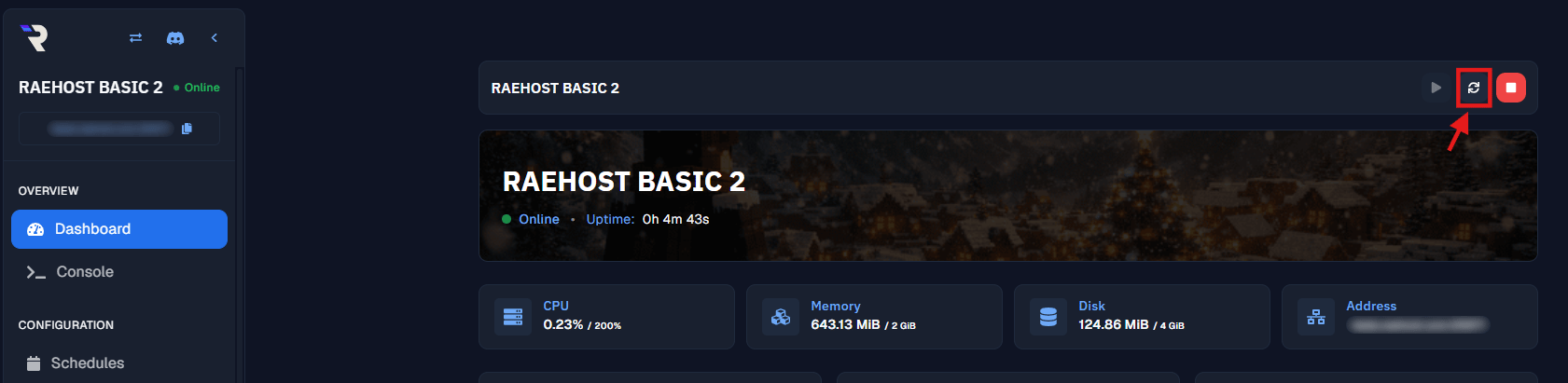
Setelahnya, pergi ke tab `Console` seperti yang ditunjukkan pada nomor 1. Kemudian klik `Restart` seperti yang ditunjukkan pada nomor 2.
 Masuk ke tab `Files`. Klik tombol `Upload` seperti nomor 2. Pilih file world `.zip` yang sudah dibuat. Tunggu hingga upload selesai.
 1. Buka tab `Properties`
2. Cari `Level Name`. Ganti value nya sesuai nama folder world yang di-upload (huruf besar/kecil harus sama / case-sensitive). Contoh world yang disimpan sebelumnya bernama MyWorld, maka isi `MyWorld`.
1. Buka tab `Properties`
2. Cari `Level Name`. Ganti value nya sesuai nama folder world yang di-upload (huruf besar/kecil harus sama / case-sensitive). Contoh world yang disimpan sebelumnya bernama MyWorld, maka isi `MyWorld`.