> ## Documentation Index
> Fetch the complete documentation index at: https://docs.raehost.com/llms.txt
> Use this file to discover all available pages before exploring further.

# Minecraft Java ke Server RaeHost

Pengen pakai world dari singleplayer ke server RaeHost kamu? Ikuti langkah berikut supaya world bisa ter-upload dengan aman dan tidak error.

<Steps>
  <Step title="Siapkan World dari Komputer">
    <Steps>
      <Step title="Buka folder Minecraft:">
        `%appdata%\.minecraft\saves`
      </Step>

      <Step title="Setiap folder di dalam saves adalah world Minecraft kamu">
        Pilih world yang ingin di-upload ke server
      </Step>

      <Step title="Klik kanan folder world → Send to / Kirim ke → Compressed (ZIP) Folder" />

      <Step title="Pastikan hasil akhirnya berupa file .zip" />
    </Steps>

    Contoh yang dihasilkan: MyWorld.zip
  </Step>

  <Step title="Login ke Panel">
    Untuk melakukan ini, kamu perlu login ke panel melalui [https://panel.raehost.com/](https://panel.raehost.com/) Kemudian pilih servermu. Kemudian stop server dengan menekan tombol `Stop` seperti yang ditunjukkan oleh nomor 1.

    <Frame>
      <img src="https://mintcdn.com/raehost/ob2UuHck6K9vZNuI/images/image-64.png?fit=max&auto=format&n=ob2UuHck6K9vZNuI&q=85&s=2a5c2faaf4b36d76dbde1848ac23a4d1" alt="Image" width="1888" height="511" data-path="images/image-64.png" />
    </Frame>
  </Step>

  <Step title="Upload World">
    <Frame>
      <img src="https://mintcdn.com/raehost/ltLhcJDmeqwuwMTE/images/upload-world.png?fit=max&auto=format&n=ltLhcJDmeqwuwMTE&q=85&s=e19c79e27268929fc4b0654fedb82191" alt="Upload World" width="1900" height="334" data-path="images/upload-world.png" />
    </Frame>

    Masuk ke tab `Files`. Klik tombol `Upload` seperti nomor 2. Pilih file world `.zip` yang sudah dibuat. Tunggu hingga upload selesai.
  </Step>

  <Step title="Extract / Unarchive World">
    <Steps>
      <Step title="Setelah upload selesai, klik kanan file .zip" />

      <Step title="Pilih Unarchive atau Extract" />

      <Step title="Setelah berhasil, akan muncul folder world baru" />
    </Steps>

    Contoh yang dihasilkan: MyWorld
  </Step>

  <Step title="Atur Nama World di MC Config">
    <Steps>
      <Step title="Buka tab MC Config" />

      <Step title="Cari LEVEL NAME" />

      <Step title="Ganti value nya sesuai nama folder world yang di-upload">
        (huruf besar/kecil harus sama / case-sensitive). Contoh:

        `LEVEL NAME = MyWorld`
      </Step>
    </Steps>
  </Step>

  <Step title="Restart Server">
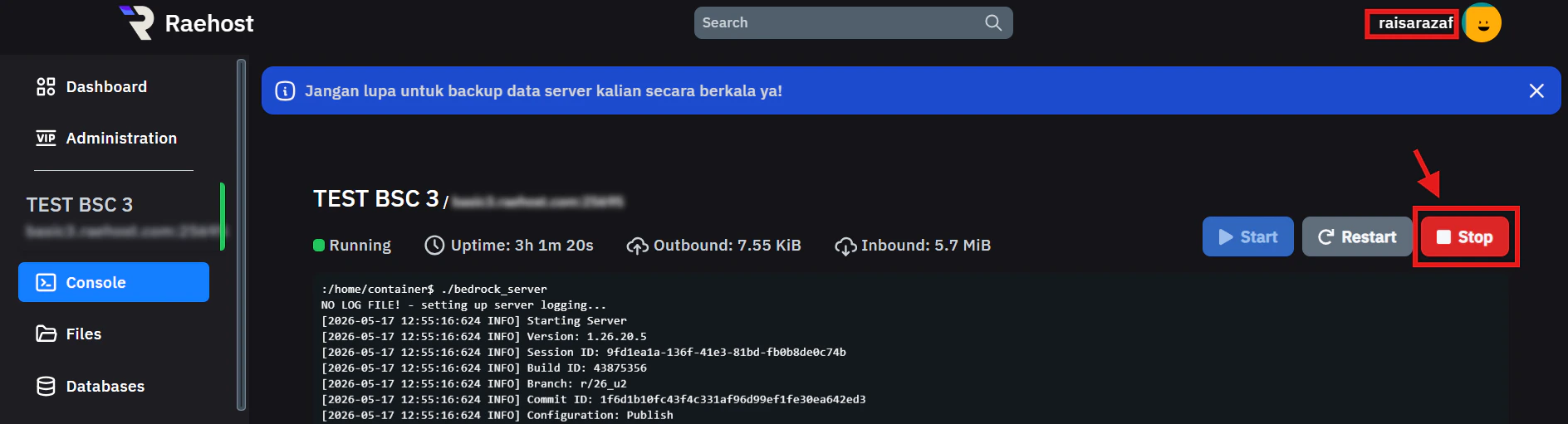
    Setelahnya, pergi ke tab `Console` seperti yang ditunjukkan pada nomor 1. Kemudian klik `Restart` seperti yang ditunjukkan pada nomor 2.
    <Frame>
      <img src="https://mintcdn.com/raehost/DuBe5lfPUkfPDGjK/images/image-60.png?fit=max&auto=format&n=DuBe5lfPUkfPDGjK&q=85&s=5aae0be32334bd5427dbf6ae94441ac2" alt="Image" width="1888" height="472" data-path="images/image-60.png" />
    </Frame>
  </Step>
</Steps>

<iframe src="https://www.youtube.com/embed/dY9MMk1-RKk" title="YouTube video player" frameborder="0" className="w-full aspect-video rounded-xl" allow="accelerometer; autoplay; clipboard-write; encrypted-media; gyroscope; picture-in-picture; web-share" allowfullscreen />